Raspberry Pi Connect
Introduction
Edit this on GitHub
Raspberry Pi Connect provides secure access to your Raspberry Pi from anywhere in the world.
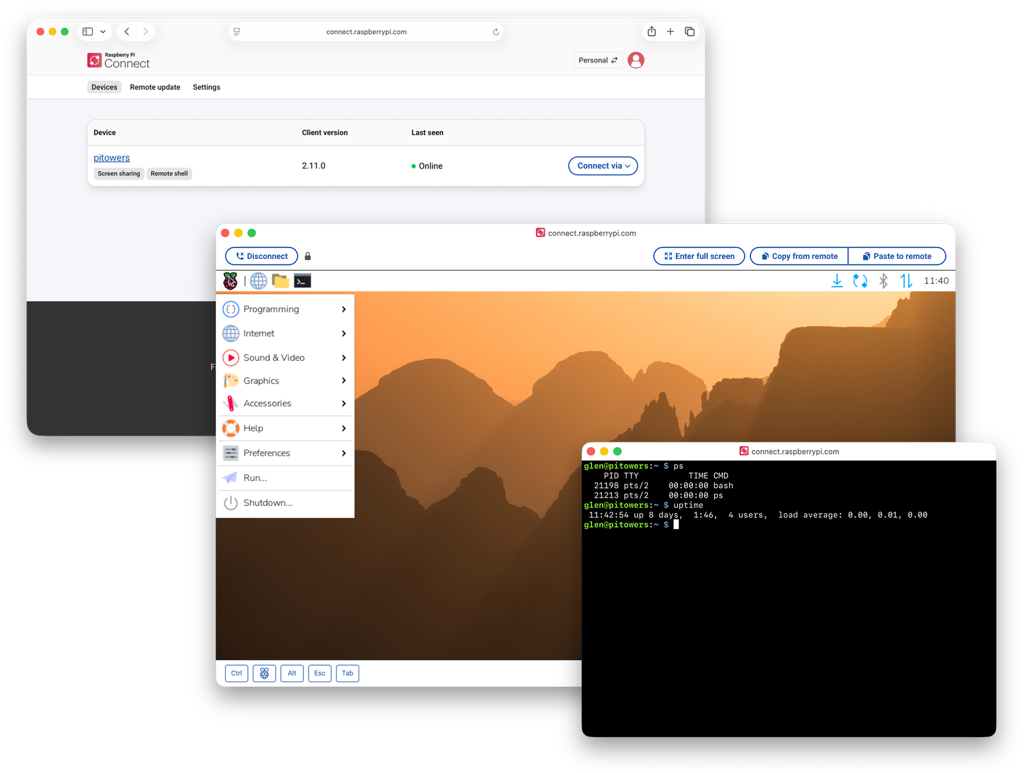
Connect is installed by default in Raspberry Pi OS Desktop and Raspberry Pi OS Full (desktop with recommended software). An alternate Lite variant of Connect, which supports only remote shell access with no ability to screen share, is installed by default in Raspberry Pi OS Lite.
To use Connect, link your device with a Connect account. Visit connect.raspberrypi.com to access the desktop or a shell running on your Raspberry Pi in a browser window.
A personal Connect account is designed for a single user. To share access to your devices with multiple users – for example, across a team or business – upgrade to Connect for Organisations. Creating your first organisation starts a free, four-week trial.
Connect uses a secure, encrypted connection. By default, Connect communicates directly between your Raspberry Pi and your browser. However, when Connect can’t establish a direct connection between your Raspberry Pi and your browser, we use a relay server. In such cases, Raspberry Pi only retains the metadata required to operate Connect.
|
Note
|
To use Connect, your Raspberry Pi must run Raspberry Pi OS Bookworm or later. |
Manually start and stop Connect
Edit this on GitHub
You can turn Connect on and off from either the desktop or the command line:
-
Desktop
-
CLI
To turn on Connect:
From the Connect icon in the menu bar, select Turn On Raspberry Pi Connect.
If you aren’t already signed in with your Raspberry Pi ID, a browser will open and you will be prompted to do so now. Once you’ve signed in, your Raspberry Pi links to your Connect account.
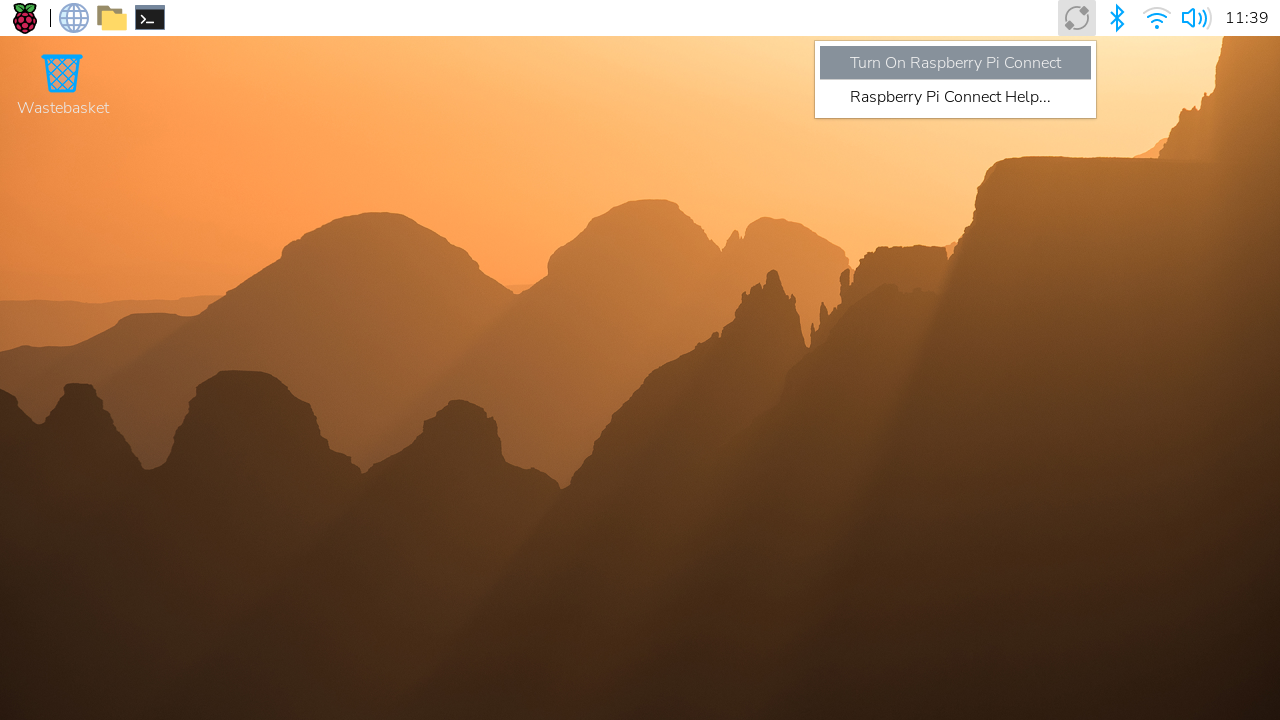
To turn off Connect:
From the Connect icon in the menu bar, select Turn Off Raspberry Pi Connect.
This stops Connect from running.
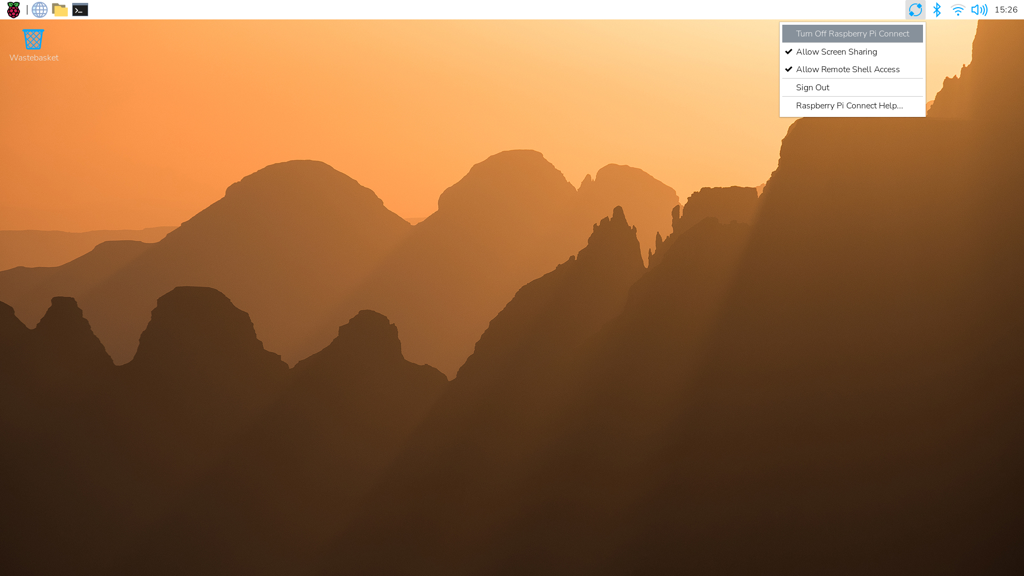
To turn on Connect, run the following command:
$ rpi-connect onThis turns the Connect service on, but doesn’t sign you in.
To sign in, run the following command:
$ rpi-connect signinTo stop Connect, run the following command:
$ rpi-connect offLink a Raspberry Pi device with a Connect account
Edit this on GitHub
After starting Connect on your Raspberry Pi device, you must associate your device with your Connect account.
If you used Raspberry Pi Imager to install Raspberry Pi OS on your device, you might have already linked your device with your Connect account. For more information, see Install using Imager.
If you want to use Raspberry Pi Connect with multiple users, see Raspberry Pi Connect for Organisations.
-
Desktop
-
CLI
-
Using an Auth Key
From the Connect icon in the menu bar, select Turn On Raspberry Pi Connect. This opens your browser, where you’re prompted to sign in with your Raspberry Pi ID:
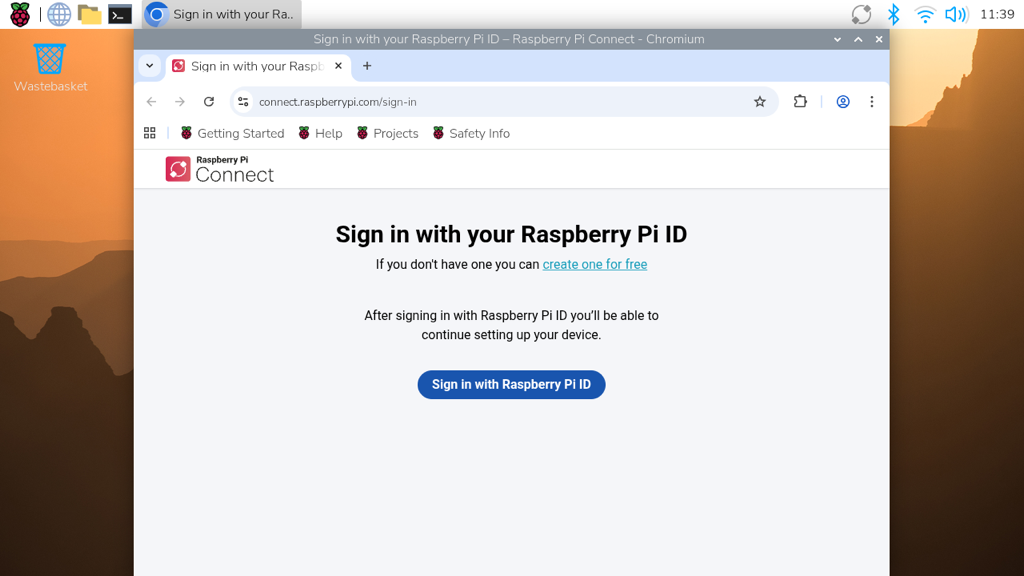
If you’ve already turned on Connect, choose Sign In… from the dropdown menu:
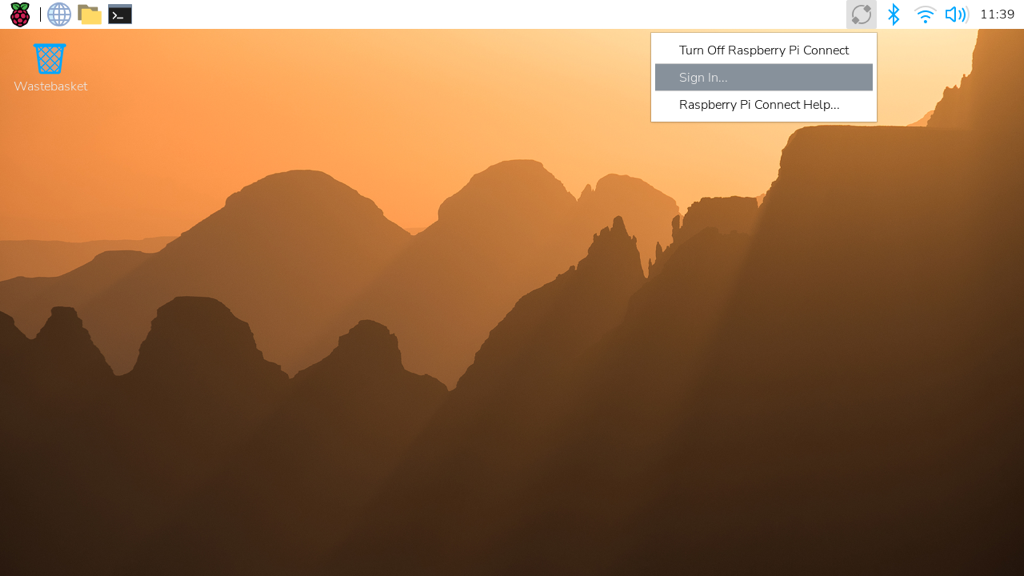
If you don’t already have a Raspberry Pi ID, select the create one for free link to create one.
Use the following command to generate a link that connects your device with your Connect account:
$ rpi-connect signinThis command outputs something like the following:
Complete sign in by visiting https://connect.raspberrypi.com/verify/XXXX-XXXX
To link your device with your Connect account, visit the verification URL on any device and sign in with your Raspberry Pi ID.
An auth key is a single-use, temporary token that lets you link a device to a Connect account automatically (without using the web interface). Personal auth keys expire six hours after creation; organisation auth keys expire between 1 and 90 days after creation (1 day by default).
The easiest way of creating and using an auth key is by using the customisation options in Imager. You can also manually create an auth key from the Settings page of a personal or organisation’s Connect account, and organisation administrators can create auth keys using the management API.
|
Note
|
Personal accounts can only have one auth key active at a time; organisations can have multiple auth keys active at once. You need a unique auth key for each device. |
|
Tip
|
To use an auth key, ensure that you boot your Raspberry Pi and connect it to the internet before the expiry time shown on the Raspberry Pi Connect website. |
After creating an auth key, you can provide this to your device using the rpi-connect signin command, or by writing the auth key to a file in your home directory.
To provide your auth key as a string, run the following command:
$ rpi-connect signin --auth-key=rpuak_123456If you have saved your auth key to a file, you can pass its full path to the command by prefixing it with @:
$ rpi-connect signin --auth-key=@/home/alice/auth.keyIf you save your auth key to .config/com.raspberrypi.connect/auth.key in your home directory, Connect detects it automatically.
Finish linking your Raspberry Pi
After authenticating, assign a name to your device. Choose a name that uniquely identifies the device.
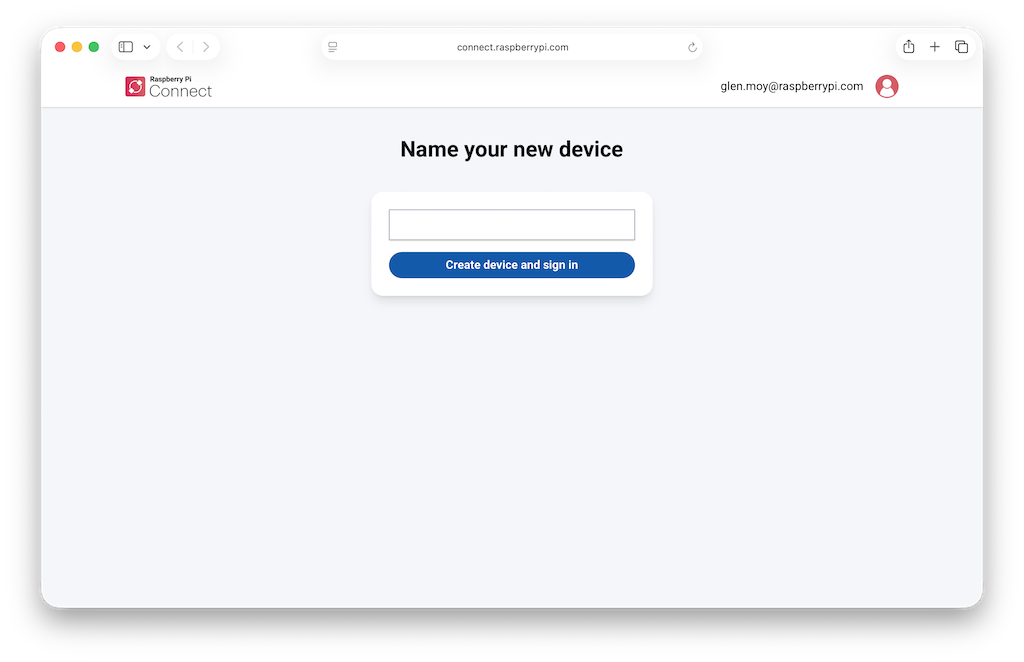
If you’re an administrator of an organisation, select whether to add this device to your personal account or to a specific organisation.
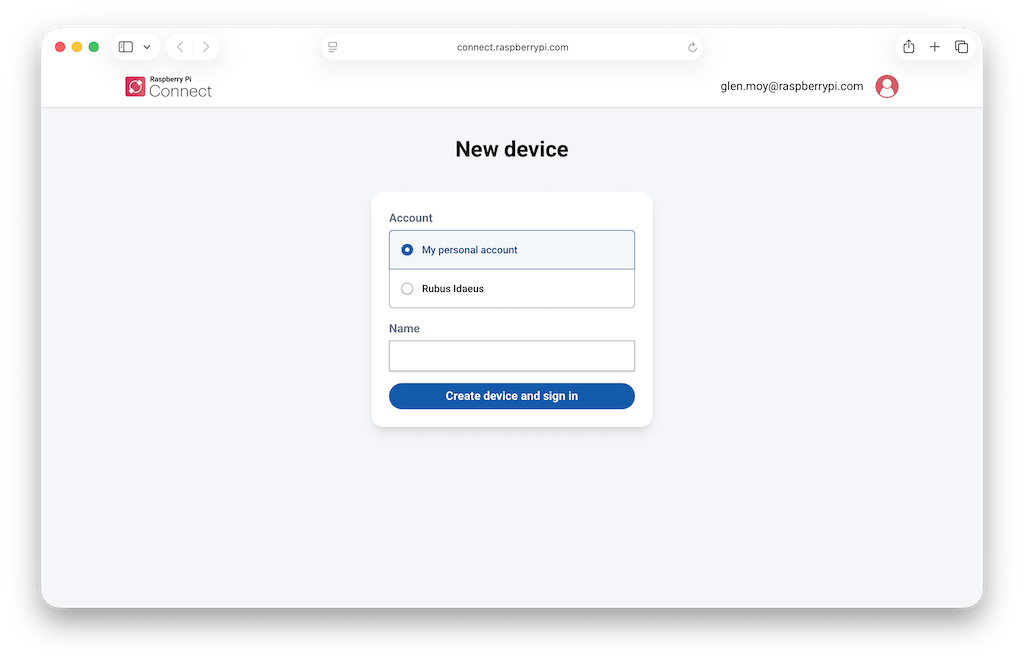
Select the Create device and sign in button to continue.
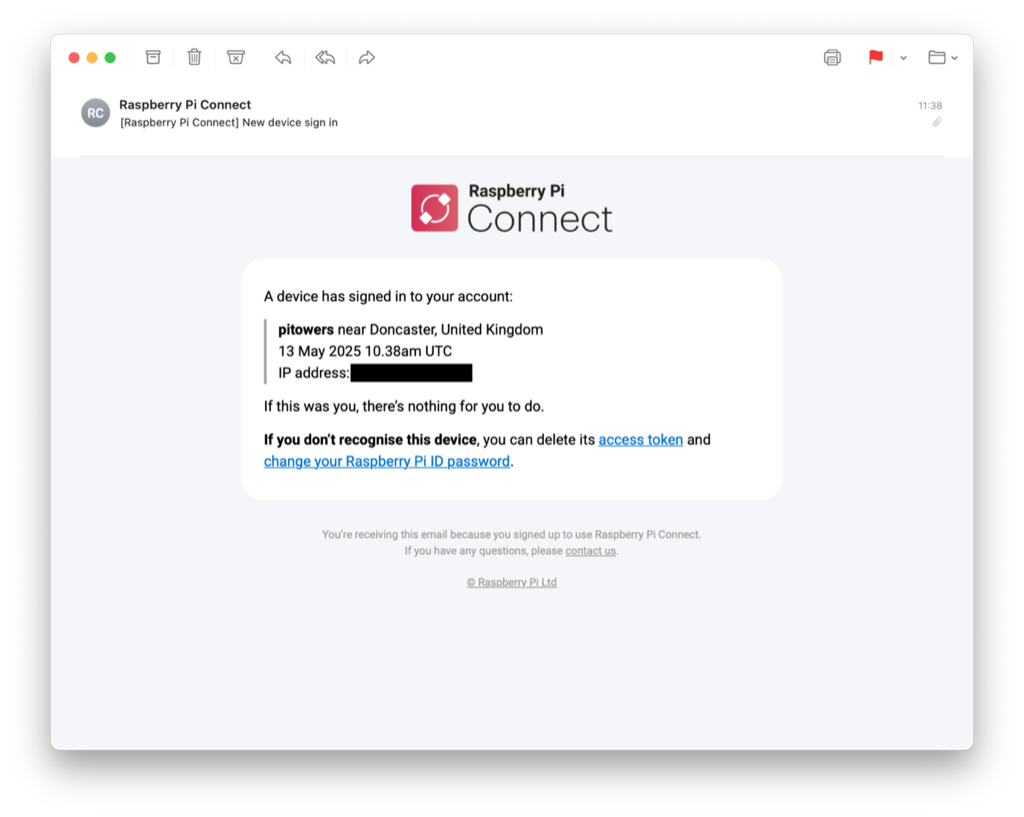
You can now remotely connect to your device. The Connect icon in your menu bar turns blue to indicate that your device is signed in to the Connect service. You should receive an email notification indicating that a new device is linked to your Connect account.
|
Warning
|
If you receive an email that says a device that you don’t recognise has signed into Connect, change your Raspberry Pi ID password immediately. Follow the instructions in Remove the device from Connect to permanently disassociate it from your account. Consider enabling two-factor authentication to keep your account secure. |
Open the Connect menu by selecting the Connect icon in your menu bar. This menu allows you to turn Connect on and off, sign in and out, and allow or disallow remote access methods.
|
Note
|
Connect signs communication with your device’s serial number. Moving your SD card between devices signs you out of Connect. |
Access your Raspberry Pi device
Now that your device appears on your Connect dashboard, you can access your device from anywhere using only a browser. Connect provides multiple ways to interact with your device remotely.
Viewing your devices
Connect lists all your linked devices on the Devices tab. For organisations, you can search and filter this list, and add tags to devices.
Sign in to connect.raspberrypi.com and go to the Devices tab. Connect displays a list of linked devices.
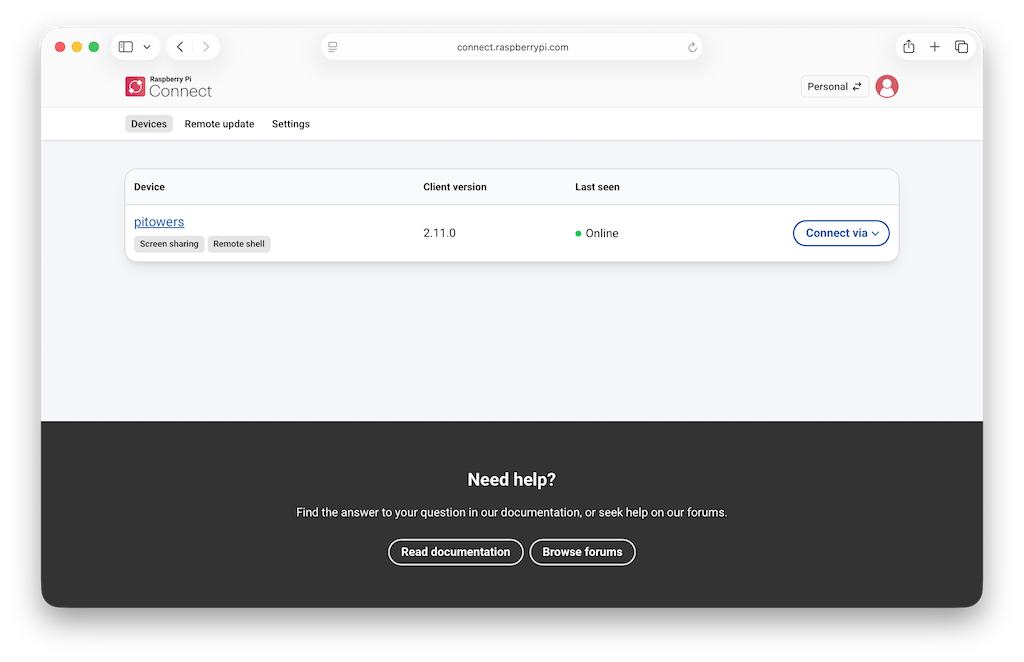
The features available for each device are displayed as a grey badge below the name of the device. You can interact with your devices through the following methods:
Screen sharing
Connect includes the ability to share your device’s screen in a browser. Use the following instructions to share your device’s screen.
|
Note
|
Screen sharing requires the Wayland window server. Raspberry Pi OS Bookworm and later use Wayland by default. Screen sharing is not compatible with Raspberry Pi OS Lite or systems that use the X window server. |
Sign in to connect.raspberrypi.com and go to the Devices tab.
Devices available for screen sharing show a grey Screen sharing badge below the name of the device.
Select the Connect via button to the right of the device you want to access. Select the Screen sharing option from the menu. This opens a browser window that displays your device’s desktop.
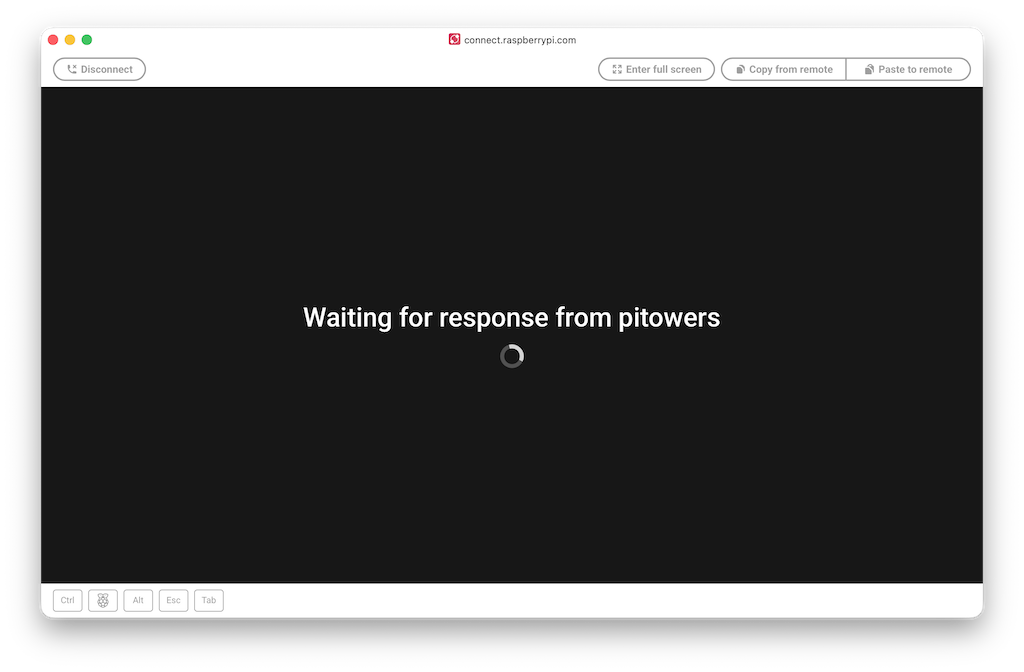
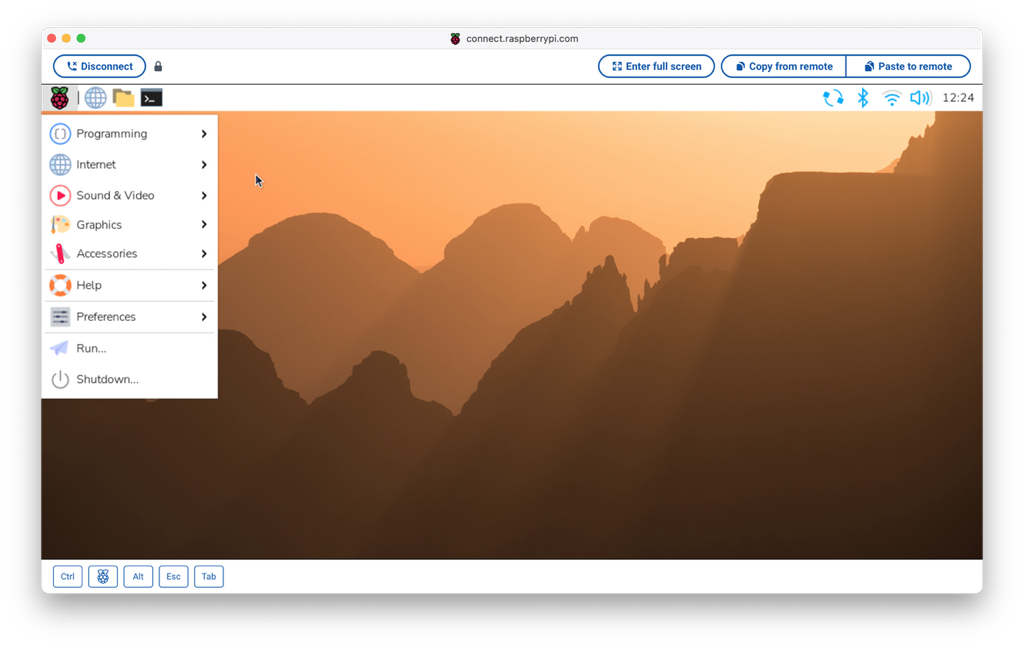
You can now use your device as you would locally. For more information about the connection, hover your mouse over the padlock icon immediately to the right of the Disconnect button.
|
Tip
|
Use the Copy from remote and Paste to remote buttons above your desktop to transfer text between your local and remote clipboards. |
Once connected, a green dot appears next to the Screen sharing badge in the Connect dashboard. This indicates an active screen sharing session. Hover to see the current number of screen sharing sessions.
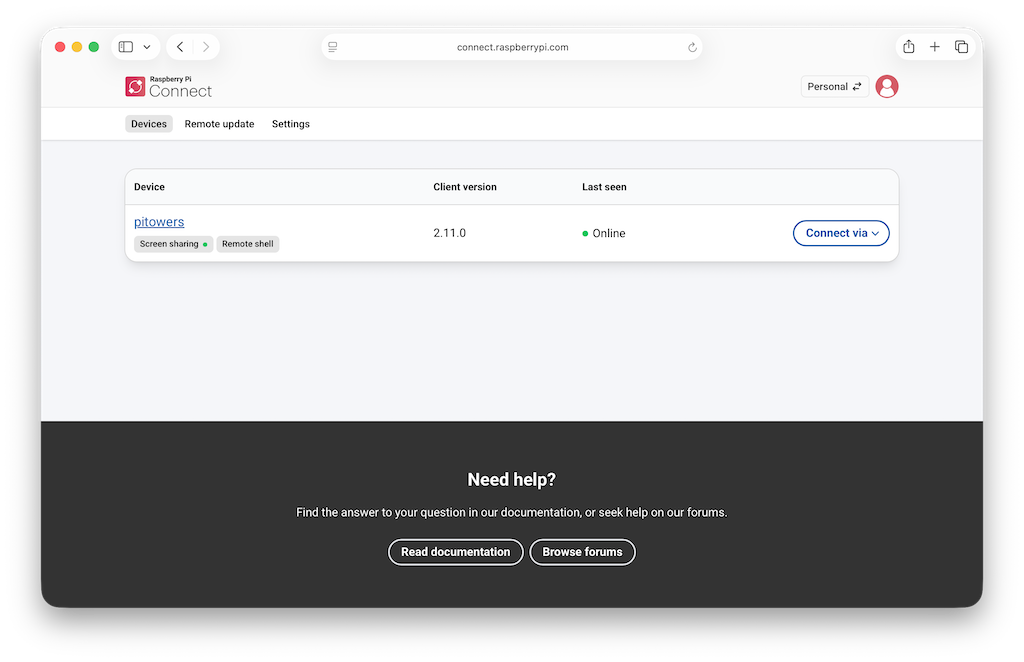
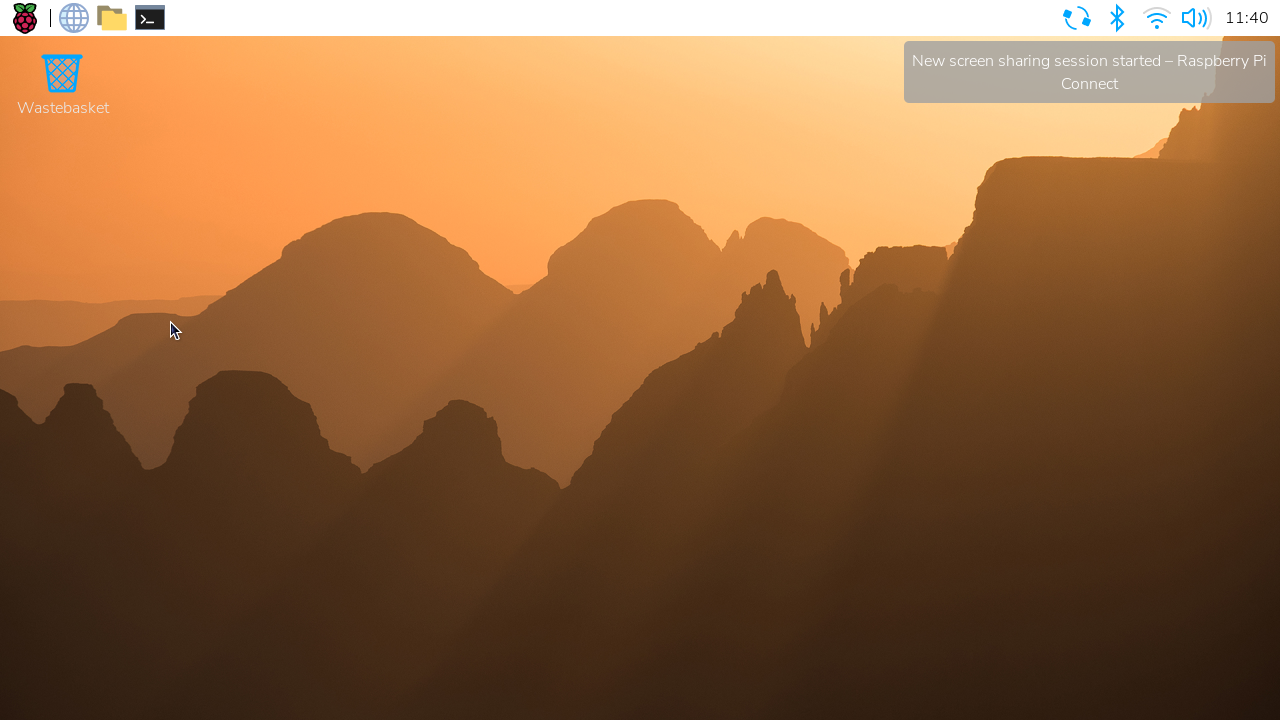
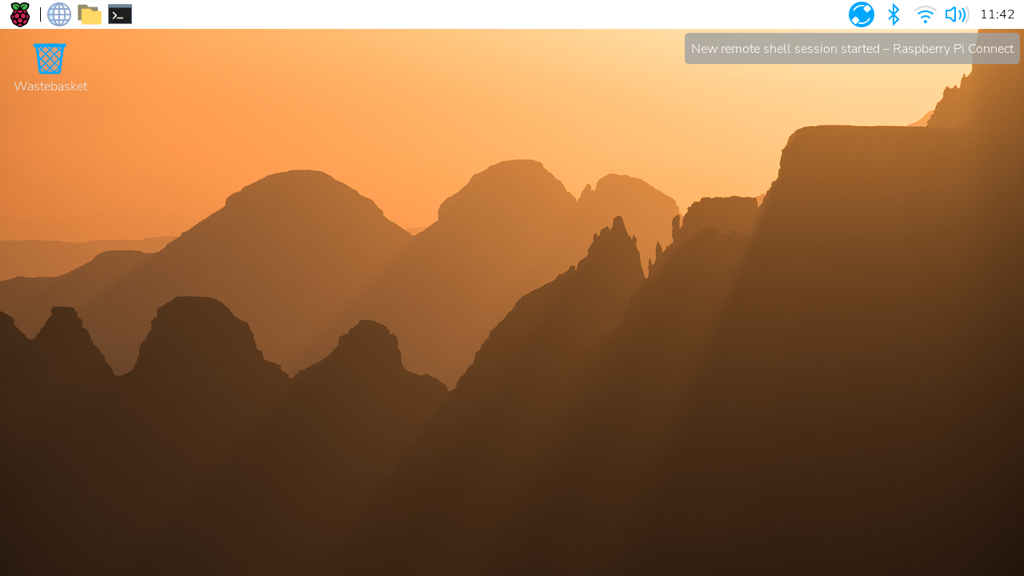
The Connect icon in the system tray rotates when a screen sharing session is in progress. A desktop notification appears whenever a screen sharing session starts.
Screen sharing interface
Connect’s screen sharing interface is designed for both desktop and mobile devices.
You can simulate common keyboard functions using the buttons at the bottom left of the interface:
-
Keyboard. Toggles the on-screen keyboard. Displayed only on mobile devices.
-
Ctrl. Simulates holding down this key on a physical keyboard.
-
Super key. Simulates holding down this key on a physical keyboard.
-
Alt. Simulates holding down this key on a physical keyboard.
-
Esc. Simulates a single press - pressing and then releasing - of this key.
-
Tab. Simulates a single press - pressing and then releasing - of this key.
Stop screen sharing
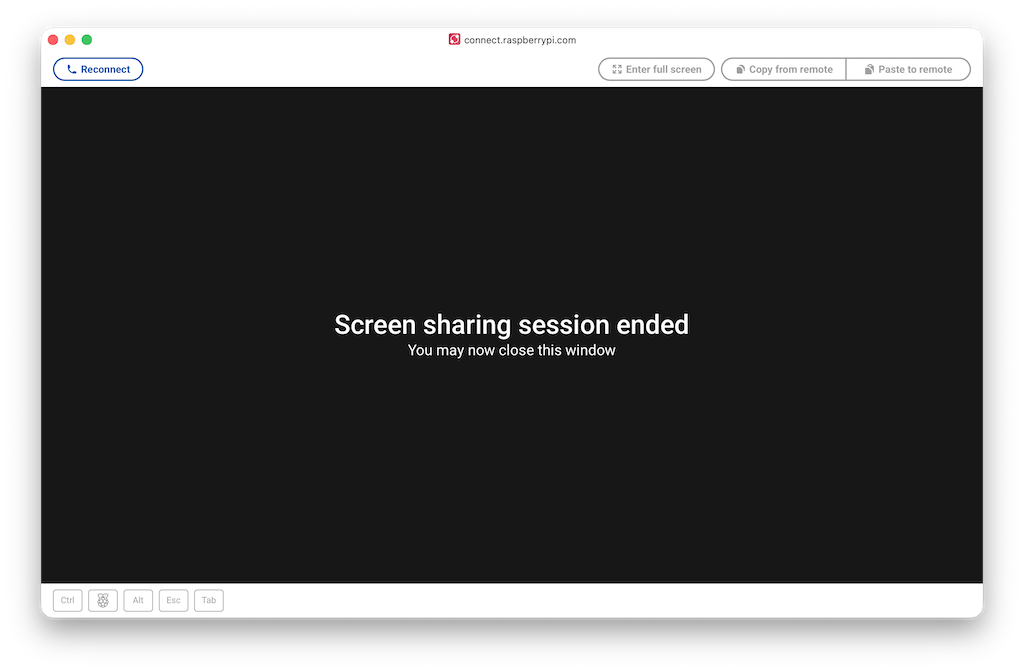
To close a screen sharing session, select the Disconnect button above your desktop.
Disallow screen sharing
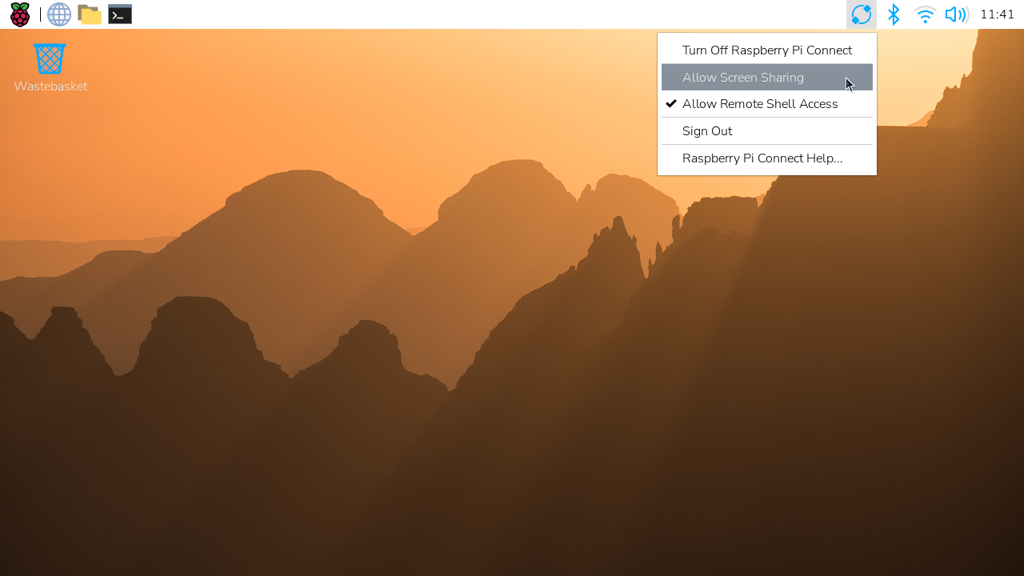
To turn off screen sharing, select the Connect icon in the menu bar then deselect Allow Screen Sharing. Your device remains signed in to Connect, but you can’t create a screen sharing session from the Connect dashboard.
Alternatively, you can disallow screen sharing with the following command:
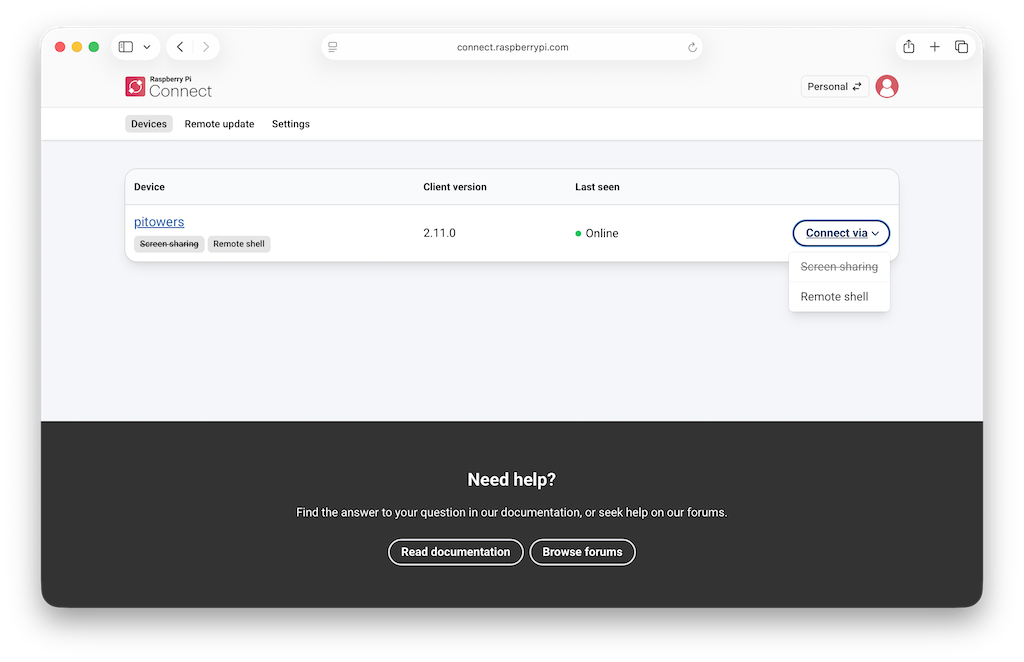
$ rpi-connect vnc offIn the Connect dashboard, the Screen sharing badge and the Screen sharing option in the Connect via menu will appear crossed-out.
To re-enable screen sharing, do one of the following:
-
Select the Connect icon in the menu bar and then choose Allow Screen Sharing
-
Run the following command:
$ rpi-connect vnc on
Remote shell
Connect includes the ability to start a shell running on your device from a browser. Use the following instructions to access the remote shell.
Sign in to connect.raspberrypi.com and go to the Devices tab.
Devices available for remote shell access show a grey Remote shell badge below the name of the device.
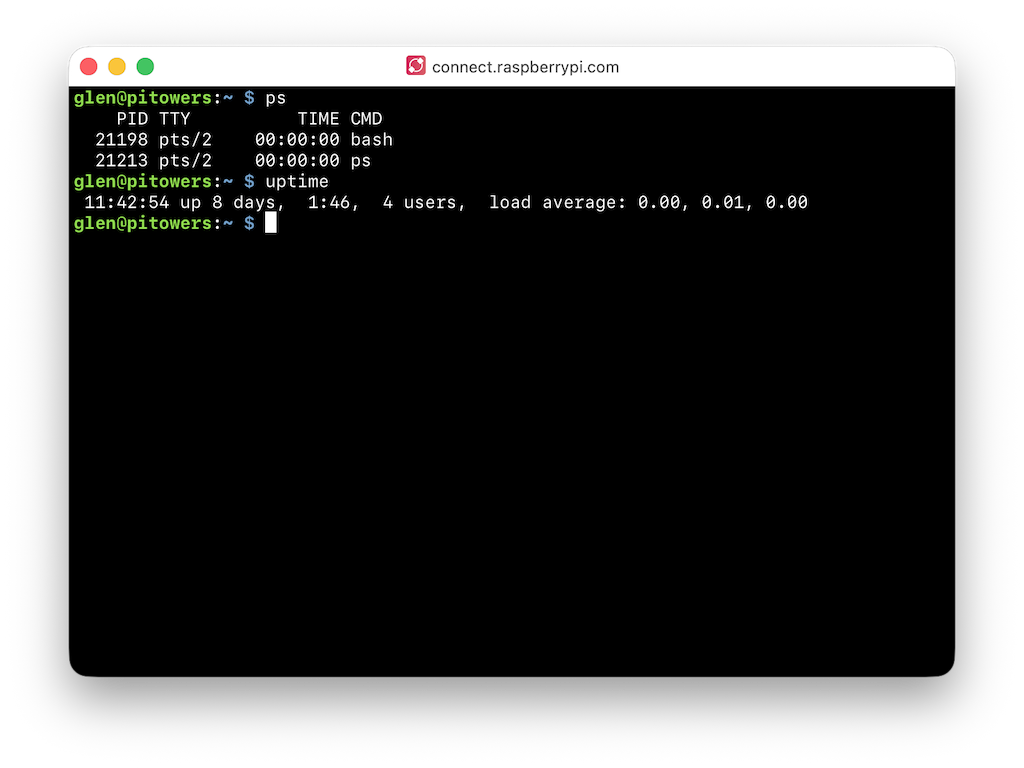
Select the Connect via button to the right of the device you would like to access. Select the Remote shell option from the menu. This opens a shell session on your device.
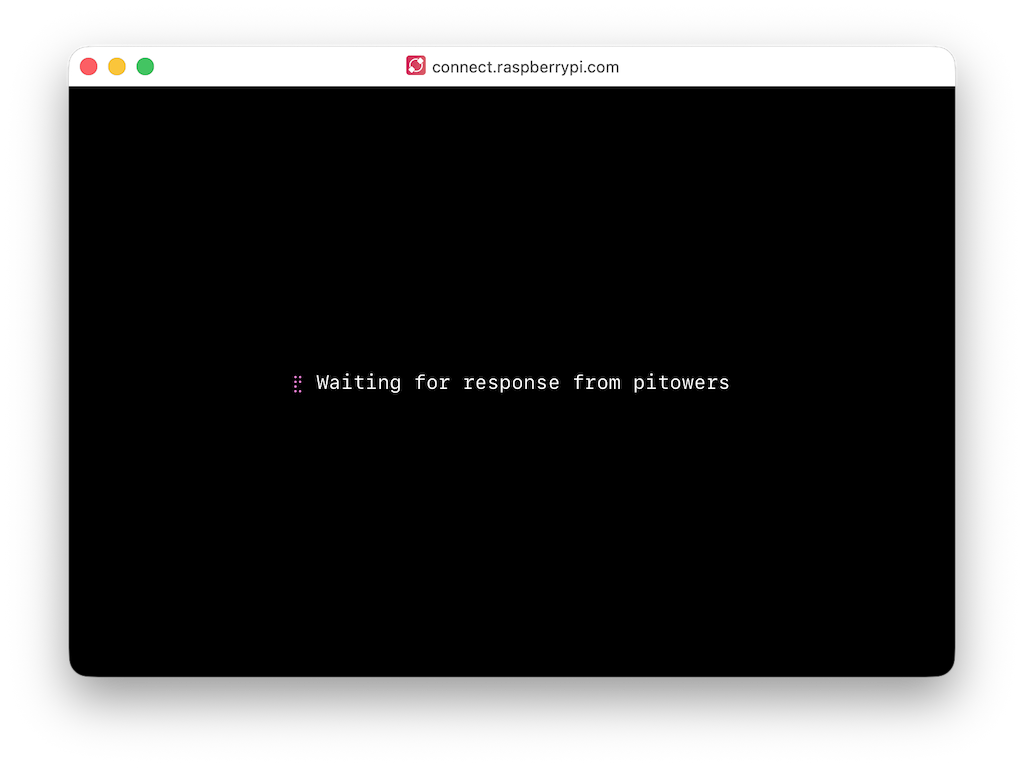
You can now use your device as you would locally.
|
Tip
|
On some operating systems, the browser intercepts key combinations like Ctrl+Shift+C and Ctrl+C. Instead, you can use the right click menu or Ctrl+Insert to copy and Shift+Insert to paste. |
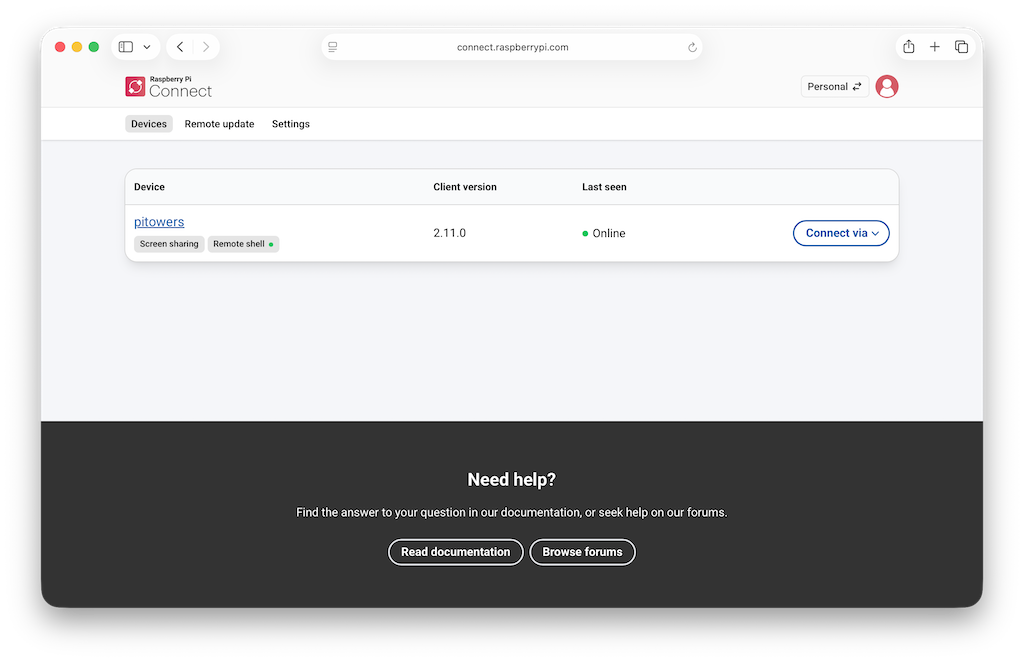
Once connected, a green dot appears next to the Remote shell badge in the Connect dashboard. This indicates an active remote shell session. Hover to see the current number of remote shell sessions.
|
Tip
|
Every remote shell connection creates a brand new connection, just like SSH. To persist background commands and configuration across multiple sessions, use screen or tmux.
|
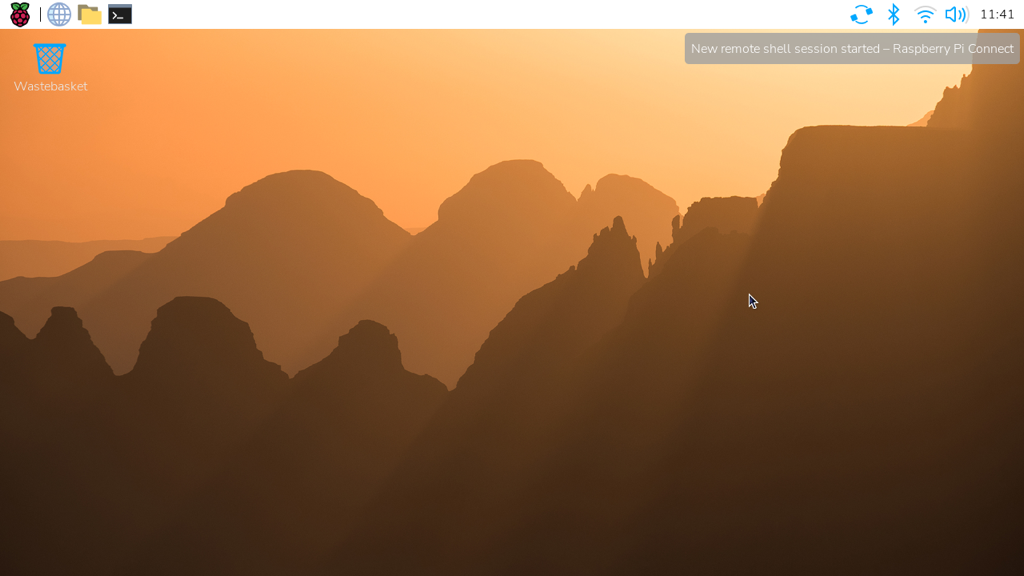
The Connect icon in the menu bar rotates when a remote shell session is in progress. A desktop notification appears whenever a remote shell session starts.
|
Tip
|
The CONNECT_TTY environment variable indicates that a session uses a remote shell provided by Connect.
|
End your remote shell session
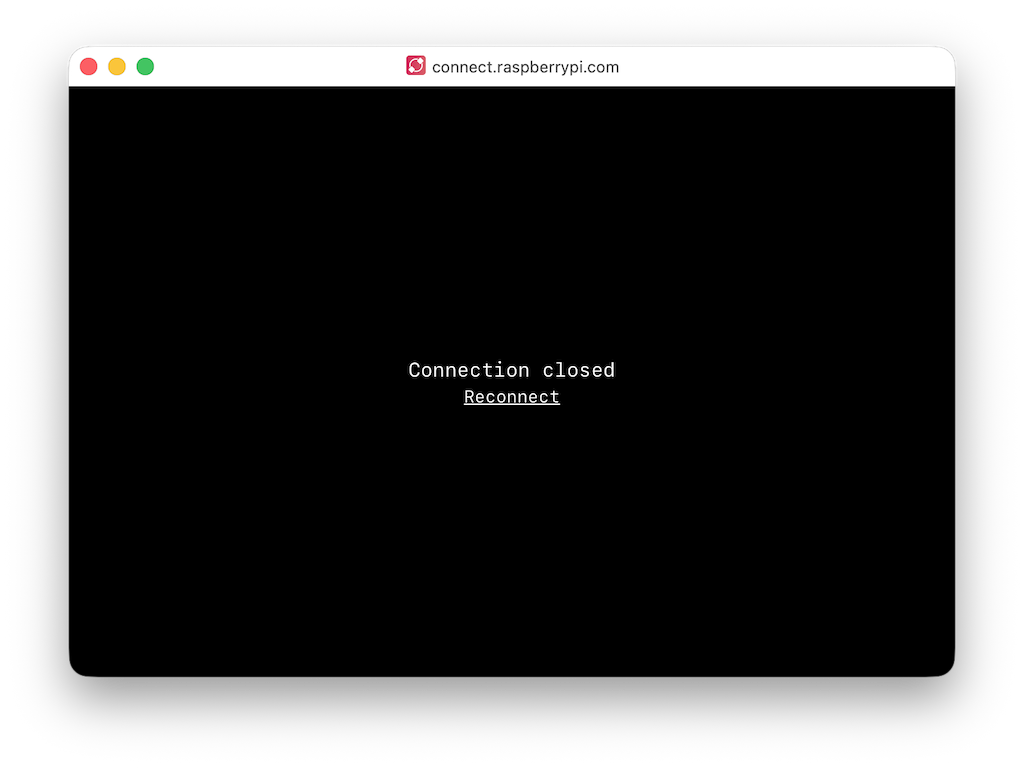
To close a remote shell session, run the exit command or close the window.
Disallow remote shell access
To turn off remote shell access, select the Connect icon in the menu bar and then deselect Allow Remote Shell Access. Your device remains signed in to Connect, but you can’t create a remote shell session from the Connect dashboard.
Alternatively, you can disallow remote shell access with the following command:
$ rpi-connect shell offIn the Connect dashboard, the Remote shell badge and the Remote shell option in the Connect via menu will appear crossed-out.
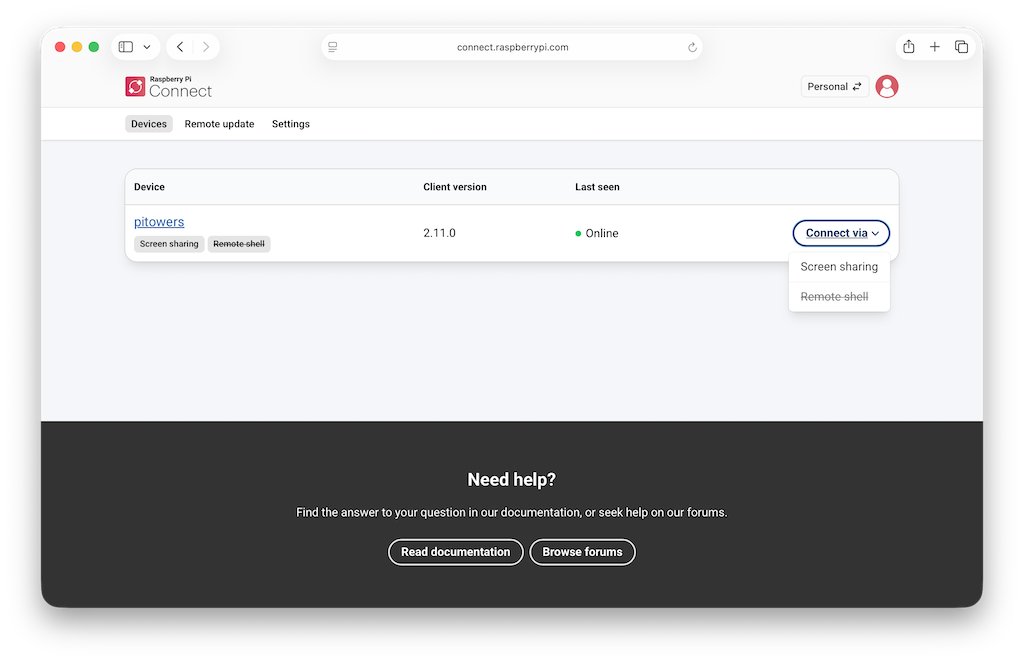
To re-enable remote shell access, do one of the following:
-
Select the Connect system tray icon and choose Allow Remote Shell Access
-
Run the following command:
$ rpi-connect shell on
Remotely update your Raspberry Pi devices
Edit this on GitHub
Raspberry Pi Connect includes the ability to update your Raspberry Pi devices by remotely pushing them updates.
Remote updates are useful for updating devices behind a firewall, devices that are offline (these are updated the next time they sign in to Raspberry Pi Connect), and devices that are physically remote or hard to reach.
Connect supports two types of update artefact:
-
Script artefacts, created with
otamaker, run a shell script as root on the device. They work on a standard installation of Raspberry Pi OS and suit maintenance tasks such as upgrading packages. -
A/B boot updates, created with
rpi-image-gen, replace the entire operating system and automatically revert to the previous version if the update fails. They require imaging the device with an A/B boot layout first.
If you manage a fleet of devices with a team, Connect for Organisations administrators can also manage update artefacts and deployments automatically using the management API.
Script artefacts
Edit this on GitHub
A script artefact packages a shell script that Raspberry Pi Connect runs as root on the recipient device. Use script artefacts for maintenance tasks such as upgrading packages, changing configuration, or installing software.
Unlike an A/B boot update, a script artefact doesn’t require a special partition layout, so you can deploy one to any device running a standard installation of Raspberry Pi OS. However, there is no automatic recovery if a script fails, so test your scripts carefully before deploying them to remote devices.
Use otamaker to create script artefacts.
Prerequisites
The following are required to create and deploy a script artefact:
For the recipient device receiving the update artefact:
A Raspberry Pi device that is:
-
Connected to the internet.
-
Registered with, and signed in to, your Raspberry Pi Connect account.
-
Running the latest version of Raspberry Pi Connect or Connect Lite with the
rpi-connect-otapackage installed:$ sudo apt update $ sudo apt install rpi-connect rpi-connect-otaIf you use Connect Lite, install
rpi-connect-liteinstead ofrpi-connect. -
Opted in to remote updates, which
rpi-connectmanages using itsota(over-the-air) subcommand:$ rpi-connect ota on
For creation of the update artefact using otamaker:
-
The
otamakerutility, which is included in therpi-connect-otapackage.TipTo build artefacts on a computer other than a Raspberry Pi, download otamakerfrom the utils repository on GitHub.
Step 1: Create the script
Write the shell script you want to run on the recipient device. The script runs as root, so it has full access to the device’s filesystem.
Use the script’s exit code to report the outcome of the update to Raspberry Pi Connect:
-
0: the update succeeded. -
1: the update failed. -
2: the update succeeded, and the device must reboot to finish applying it.
For example, the following script, saved as aptupgradescript, upgrades all of the packages installed on the recipient device, and reboots it if any of the upgraded packages require a reboot:
#!/bin/sh
export DEBIAN_FRONTEND=noninteractive
if ! apt update; then
    echo Package index update failed
    exit 1 # EXIT_FAILURE
fi
if apt -y -o DPKG::Options::="--force-confnew" upgrade > output.txt 2>&1; then
    if [ -r /var/run/reboot-required ]; then
        echo Rebooting to finish the upgrade
        exit 2 # EXIT_REBOOT
    fi
else
    echo Upgrade failed:
    echo
    cat output.txt
    exit 1 # EXIT_FAILURE
fi
echo Upgrade complete
exit 0 # EXIT_SUCCESS
Anything the script prints to standard output or standard error is recorded in the recipient device’s systemd journal, which you can view after deployment to verify the update or diagnose a failure. The example script captures the output of apt to a file and prints it only when the upgrade fails, so a successful run records just Upgrade complete.
Step 2: Create the manifest
Next, create a YAML manifest that describes the artefact and the payloads it contains.
The following manifest, saved as aptupgrade.yaml, packages the script from Step 1:
# Run apt upgrade on a remote device
artefact:
  name: aptupgrade
  version: 1.0
  device_type: rpi

payloads:
- name: aptupgradescript
  type: script
The artefact section names and versions the artefact. The payloads section lists the files to package: each payload’s name is the name of a file in the directory where you run otamaker, and a type of script tells the recipient device to execute it. To package a file from another directory, add its path as a comment after the payload’s name, for example - name: aptupgradescript # scripts/aptupgradescript.
Step 3: Build the artefact
Build the artefact by passing the manifest to otamaker:
$ otamaker aptupgrade.yamlThis creates a Zstandard-compressed update artefact (.tar.zst file) containing the manifest and the script, and outputs the artefact’s SHA-256 checksum.
Copy down the checksum: you need it to register the artefact on the Raspberry Pi Connect website.
Step 4: Host, register, and deploy the artefact
Deploy a script artefact in the same way as an A/B boot update artefact:
-
Host the
.tar.zstfile somewhere the recipient device can download it from, then register its URI and SHA-256 checksum on the Raspberry Pi Connect website, as described in Host the update artefact. You can skip the step that calculates the checksum:otamakeralready output it when it built the artefact. -
Select the recipient device and deploy the artefact to it, as described in Update remotely. Skip the final verification step, which applies only to A/B boot updates: verify a script artefact as described in Step 5 below.
A/B Boot Update
Edit this on GitHub
The A/B boot update prevents a failed or faulty update from causing your device to stop working.
The configuration has two independent slots, each made up of a boot and a system partition. Slot A is used for the existing operating system (OS) and slot B is used for the update. The device boots from slot B, but reverts to booting from the known working partition, slot A, if that fails. This process repeats with each successive update.
Configuring for A/B boot requires being able to physically access the device. This is because you must image the device with the appropriate A/B boot layout. However, once configured, you can then deliver remote updates using Raspberry Pi Connect.
Raspberry Pi 5 and later devices that use EEPROM boot can also be configured to use A/B boot update. See A/B bootloader updates.
Use rpi-image-gen to create both the A/B boot configuration (.img file) and the update artefacts (.tar.zst files). Use Raspberry Pi Imager to configure the .img file and write it to the storage device for transfer to the recipient Raspberry Pi.
Prerequisites
The following are required to use remote update and the A/B boot configuration:
For creation of the A/B boot configuration and creation of the update artefact using rpi-image-gen:
A Raspberry Pi device on which is installed:
-
The latest 32-bit or 64-bit version of Raspberry Pi OS (Trixie).
-
The latest version of Raspberry Pi Connect or Connect Lite.
-
The latest version of Raspberry Pi Imager.
To configure the recipient device for A/B boot:
-
A storage device (typically, microSD) to save the A/B boot layout to and a way to connect the storage device to the Raspberry Pi.
You must have at least 16 GB of space, but you must decide exactly how much disk space you need based on your expected future requirements for the boot partition (firmware, kernel, device tree files, and possibly initramfs) and the system partition (kernel modules and system-level software such as the standard Linux command-line utilities).
Implement A/B boot and remotely update the first image
Follow the four stages below to implement the A/B configuration and send updates using Raspberry Pi Connect:
-
Stage 1: Prepare the recipient Raspberry Pi 4 and later device for remote updates by creating an A/B boot file, then deploy it to the device.
-
Stage 2: Create an update artefact file for deployment to the recipient device.
-
Stage 3: Host the update artefact and register it on the Raspberry Pi Connect website.
-
Stage 4: Use Raspberry Pi Connect’s remote update feature to select the recipient device, then deploy the update artefact to that device.
Stage 1: Create A/B boot configuration
Standard Raspberry Pi OS installations don’t feature an A/B boot configuration. This stage shows you how to create one using rpi-image-gen and Raspberry Pi Imager.
rpi-image-gen outputs an .img file containing the A/B boot image.
Raspberry Pi Imager then uses the .img file to write the operating system configuration to the storage device. This includes opting the device in to remote updates so that Raspberry Pi Connect can update it.
You must have physical access to the recipient device to update it for the first time, but once you’ve configured it, you can send updates remotely thereafter.
In Step 3, you generate an auth key to allow the recipient device to link to the Raspberry Pi Connect website. This auth key is tied to a single recipient device, so create a new key for each recipient device you want to update.
|
Note
|
You must be using a Raspberry Pi device running the latest version of Raspberry Pi OS (Trixie) to create the update. The recipient device must be a Raspberry Pi 4 or later. |
To update a recipient device with an A/B boot configuration:
Step 1: Install rpi-image-gen
-
On the Raspberry Pi, from the command line, run the following command to clone the rpi-image-gen repository from GitHub:
$ git clone https://github.com/raspberrypi/rpi-image-gen.git -
Navigate to the cloned directory, then install the dependencies by running the following commands:
$ cd rpi-image-gen
$ sudo ./install_deps.sh
Step 2: Prepare and configure the image
|
Tip
|
rpi-image-gen contains an example application, with layers and configuration, to build an image compatible with remote updates. |
For descriptions of the .yaml file metadata, see X environment metadata and Layer.
To prepare the image:
-
Navigate to the rpi-image-gen installation folder
-
Open
examples/ota/layer/ota.yaml -
Customise the following metadata:
-
X-Env-Layer-Name.
-
X-Env-Layer-Category.
-
X-Env-Layer-Desc.
-
X-Env-Layer-Reqs.
-
-
Open
examples/ota/config/ota.yaml -
Set the following environment variables:
-
Version. Used to determine the version boot image. Set a starting version number now and increment it accordingly with each update artefact you create in the future. If you don’t specify a version number, it defaults to 1.0.0.
-
Device hostname. Used across all images created for this device. Must be unique. If you don’t specify a device hostname, the default value
ota-device-1is created for each build.
-
-
(Optional) open
examples/ota/config/ota.yamland:-
Define additional packages to install at build time. For more information, see Packages.
-
Add wireless networking credentials. For more information, see Wireless Networking.
-
Step 3: Generate an auth key
In this step, you create the auth key and copy it down for use in Step 4.
When you boot the recipient device after the A/B boot update (Step 6), it exchanges the auth key for an access token that is saved in the user data partition. This key persists across future updates, so you only have to generate it once.
For more information about creating auth keys for an organisation, see Create auth keys.
To generate the auth key:
-
Log in to Raspberry Pi Connect
-
Choose your organisation or Personal account from the account switcher at the top right.
-
Go to the Provisioning tab (for an organisation) or the Settings tab (for Personal), then select New in the Auth keys section (organisation) or Create new auth key (Personal).
-
Fill out the form, then select Create auth key.
-
Copy down the key.
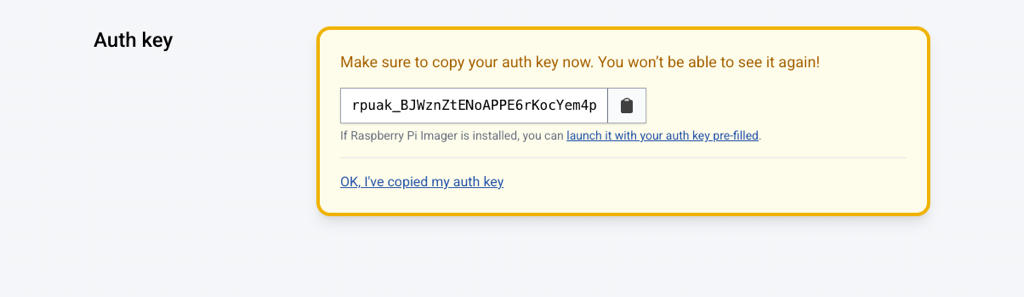
Step 4: Build the A/B boot configuration image
Now that you’ve set up the application and created an auth key, create the boot configuration image using rpi-image-gen.
This creates a .img file that will be written to the storage device with Raspberry Pi Imager in Step 5.
To build the A/B boot configuration image:
-
From the command line, change directory to the rpi-image-gen folder.
$ cd rpi-image-gen -
Run the following command, replacing
rpuak_XXXwith the auth key you copied in Step 3 (organisation auth keys start withrpoak_).Raspberry Pi 5 and later:
$ ./rpi-image-gen build -S ./examples/ota/ -c ota.yaml -- IGconf_connect_authkey=rpuak_XXXRaspberry Pi 4:
$ ./rpi-image-gen build -S ./examples/ota/ -c ota.yaml -- IGconf_device_layer=rpi4 IGconf_connect_authkey=rpuak_XXXThe application generates the file and saves it in the /rpi-image-gen/work/image-x.x.x folder (where x.x.x corresponds to the version environment variable you set in Step 2).
Step 5: Write the image
Next, use Raspberry Pi Imager to create the operating system configuration and save it to the storage device.
|
Warning
|
In the example target below, (/dev/mmcblk0) is only used if you’re booting from another device, such as an NVMe SSD. Be careful not to overwrite the operating system.
|
To write the image:
-
If Raspberry Pi Imager is not already installed, run the following from the command line:
$ sudo apt install rpi-imager -
Open Raspberry Pi Imager from the Accessories menu in the graphical interface. Enter your password if prompted to.
-
Select the recipient device type: Raspberry Pi 4 or Raspberry Pi 5, then select Next.
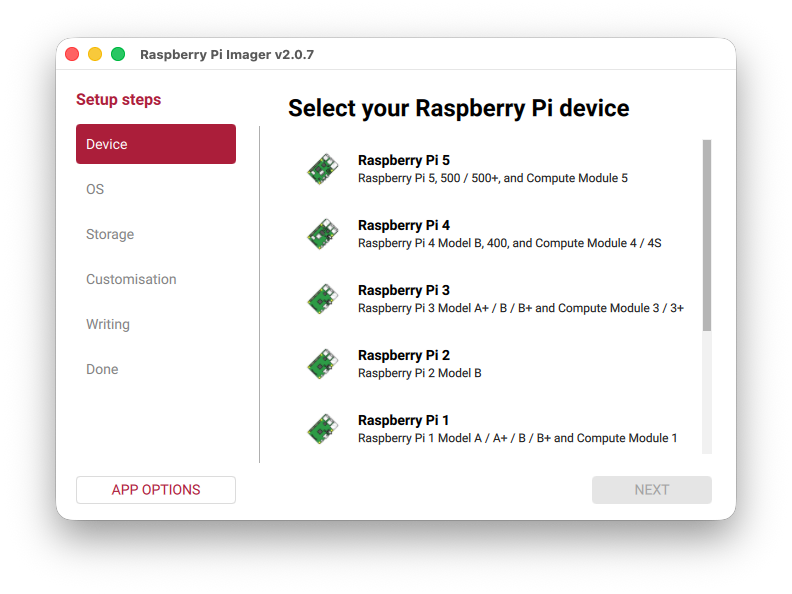 Raspberry Pi Imager is used to write the image.
 -
On the OS tab, scroll all the way to the bottom and select Use Custom.
-
Navigate to the
.imgfile you created in step 4, select it, then select Open. -
Select Next and choose the storage device to save the A/B boot configuration to.
-
Select Write, then follow the on-screen prompts to complete the writing process.
-
When Raspberry Pi Imager finishes writing the operating system, select Finish.
You can now safely remove the storage device in preparation for Step 6.
Step 6: Deploy the .img file to the recipient device
-
Power off the recipient device.
-
Attach the storage device from Step 5.
-
Power the recipient device on, then wait for it to boot with the new image.
-
Log in to Raspberry Pi Connect, then go to Devices.
The device appears on the Raspberry Pi Connect dashboard and the Remote update label appears beneath the device.
The device is now ready to update remotely using Raspberry Pi Connect.
Step 7: Confirm the deployed version
Confirm the version of the deployed image on the device is the same as the one you configured in Step 2.
To confirm the deployed image version:
-
Select the device in Raspberry Pi Connect.
-
Select Connect.
-
From the command line, enter:
$ cat /etc/rpi-issueThe command line returns something like the following:
Generated using rpi-image-gen e3828f885c860f15991468883d3b8484b0eaf9d8 on 2025-12-09
Artefact version: 1.0.0
Stage 2: Create update artefact
Now the device is configured for A/B booting, deliver update artefacts to it using Raspberry Pi Connect.
Update artefacts are created by rpi-image-gen as .tar.zst files. These are much smaller than the .img file you created in Stage 1, and are deployed in Stage 4 to the recipient device by Raspberry Pi Connect.
For the purposes of illustration, we continue to use the example update from Stage 1 here. Amend these procedures to reflect the path and naming of your own update .yaml file.
To build the update artefact:
Stage 3: Host the update artefact
Now that you’ve created an update artefact to deploy using Raspberry Pi Connect, you can host it on an FTP/SFTP server, save it locally using a file:// URI, put it on a public web server, an S3 bucket, or any other website that the recipient device can download from using HTTP.
Next, you register the URI and SHA-256 checksum with Raspberry Pi Connect. This is so that Connect can tell the device – which you select in Stage 4 – where to find the update file.
The URI you provide is used to find and push the update artefact to the recipient device. This location must therefore be accessible to the recipient device, but it doesn’t have to be accessible to the Raspberry Pi Connect servers.
Here is an example URI: http://192.168.0.1:8080/path/to/update.tar.zst
It contains the following required information:
-
The host IP: 192.168.0.1
-
The port: 8080
-
The path: /path/to/update.tar.zst
In the procedures that follow, we show you how to serve an update artefact from a Raspberry Pi host computer that is on the same network as the Raspberry Pi recipient.
To host the update artefact:
Step 1: Run an HTTP server on the host device
-
Run this command from the terminal to create a server and host the update artefact (change the artefact image directory accordingly):
$ python -m http.server 8080 --directory ./work/image-myapp-1.1.0
Step 2: Calculate the SHA-256 checksum of the update file
Next, provide both the artefact’s SHA-256 checksum to ensure it hasn’t been corrupted or tampered with, and the host IP address so that it can be sent to the recipient device in Stage 4.
To find the checksum and IP address:
-
Run this command from the terminal:
$ sha256sum ./work/image-myapp-1.1.0/update.tar.zst -
Copy down the checksum.
Step 3: Find the host computer’s IP address on the local network
You must provide a URI for the update artefact, part of which is the host IP address.
To find the IP address:
-
Run this command from the terminal:
$ hostname -I -
Copy down the IP address.
Step 4: Register the artefact on the Raspberry Pi Connect website
Now that you have hosted the update artefact, and have its IP address and checksum copied down, register the details on the Raspberry Pi Connect website.
To register the update artefact, follow these steps or go to Stage 4, Step 1 if you want to both register it and select the recipient device in one go.
For personal devices:
-
Log in to Raspberry Pi Connect.
-
Choose your organisation or Personal account from the account switcher at the top right.
-
Go to the Remote update tab, then select New.
-
Enter a name for the artefact, then paste in the URI and SHA-256 (from Steps 2 and 3).
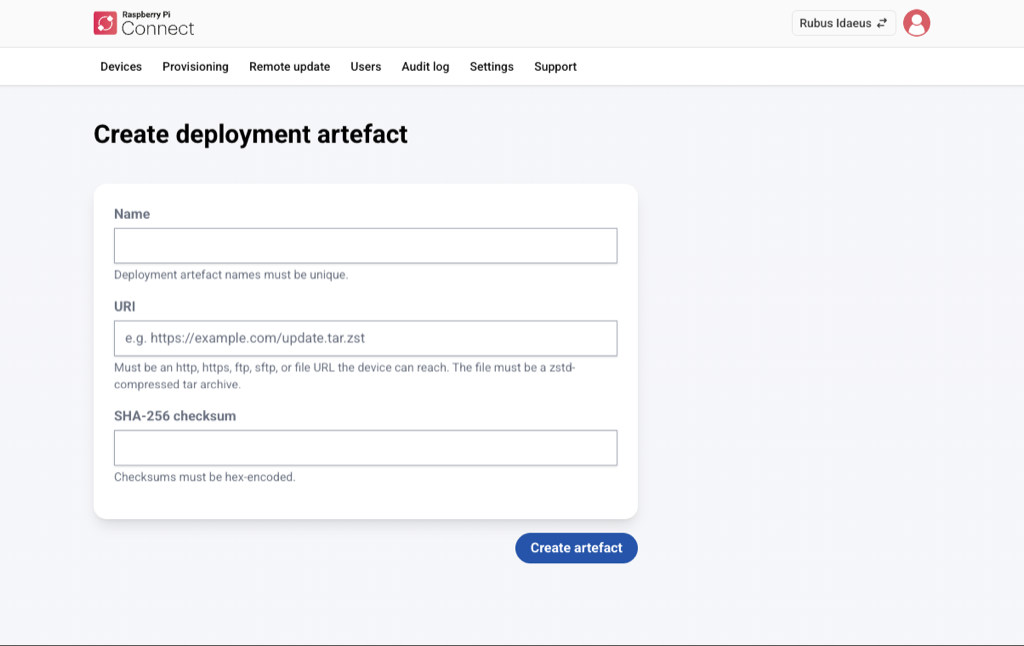
Stage 4: Update remotely
Use Raspberry Pi Connect to deploy the update artefact to the recipient Raspberry Pi device.
The Raspberry Pi Connect website is used to choose which device to deploy the update artefact to, so make sure the recipient device is registered to your personal or organisation account before you proceed.
|
Note
|
You cannot delete an artefact once you have deployed it or attempted to deploy it. This is to provide traceability in the event that your account is compromised. |
To deploy the artefact:
Step 1: Select the recipient device, then deploy the artefact
-
Log in to Raspberry Pi Connect.
-
Select the Personal or organisations account to which the recipient device is registered, using the account switcher at the top right.
-
Go to the Devices tab, then select the recipient device.
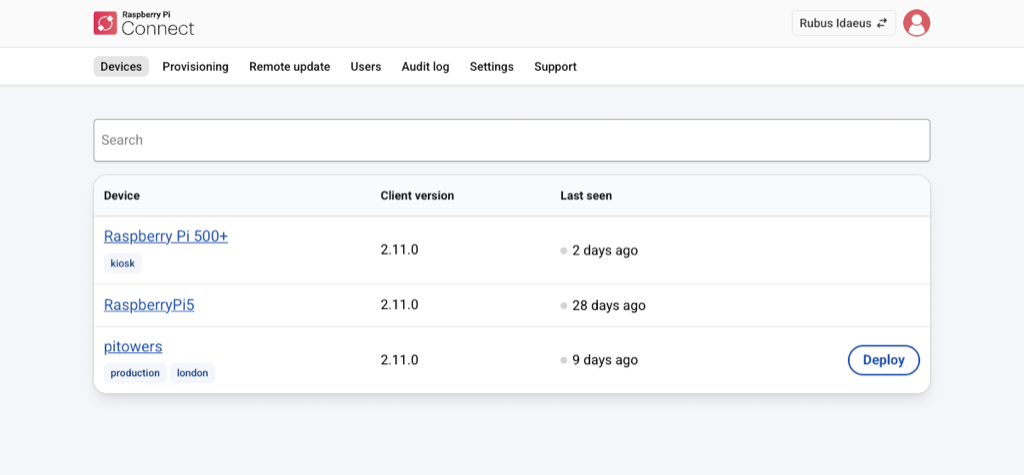 The device list displays a Deploy button for the devices that have remote update enabled.
 -
Select Deploy
-
If you have one or more existing update artefacts already registered in your Remote update tab, select one of the following, otherwise select New:
-
Existing: select the deployment artefact from the drop-down list, then select Deploy.
-
New: follow the procedures in Stage 3 (above) to create a new update artefact, then select Create and deploy.
Refresh your browser to see deployment updates. The progression is Pending, In Progress, and eventually Succeeded.
If the deployment displays Failed, select it to reveal the error message, then see Troubleshooting.
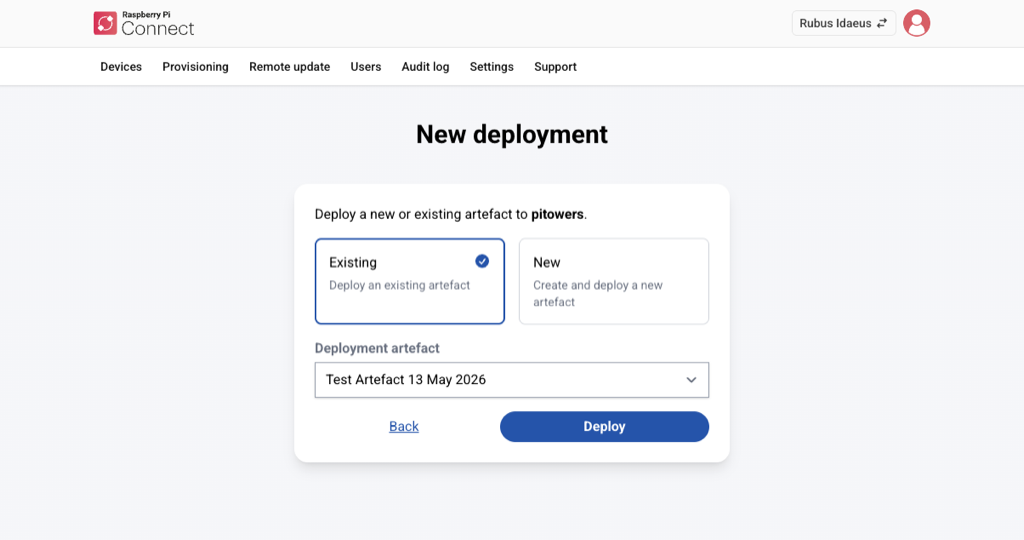 After you’ve selected Deploy, the New deployment screen gives you the choice of selecting an existing deployment, or creating a new one.Note
a Pending deployment can be cancelled by selecting the deployment and then selecting Cancel. Pending deployments are also automatically cancelled when another deployment is queued up.
-
Step 2: Verify the update
When the deployment shows as Succeeded, verify the update.
To verify the update:
-
Sign in to Raspberry Pi Connect.
-
Choose your organisation or Personal account from the account switcher at the top right.
-
Select the Devices tab.
-
Find the recipient device you just updated, then select Connect.
-
From the command line, enter:
$ cat /etc/rpi-issueThe command line returns something like the following, indicating that the Artefact version number has changed:
Generated using rpi-image-gen e3828f885c860f15991468883d3b8484b0eaf9d8 on 2025-12-09
Artefact version: 1.1.0
Enable remote shell at all times
Edit this on GitHub
Connect runs as a user-level service, not as root. As a result, Connect only works when your user account is currently logged in on your device. This can make your device unreachable if you reboot with automatic login disabled. To continue running Connect even when you aren’t logged into your device, enable user-lingering. Run the following command from your user account to enable user-lingering:
$ loginctl enable-linger|
Tip
|
We recommend enabling user-lingering on all headless Raspberry Pi OS Lite setups to prevent your device from becoming unreachable after a remote reboot. |
Disable the animated icon
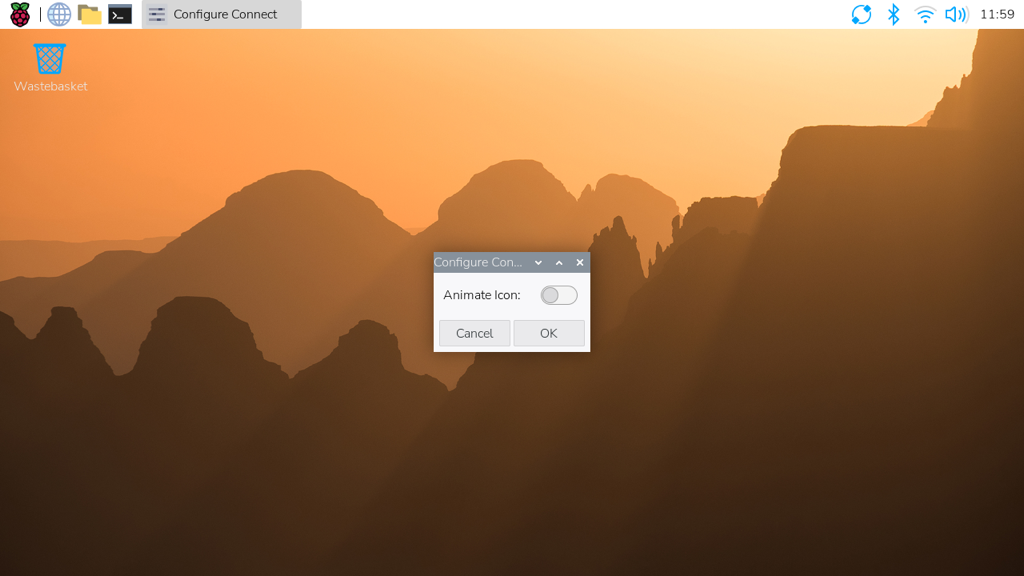
To disable the animated icon when a screen sharing or remote shell session are in progress, right-click the Connect icon in the menu bar and select Configure Plugin….
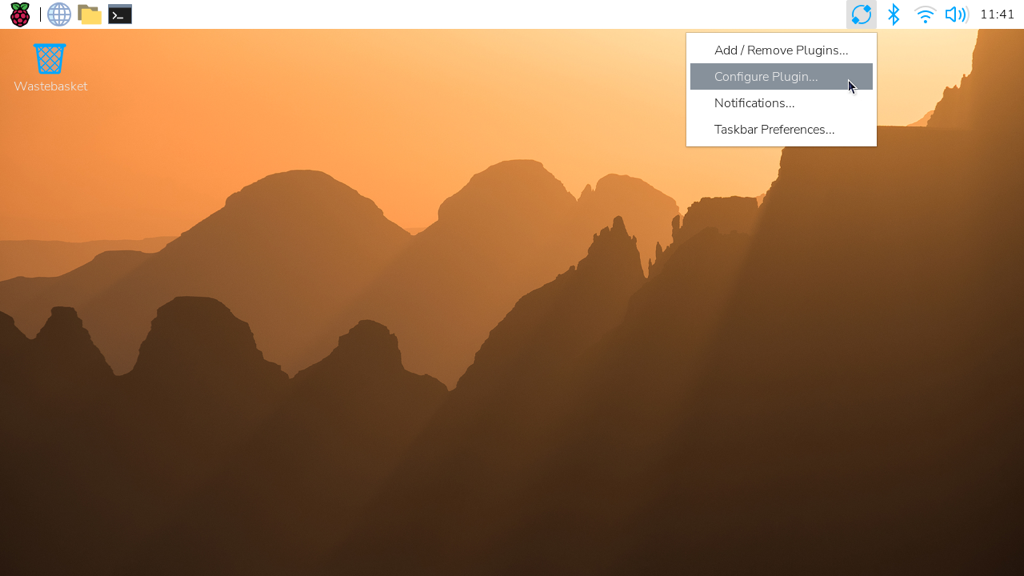
Select the Animate Icon toggle to switch to an alternate icon.
When a screen sharing or remote shell session is in progress, the Connect icon turns blue.
Manage devices
The Connect dashboard lists all of the devices linked with your Connect account and shows you the various ways you can access them.
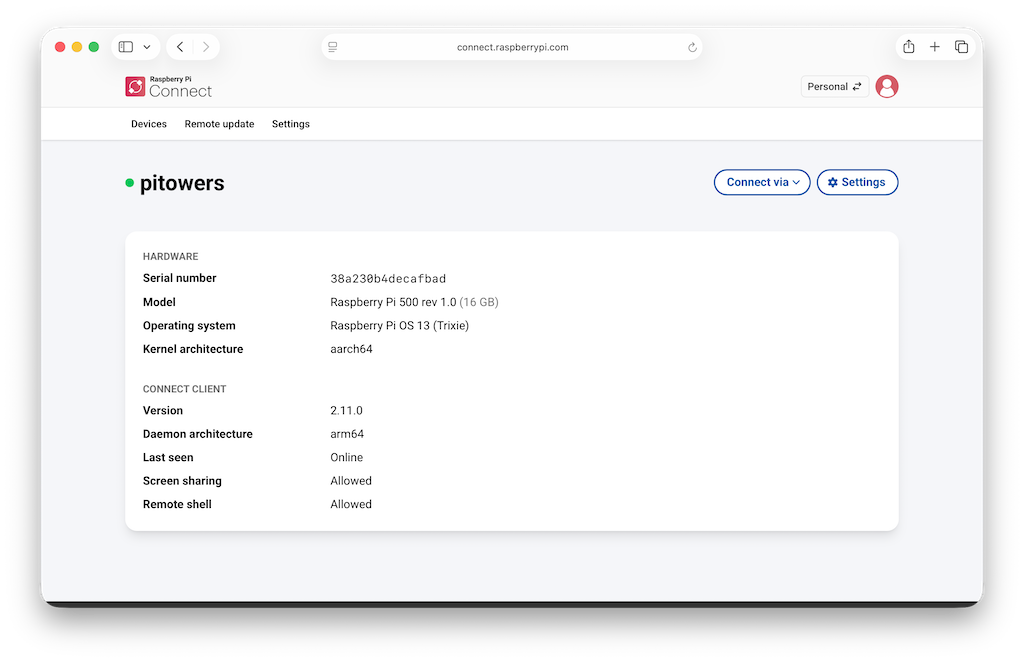
Select a device name to open the device details page. This screen provides low-level information about your device.
To rename or delete the device, select Settings on the device page.
Deleting a device from Connect automatically signs you out of Connect on the device. The Connect icon in the menu bar turns grey and the menu only provides a Sign In… option.
Update
|
Warning
|
Upgrading Connect disconnects any screen sharing or remote shell sessions in progress. We don’t recommended using remote shell to upgrade Connect unless you’re running commands in a way that’ll survive disconnection, for example, using screen or tmux.
|
To update to the latest version of Connect, run the following command:
$ sudo apt update
$ sudo apt install --only-upgrade rpi-connect
If you installed Connect Lite, replace rpi-connect with rpi-connect-lite in the above command.
Disconnect a device from Connect
Run the following command on your device to sign out of your Raspberry Pi ID, which will disable your device on the Connect screen:
$ rpi-connect signoutAlternatively, select the Connect icon in the menu bar and choose "Sign Out".
|
Tip
|
To fully remove a device from your Connect account, remove it from the Connect dashboard. |
Uninstall
Run the following command to stop and remove Connect from a device:
$ sudo apt remove --purge rpi-connect|
Tip
|
If you installed Connect Lite, replace rpi-connect with rpi-connect-lite in the above command.
|
After uninstalling, the serial number of the device remains linked with your Connect account. The device still appears in the Connect dashboard, but can’t be used for remote access. If you install Connect again, even with a different SD card, on the same device, it will reuse the existing device name in the Connect dashboard.
To sever the link between a device and a Connect account, remove the device from the list of devices in the Connect dashboard.
Raspberry Pi Connect Troubleshooting
Edit this on GitHub
Known issues
-
Screen sharing only supports sharing a single, primary display of your Raspberry Pi. When a Raspberry Pi is connected to multiple HDMI screens, Connect sometimes shares the contents of the secondary screen. You can work around this by right-clicking the desktop and changing the location of the taskbar in Desktop Preferences….
-
Connect requires a browser that implements ECMAScript 2022 (ES13) as it makes use of features unavailable in older browsers.
-
Browsers intercept certain keys and key combinations. As a result, you can’t type these keys into your Connect window. Screen sharing includes a toolbar to simulate some of the most popular intercepted keys.
-
Upgrading
rpi-connectandrpi-connect-liteusing Connect’s remote shell is not supported. The upgrade process will terminate all remote shell sessions and drop all connections. To upgrade Connect in a remote shell session, use a tool likescreenortmuxto ensure the process continues uninterrupted after your connection is closed. -
To upgrade from version 1 to version 2, you must first upgrade the package you currently have installed before switching between
rpi-connectandrpi-connect-lite. This ensures that Connect’s services properly migrate to the version 2 format. If you currently haverpi-connectinstalled, run the following command:$ sudo apt install --only-upgrade rpi-connectAlternatively, if you currently have
rpi-connect-liteinstalled, run the following command:$ sudo apt install --only-upgrade rpi-connect-liteYou should see output similar to the following during the upgrade, indicating that Connect’s services have migrated to the version 2 format:
Replacing globally-enabled rpi-connect services with user-enabled ones...
Common issues
Screen sharing not available
If Connect states that screen sharing is unavailable, one or more requirements for screen sharing support are not met. To help debug the problem, rpi-connect and rpi-connect-lite include the doctor command. Use rpi-connect doctor to identify issues with screen sharing.
Run the following command:
$ rpi-connect doctorIf all is well, you should see output similar to the following:
Screen sharing is supported by this version of rpi-connect
✓ Wayland compositor available
✓ Screen sharing services enabled and active
✓ Communication with Raspberry Pi Connect WebSocket server
✓ Communication with Raspberry Pi Connect API
✓ Authentication with Raspberry Pi Connect API
✓ Peer-to-peer connection candidate via STUN
✓ Peer-to-peer connection candidate via TURN
If there is an issue, you will see something like so:
Screen sharing is supported by this version of rpi-connect
✓ Wayland compositor available
✗ Screen sharing services enabled and active - Please run rpi-connect on to enable and start all required services
✓ Communication with Raspberry Pi Connect WebSocket server
✓ Communication with Raspberry Pi Connect API
✓ Authentication with Raspberry Pi Connect API
✓ Peer-to-peer connection candidate via STUN
✓ Peer-to-peer connection candidate via TURN

✗ Some checks failed
If you have repeated issues trying to run Connect’s required services, run the following commands to check their status in more detail:
$ systemctl --user status rpi-connect-wayvnc.service
$ journalctl --follow --user-unit rpi-connect-wayvnc.service
If the service fails to start or doesn’t exist, ensure that your environment meets the following criteria:
-
You use
rpi-connectversion 1.1.0 or later. -
You do not use
rpi-connect-lite, which lacks screen sharing support. -
You use a Wayland compositor such as wayfire or labwc, not X. You can control this setting via
raspi-config's Advanced Options. -
You use a desktop environment supported by WayVNC, e.g. Raspberry Pi Desktop. For instance, using KDE switches your Wayland compositor to kwin, which is unsupported.
-
You have an active graphical desktop session running as the same user as the one you signed into. For most, this means enabling "Desktop Autologin" via
raspi-config's System Options.
Can’t connect after restarting or ending SSH session
Connect runs as a user-level service and is therefore only available if there is an active session for the user signed into the service. If you want remote shell access without also running another login session, enable user-lingering for your user, which will keep Connect running at all times.
For screen sharing, Connect can only share an existing graphical desktop session: it does not create entirely new sessions. There must already be a desktop session in progress. To start such a session automatically on boot, enable Desktop Autologin via raspi-config's System Options.
Networking and firewall issues
Connect usually communicates between devices without requiring changes to your network or firewall. However, especially restrictive networks can sometimes block Connect communication. To help debug problems with such networks, rpi-connect and rpi-connect-lite include the rpi-connect doctor command. rpi-connect doctor runs a series of tests to check that Connect communication functions properly on your network.
To run these tests on your device, run the following command:
$ rpi-connect doctorIf Connect can communicate properly on your network, you should see output similar to the following:
Screen sharing is supported by this version of rpi-connect
✓ Wayland compositor available
✓ Screen sharing services enabled and active
✓ Communication with Raspberry Pi Connect WebSocket server
✓ Communication with Raspberry Pi Connect API
✓ Authentication with Raspberry Pi Connect API
✓ Peer-to-peer connection candidate via STUN
✓ Peer-to-peer connection candidate via TURN
If Connect can’t communicate properly on your network, you’ll see an "x" instead of a check next to the failing test case. Ask your network administrator to enable the following connections on your network:
-
HTTPS requests to the Raspberry Pi Connect API and WebSocket server on port 443 of
api.connect.raspberrypi.comandws.connect.raspberrypi.com -
requests to Raspberry Pi Connect STUN or TURN servers on UDP port 3478 of all of the following:
-
stun.raspberrypi.com -
turn1.raspberrypi.com -
turn2.raspberrypi.com -
turn3.raspberrypi.com
-
-
requests to Raspberry Pi Connect TURN servers on TCP ports 3478 or 443 of all of the following:
-
turn1.raspberrypi.com -
turn2.raspberrypi.com -
turn3.raspberrypi.com
-
-
requests to Raspberry Pi Connect TURN servers on UDP ports 3478, 443, or 49152 → 65535 of all of the following:
-
turn1.raspberrypi.com -
turn2.raspberrypi.com -
turn3.raspberrypi.com
-
Remote update failures
If the A/B boot configuration or remote update process fails, refer to the following list of common faults and fixes.
You can also refer to the rpi-image-gen documentation and visit the Raspberry Pi Troubleshooting forum.
|
Tip
|
If you see an error, use Raspberry Pi Connect’s remote shell access to view the |
| Error | Suggested fix |
|---|---|
|
The recipient device must be able to locate the update file. Open a remote shell connection to the recipient device, then use curl to check whether the device can access the IP address contained in the URI you provided when registering the update artefact. |
|
Make sure that the URI provided when registering the update artefact contains the URL of the |
No Deploy option appears next to the device in Raspberry Pi Connect. |
Enable OTA opt-in using the following command, then refresh your browser: |
View Connect status
To view the current status of the Connect service, run the following command:
$ rpi-connect statusYou should see output similar to the following:
Signed in: yes
Subscribed to events: yes
Screen sharing: allowed (0 sessions active)
Remote shell: allowed (0 sessions active)
The output of this command indicates whether or not you are currently signed in to Connect, as well as the remote services enabled on your Raspberry Pi.
If you see output including "Raspberry Pi Connect is not running, run rpi-connect on", run rpi-connect on to start Connect.
Enable enhanced logging
You can enable debug logging for both rpi-connect and its dedicated WayVNC server for a detailed account of local operations on your Raspberry Pi.
Enable enhanced logging in rpi-connect
Add the environment variable RPI_CONNECT_VERBOSE=1 to /etc/default/rpi-connect, and restart Connect with the following command:
$ rpi-connect restartAlternatively, for versions prior to 2.7 override the rpi-connect service definition with the following command:
$ systemctl --user edit rpi-connectEnter the following lines of configuration between the comments:
[Service]
ExecStart=
ExecStart=/usr/bin/rpi-connectd -socket %t/rpi-connect-wayvnc.sock -v|
Note
|
You need both lines that begin with ExecStart=.
|
Finally, restart Connect with the following command:
$ rpi-connect restart
Enable enhanced logging in the dedicated wayvnc server
Override the rpi-connect-wayvnc service definition with the following command:
$ systemctl --user edit rpi-connect-wayvncEnter the following lines of configuration between the comments (including the -Ldebug flag):
[Service]
ExecStart=
ExecStart=/usr/bin/rpi-connect-env /usr/bin/wayvnc --config /etc/rpi-connect/wayvnc.config --render-cursor --unix-socket --socket=%t/rpi-connect-wayvnc-ctl.sock -Ldebug %t/rpi-connect-wayvnc.sock|
Note
|
You need both lines that begin with ExecStart=.
|
Finally, restart Connect with the following command:
$ rpi-connect restartSecurity
Edit this on GitHub
All connections between Raspberry Pi devices and the user’s browser use WebRTC: the same real-time communication technology used by Zoom, Microsoft Teams, and Google Meet.
This means that all screen sharing and remote shell access traffic is encrypted using DTLS on the Raspberry Pi device and the user’s browser. We don’t (and can’t) decrypt the traffic, ensuring your data remains private.
Furthermore, traffic is mostly peer-to-peer, meaning that the encrypted traffic doesn’t pass through our infrastructure. Instead, the encrypted traffic is sent directly between your Raspberry Pi device and your browser. This makes it impossible for us to observe it.
In situations where direct peer-to-peer connections aren’t possible (for example, due to networking issues), only encrypted data is relayed through one of our TURN servers. These servers are hosted in London and California, and your traffic is routed through the relay closest to you. We don’t have the keys to decrypt this data, and it’s neither logged nor stored.
The Raspberry Pi Connect API temporarily stores the IP addresses and ports required to negotiate a peer-to-peer connection. All traffic to this API is encrypted using HTTP over TLS, supporting only TLS 1.2 and newer for security. This ensures that connection information is never sent in the clear. This metadata is stored securely for at most 1 minute, and deleted as soon as a connection is established.
Raspberry Pi Connect, along with its API and software components, has undergone security assessments by penetration testing and security analysts at Cure53. You can read the full report on the Cure53 site.
For more details on WebRTC security, see A Study of WebRTC Security.
For Connect for Organisations customers, we provide an audit log to review activity from the past 90 days. To preserve privacy, we store only the country code when geolocating events by IP address.