An updated look for the Raspberry Pi Desktop
Today brings you some optional updates to the Raspberry Pi Desktop, which gains some modern features while keeping its simplicity.
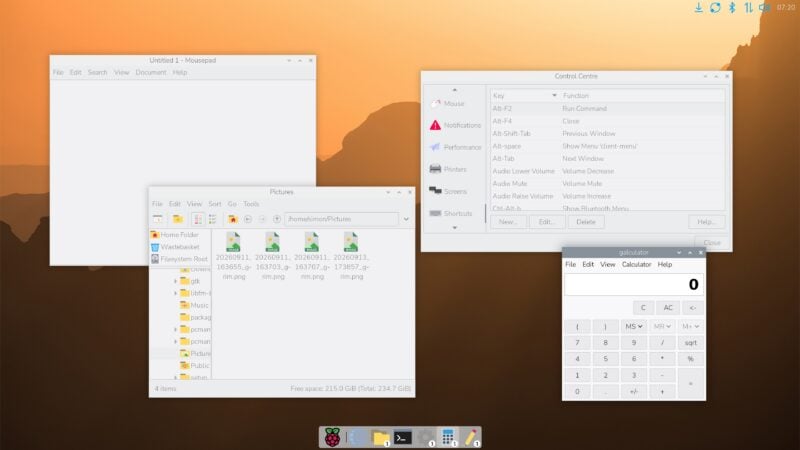
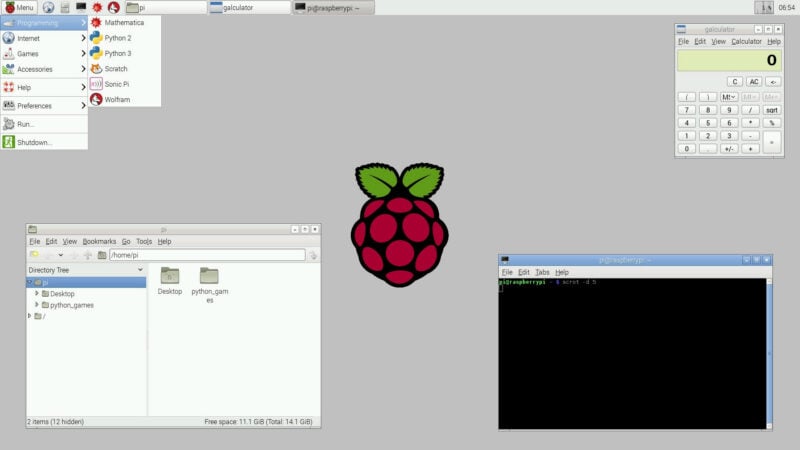
What is currently known as the Raspberry Pi Desktop has been around for over a decade now – it started out as a mildly customised version of the stock LXDE desktop, and over the years has slowly evolved into something with almost entirely different underpinnings, based on Wayland and labwc. The look has been refreshed on several occasions, with new icons, themes and desktop backgrounds, to the point where there is very little visually in common between today’s Raspberry Pi Desktop and the original LXDE.
But one thing which has never changed is the overall feel of the desktop, which, with its taskbar, status icons and main menu launcher, is very reminiscent of the state of the art in desktop design from 30 years or so ago, with Windows 95 and Apple System 7. Not without good cause – both were good examples of an intuitive desktop interface, and they have the benefit of being very familiar to most users. The intention has always been to offer a desktop experience which most people can simply use without a learning curve, and I believe our Desktop has offered that.
Desktop designs have continued to evolve in that time, and last year, I started to think that some of the features which are now commonplace in other desktops might be beneficial in ours. Since then, I have been working on a few ideas for how we might add these features to the desktop – not losing the fundamental simplicity of it, and not forcing change for the sake of change on users who are happy with the way it is, but just providing some more options.
I do have to stress here, before the anticipated deluge of complaints, that these new features are entirely optional; unless you choose to enable them, your desktop will continue to look and feel exactly the way it always has. These are purely intended to give users who want a more up-to-date desktop experience the option to have one if they want it. (So please, don’t immediately leap to the comments and complain that you don’t like the new look and we should never have changed it – if you do, I’ll know you didn’t actually bother reading what I wrote…)
So, assuming you do fancy a change, what do you get?
The icon dock and launcher
The biggest change is the introduction of an icon dock, which can either replace the existing taskbar, or be used in addition to it. Two new widgets have been added which are intended to be used in the dock – one is a graphical application launcher, and the other an icon-based combined quick launcher and task list.
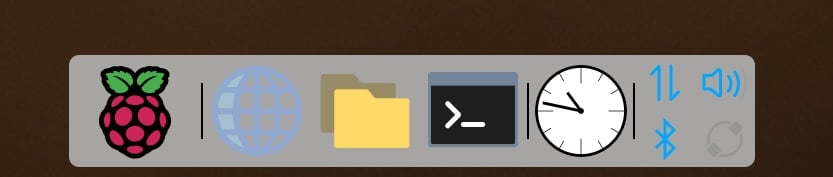
The raspberry icon for the graphical application launcher opens the launcher screen. (This is intended as a replacement for the main menu widget which has been the standard application launcher up until now.)
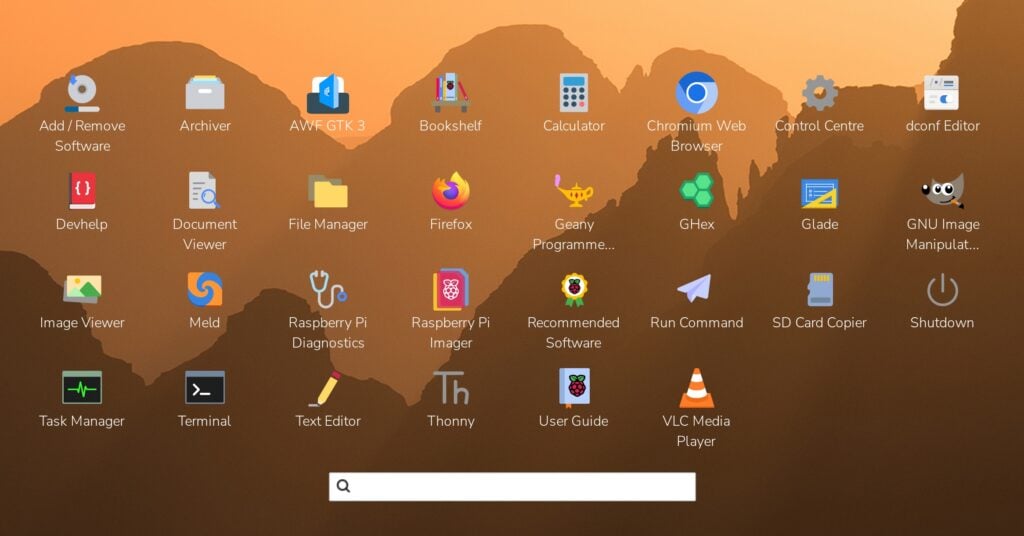
This shows all the application icons which would have been in the main menu. By default, icons are sorted in alphabetical order, but they can be dragged and dropped to rearrange them. Single-clicking any icon launches the application; right-clicking (or a long press on a touchscreen) brings up a context-sensitive menu similar to that shown in the traditional main menu.
The search box can be used to filter the displayed applications, and the cursor keys and ‘enter’ can be used to navigate and select applications from the keyboard.
Right-clicking the raspberry icon and selecting the ‘Configure Icon Menu Widget’ option gives some configuration options for the launcher.
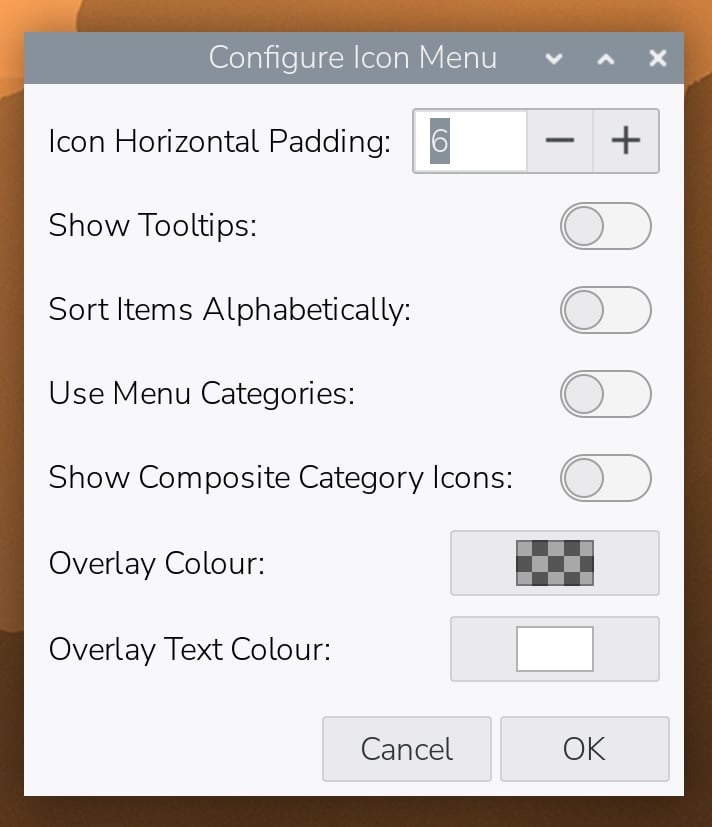
Enabling alphabetical sorting undoes any drag-and-drop rearrangement and restores the default order of icons.
Enabling menu categories makes the launcher hierarchical, with a top-level screen for application category icons which can then be clicked to enter individual launcher screens for each category – this is useful if you have a large number of applications installed. To help with remembering which applications are in which category, turning on composite category icons shows miniature versions of the first four application icons in each category in the top-level screen instead of the category icons themselves. (If menu categories is enabled, then drag-and-drop can no longer be used to rearrange the launchers; instead, the hierarchy and arrangement used for the main menu is used, which can be edited using the Main Menu panel in Control Centre as before.)
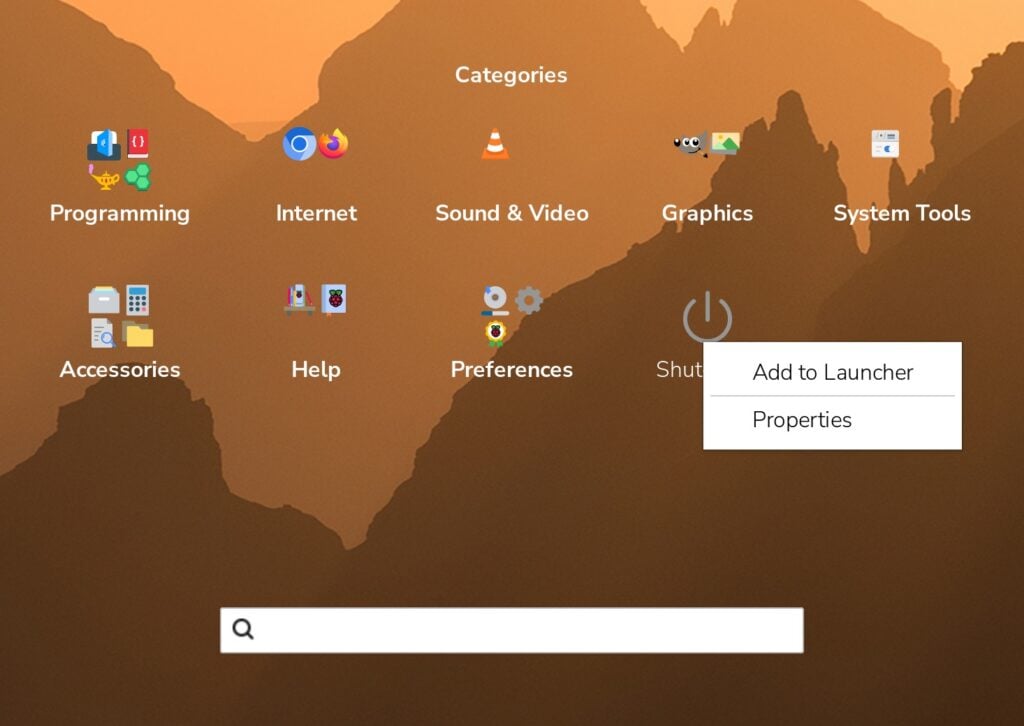
By default, the icons are displayed overlaid on the current desktop background, but in the event that this looks too cluttered, a transparent or opaque overlay colour can be applied.
The new task list
The combined quick launcher and task list can display a set of the most commonly-used application icons, and will by default show the same set of icons as the original quick launcher from the taskbar. New applications can be added by right-clicking an entry in the main menu or the graphical application launcher and choosing ‘Add to Launcher’ from the context-sensitive menu. As for the application launcher, icons in the quick launcher can be reorganised by dragging and dropping.
Clicking an icon launches the application. Running applications – whether launched from the quick launcher or elsewhere – are shown with a superimposed count of the application’s open windows. If an application was already in the quick launcher, this count is superimposed on the existing icon; if the application was not in the launcher, its icon is added to the end and the count is superimposed on the new icon.
Clicking on an icon for a launched application brings all that application’s windows to the foreground. If all the application’s windows are already in the foreground, a new window is opened (if the application supports multiple windows).
Right-clicking an icon brings up a menu which shows all the application’s open windows, allowing them to be individually brought to the foreground, and offers options for maximising or hiding the application’s windows.
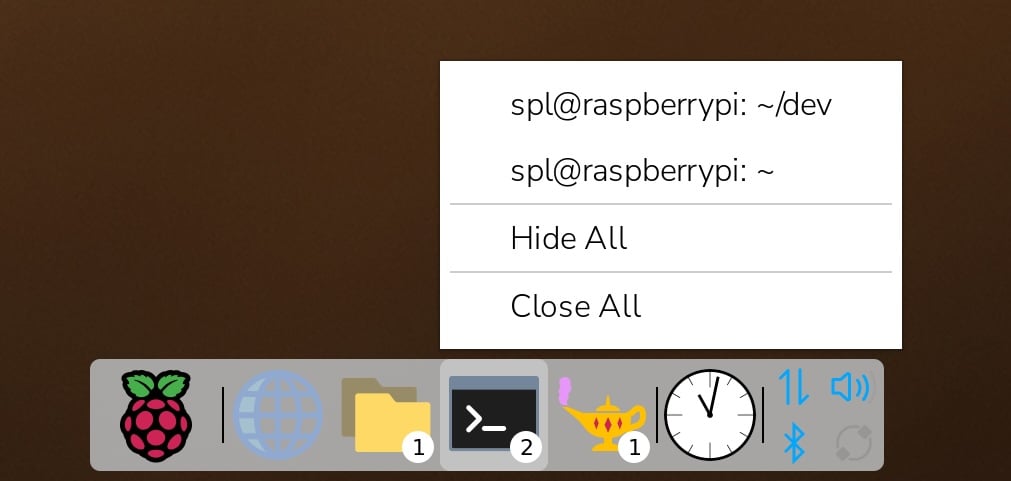
Applications can be removed from the quick launcher by right-clicking the icon when the application is not running, and choosing ‘Remove from Launcher’ from the context-sensitive menu.
These two new widgets are intended to offer alternatives to the existing main menu and window list, and while they are intended for use in the new dock, they can also be used in the original taskbar if desired; likewise, the original main menu and window list widgets can be used in the dock.
Customising the dock
The dock itself can be customised in the same way as the taskbar. A Dock page has been added to the Control Centre and offers options for colour, position and icon size.
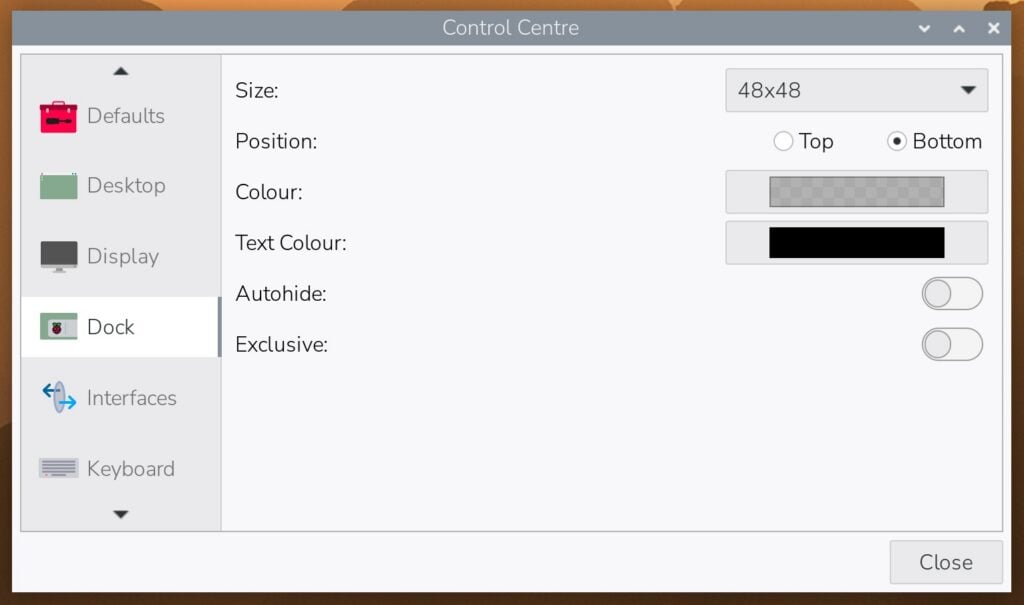
One often-requested feature which has been added is the ability for the taskbar and the dock to automatically hide when not in use – if the ‘Autohide’ option is enabled for either, it will slide away when the mouse is not over it, and reappear when the mouse is moved to the edge of the screen where it has hidden. The ‘Exclusive’ option controls whether a maximised window covers the taskbar or dock; if exclusive is set for either, maximised windows will not overlap it. This can be useful if you want, for example, the clock to always be visible.
A new Widgets page has been added to the Control Centre which allows plugins to be placed in either taskbar or dock, and arranged as desired.
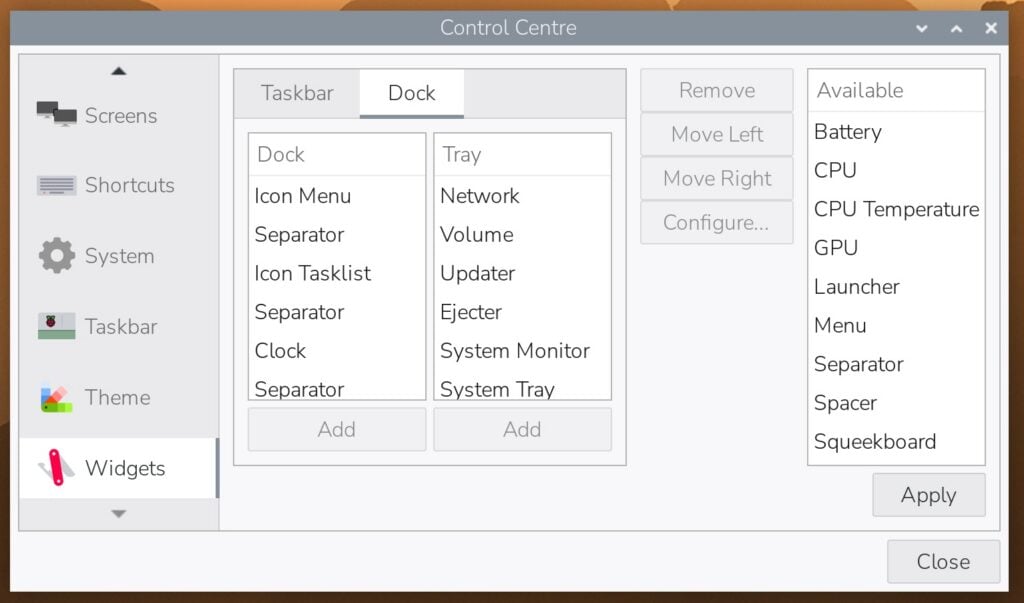
The dock offers two locations for widgets. The left-hand side of the dock is the dock proper, while the right-hand side is given over to the ‘tray’. This is intended to hold status icons, which are shown as two rows with the icons half the size of those in the main dock.
When icons are added to the tray, they are automatically split across the two rows such that the length of top and bottom is kept as consistent as possible. If more control over the split is required, the ‘tray split’ widget can be added to the tray widgets – this imposes a hard line break between the widgets at this point.
In order for either the taskbar or the dock to be shown, they must contain at least one widget – if either contains no widgets, it is hidden.
Note that the taskbar and the dock can be used simultaneously – for example, if desired, the status icons can be displayed on the taskbar as they are now, with just the new launcher and task list in the dock. (This is how my own desktop is configured.)
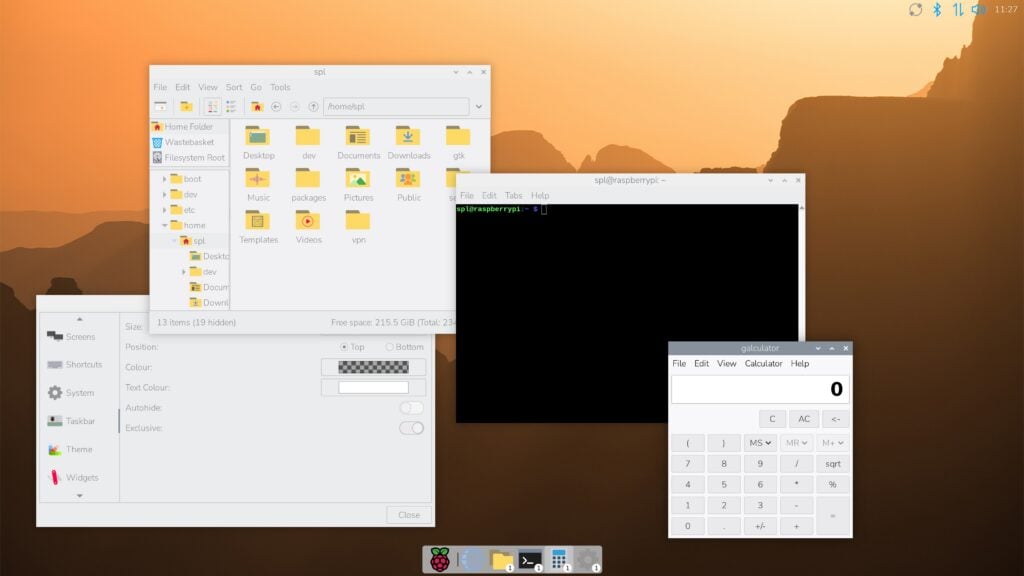
I’d encourage you to play about with the Widgets control panel to come up with whatever arrangement of taskbar, dock and widgets works best for you, but in order to make it easy to try the new features, an option to switch between a few preset desktop styles has been added to the Defaults page in the Control Centre.
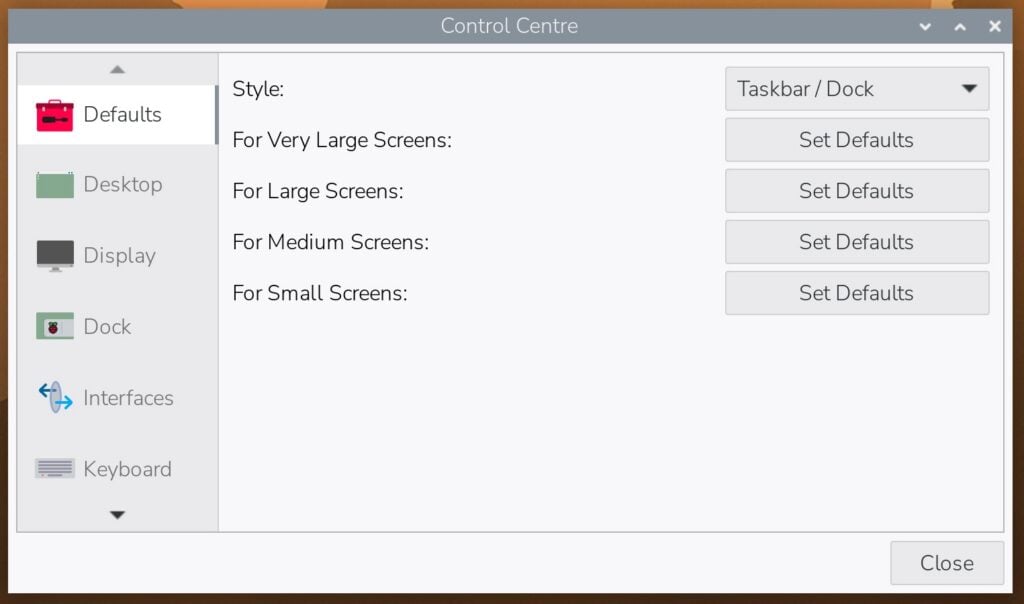
Setting the style to ‘Dock’ will remove all widgets from the taskbar, add the new launcher and task list to the dock, and add the status icons in the tray. Setting the style to ‘Taskbar / Dock’ will add just the launcher and task list to the dock, while leaving the status icons on the right of the taskbar. Or if you just want the desktop as it has always been, set the style to ‘Taskbar’, which will leave the existing main menu and task list on the left of the taskbar, with the status icons on the right.
Other changes
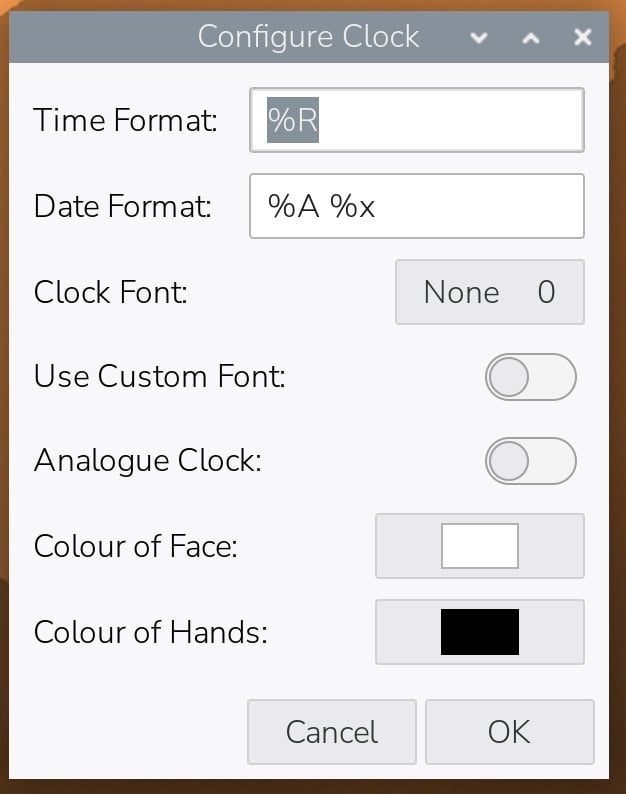
One other small change which you can see in some of the pictures above is the addition of an analogue clock mode to the clock widget – simply right-click the digital clock, choose ‘Configure Clock Widget’, and turn on the analogue clock mode. The colour of the face and the hands can also be customised.
In addition to the dock changes, there is now the ability to use a more efficient mechanism for drawing the desktop background picture. This has always been drawn by pcmanfm, the file manager application – as this is the file manager, it allows icons to be placed on the desktop. But if desktop icons are not required, significant memory savings can be made by using the very lightweight swaybg program to draw the desktop.
This can be enabled in the Desktop tab of the Control Centre – switching off ‘Active Desktop’ disables the drawing of the desktop by the file manager and instead uses swaybg to display the same picture. (The Wastebasket which is normally displayed on the desktop can then be found in the Places pane in any file manager window.)
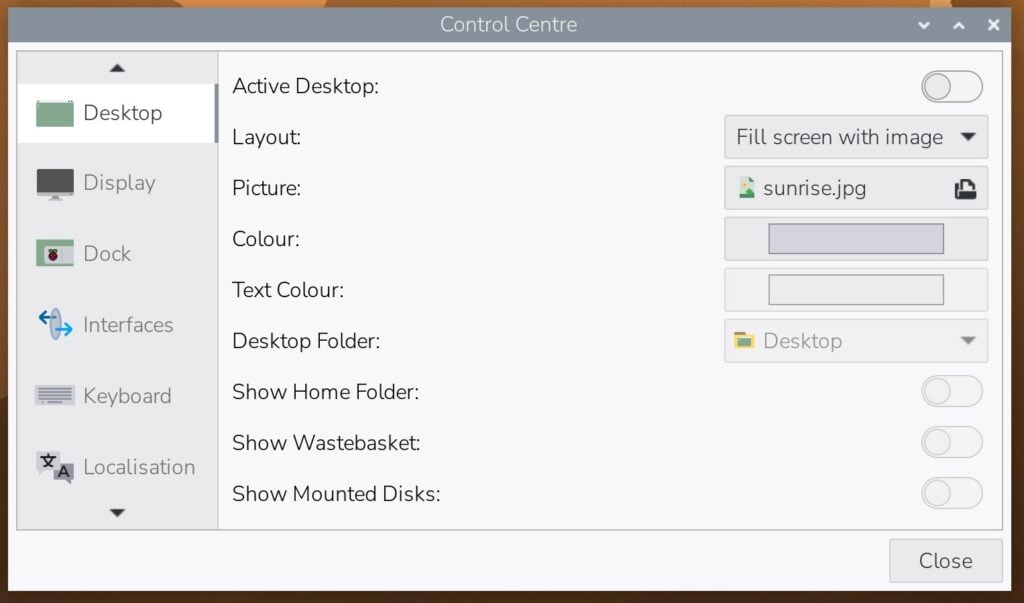
We now recommend disabling the active desktop for any platform with less than 2GB of memory – this is checked at boot, and a notification is displayed suggesting that active desktop be disabled. Also, if you choose either of the new dock-based styles for the desktop in the Defaults page, active desktop is disabled by default, but it can be re-enabled from the Control Centre if desired.
Note that the file manager was previously responsible for automounting removable drives; as this would no longer happen if the file manager was not running all the time, this functionality has now been moved into the ejecter plugin, which will now automount and display a notification when a drive is inserted.
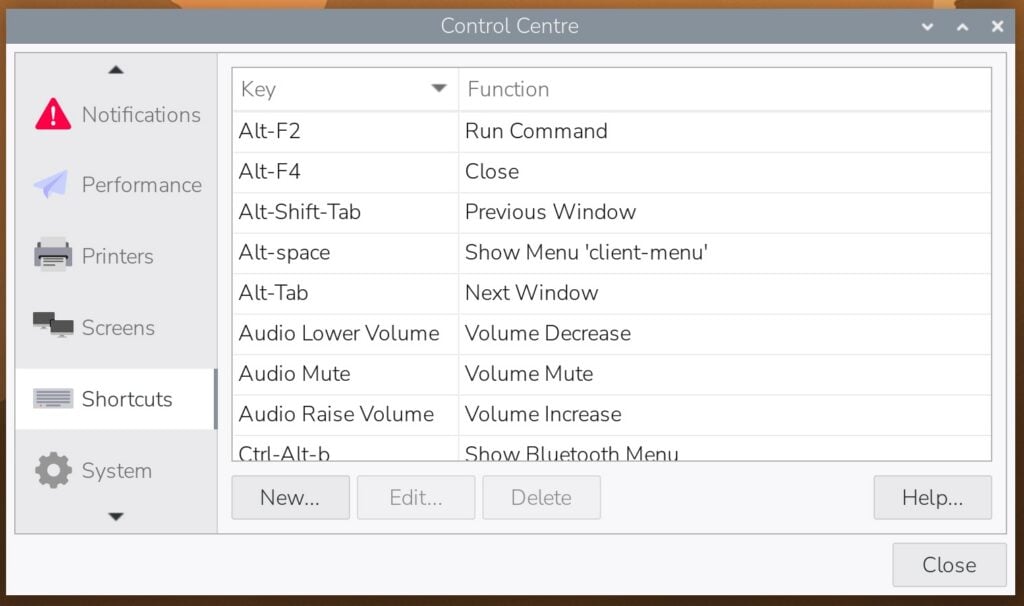
A new Shortcuts page has also been added to the Control Centre. This allows all system keyboard shortcuts to be viewed and edited, and new ones to be created if desired. (Note that this only covers general system shortcuts, not those which are assigned by individual applications.)
One final change which has been made is an enhancement to the creation of screenshots. Previously, hitting the PrtScrn key took a shot of the entire screen and saved it to the Pictures folder. Now, hitting the key takes the screenshot and also opens a dialog offering the option to open the captured file in an image editor, or to copy it to the clipboard. (If you always want to do the same thing, just tick the ‘remember my choice’ checkbox before pressing one of the buttons, and the prompt will not be shown in future.)
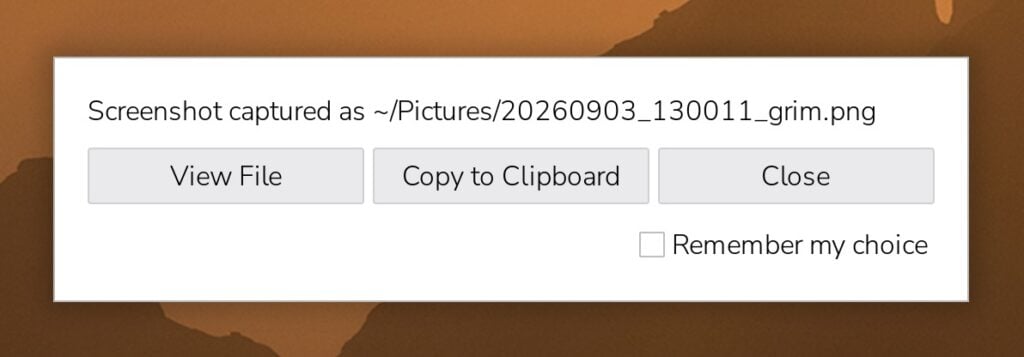
Holding down Alt when pressing PrtScrn does the same thing, but first displays a selection rectangle allowing you to select an area of the screen to be captured rather than the whole screen.
How to get it
We’ve released a new image today with all these new features added. As I said at the start, these features are all optional – if you install the new image, the default appearance of the desktop will be the same as it has always been, with a taskbar and no dock; to try the dock, just launch the Control Centre, go to the Defaults page, and select either the ‘Taskbar / Dock’ or ‘Dock’ styles.
Similarly, for existing images, simply update using either the updater widget or the usual
sudo apt updatesudo apt full-upgradefrom the terminal. Again, installing the updates will not enable the dock; use the Control Centre as above to try it.
We do hope you enjoy using the new features – as always, do let us know in the comments or the forums how you get on, and what you think!


162 comments
Jump to the comment form
Raspberry Pi Staff Ashley
A whole year’s work in one blog post?! Nice work, Simon
Olydnad_SWE
I beta tested this a little a while ago. Nice that stable is out now. Just downloaded it, and also installed it on a Raspberry Pi 5. Thanks to everyone who worked on it!
Olydnad_SWE
The dock disappears when you turn off the monitor and turn it on again. The same problem that was in beta for a while.
Raspberry Pi Staff Simon Long — post author
I don’t see that here – the fix for that problem is still present and correct. Even disconnecting and reconnecting my monitor is not causing the dock to disappear.
Can you please report this at https://github.com/raspberrypi-ui/wf-panel-pi with details of your system and I will try to work out what is going wrong?
Olydnad_SWE
It’s just a regular 8GB Raspberry Pi 5 with an NVMe SSD + a Dell 1080p screen, (u2417h). If I turn off the screen, dock disappears. If I turn off the screen a second time and start it, it is back. Weird!
I’ll see if the problem is on my side. I did an update and not a new installation. I’m going to test with some Raspberry Pi monitors and see if I can figure out what the problem is. Unfortunately, I’m not much into GitHub and don’t really know how it works there.
Raspberry Pi Staff Simon Long — post author
If you have a spare SD card or USB drive, I would suggest installing a clean copy of the new image as a first step – if that shows the problem, then it is a real issue and not an artefact of old or incompatible code.
Raspberry Pi Staff Simon Long — post author
FWIW, I have now tried both power-cycling the monitor and disconnecting and reconnecting the cable completely on two different Pis and three different monitors, and the dock does not go away on any of them. Whatever this problem is, it seems to be something specific to your system.
Anders
Dock stays OK for me with monitor off and on. I’m using a Raspberry Pi monitor on HDMI2
Ray Allen
Like it, downloading and updating now. Thanks to everyone at PiTowers that made this possible. It’s getting better and better.
Aaron
This is great! I am looking forward to trying this out on my one up. I think I like retro on the desktop at home but we shall see. Thanks for all the hard work!
Sheddyian
I like this. Just turning off the active desktop saves about 40Mb of memory usage – I barely used icons on the desktop.
Just one note though – in file explorer, right clicking on a folder for “open in terminal” now gives a message “terminal emulator not set”
Raspberry Pi Staff Simon Long — post author
Ooops – yes, you’re right about the terminal emulator option. For now, just type ‘x-terminal-emulator %s’ in the ‘Terminal emulator’ box in the preferences screen that opens when you try to do this; that will get it working. I’ll try and find how the default value has gone missing – shouldn’t take long to fix…
Raspberry Pi Staff Simon Long — post author
OK, fixed – there will be an update in apt in a few hours. Thanks for finding it!
ComputerL
Wow, this is great! Good job everyone.
Hubert
RPI5: i wanted to test it and have now many problems:
I set the desktop to “taskbar + dock”, the taskbar jumped to the top without any icons and no dock. After a reboot there was the empty taskbar and a dock, the control center can’t be runned by clicking on control center, but sudo rpcc started the control center, the settings for the dock and the configuration of the desktop are missing. And now?
Hubert
Apps like geany and terminal seem to have forgotten their settings like font-size. Even if i set the taskbar to the bottom with sudo rpcc, the setting is ignored. If i want to start rpcc without sudo in the terminal, i get “Speicherzugriffsfehler”
Raspberry Pi Staff Simon Long — post author
You should never use sudo to run rpcc, and if you have done so in the past, that is almost certainly causing your current problems. I would suggest deleting the .config directory (inside your home directory), running Control Centre from the menu, and re-initialising on the Defaults tab by choosing the option for medium screens.
Hubert
i never used rpcc from the command line, running with sudo was only a try to get it work. Deleting .config helped, but now can i no more add the plugins like CPU, GPU … There are buttons for remove, move left and right, configure, but there is no “add” button …
Raspberry Pi Staff Simon Long — post author
The Add buttons are underneath the list boxes on the left hand side…
Hubert
Oooh, sorry. Tomatoes on the eyes 🍅🍅
Thank you 😀
Emanuele
tried to update but not found. Is it available for existing bookworm installations?
Raspberry Pi Staff Simon Long — post author
This is for trixie only. It won’t be made available for bookworm, which is now only receiving security updates.
Olydnad_SWE
I have now tested a little. It looks like my update did not turn out well. Did a clean install on test, and works as it should now. Is it possible I made too much changes from stock OS? I usually change a lot.
Tried a couple of times now and everything works. However, I’ll test further for a while and see if it comes back. I use the same Dell monitor as before. Just a clean install! Open in terminal works for me without the last updates, as I haven’t updated yet. Read about it here.
I can’t find a reply button on your answer. I’ll answer here instead. If it doesn’t fit, just delete it ;).
Jack
Just tried it out. Works fine on the Pi5. Though it requires setting desktop background again. I had a problem, it didn’t seem to work on my 400. The dock was not visible.
Raspberry Pi Staff Simon Long — post author
Check the Screens control panel – set to the maximum resolution supported by your display and then back to whatever resolution you were using – the display settings might have got corrupted so you aren’t seeing the entire screen.
Jack
That worked, thankyou.
Jan
After today’s update my Pi 400 now shows a black screen for some seconds every minute or so.
GrahamJ
I ran the update but the “Run” and “Shutdown” options are missing from the main menu in Taskbar view. They are also missing in the Main Menu list in Control Centre (so I can’t re-enable them that way. I tried a couple of extra reboots (had to use Ctrl/Alt/Delete to get the shutdown options) but no difference. Pi 500+ with no particular changes to Trixie OS.
Any advice appreciated thanks.
Raspberry Pi Staff Simon Long — post author
Check you have the packages pishutdown and gui-runcmd installed – sounds like they may be missing for some reason.
Also, bear in mind that the Run option has moved to the Accessories menu in this release – you can use the Main Menu panel in Control Centre to move it back to the top-level menu if you prefer it there, but it isn’t something that many people ever use, so it seemed strange to have it in such a prominent position; just a legacy of the fact that LXDE put it there 15 years ago and I never got around to moving it…
Shutdown should still be in the top-level menu.
GrahamJ
Thanks for the reply. Shutdown was in the top-level menu before the update.
These are installed:
pishudown-0.42 (64bit)
gui-runcmd-0.3 (64bit)
Thanks.
Barja Cayarm
Shiny new (optional) features AND a massive blog explaining them? This is utterly fantastic stuff, Simon. As someone who personally hates documenting my code (I know) I take off my hat to you twice over. Well done, great work!
Raspberry Pi Staff Simon Long — post author
Thank you! (I have to admit, though, that I quite like writing documentation. I know how weird that is for a software engineer… ;) )
Anil Kimar
Just tried. Loved it (Love at first sight kinda)
Anil Kumar
Just tried at Pi 5 OS Desktop (Trixie) . Loved it (Love at first sight kinda)
KC
Eager to see that in a x86 distro with Trixie!
Raspberry Pi Staff Simon Long — post author
You may not have to wait very long for that… ;)
KC
Working on one for about a month now.
Suo Eno 1357
Finally! YES!!! 😤✊🏼
Anders
This has made the combination of Pi 500+ and CM5 based Argon OneUP laptop the greatest line up in the history of computing.
Raspberry Pi Staff Simon Long — post author
I don’t think I’d go *quite* that far – but I am very glad you like it so much!
rclark
Glad the changes are all ‘optional’ :) . Yes, I read your nice article! More options is always a good thing as no two of us are alike. Tis why we have lots DEs to pick from in the Linux desktop/workstation/server world.
As for me, I use the desktop to run applications. So ‘bling’ isn’t a concern.
Akkie
Very cool updates!
I hope to send you an updated version of the Japanese translation in the near future.
And I found little issue: Switching between styles on the taskbar and the dock will reset the wallpaper to default. I’d like the wallpaper settings to be retained.
Raspberry Pi Staff Simon Long — post author
The resetting of wallpaper when switching styles is deliberate – switching dock style resets everything to a default state, just like pressing the buttons on that page. It’s possible to just switch the dock and not change anything else, but changing dock mode does also need to change things like the active desktop state (to hide the wastebasket) and the file manager config (to add it to the places view), and so on. It’s simpler and more reliable to do it all from a known state, at least for now.
Once people have got the idea of the dock and of what other options work well with it, I can look at making that control just change the dock and nothing else, but for now it should be viewed as “set the recommended defaults for this dock mode”, rather than just “change the dock to this” – which is why it is on the Defaults page.
Akkie
Thank you for your reply. I understand!
Sebastian
Pretty nice update. I always wanted the dock feature for my daily driver Pi 5.
But I got a bug with the new launcher on a freshly installed OS. Every time I start a program with the new launcher, the wf-panel-pi restarts and it shows the Wi-Fi network status notification again.
Raspberry Pi Staff Simon Long — post author
I can’t see how that can happen on a fresh install – the launcher has been extensively tested; something else on your system is causing it. Is it a specific application you are launching that causes it, or is it a specific application? Are you running locally, or over some sort of remote connection? What have you done to the system since the fresh image?
sebastian
I tested it again on a new freshly installed OS where I only changed the style to dock. While testing, it seems that wf-panel-pi only restarts after I use the search function of the new menu to start a program. Even if I already got a running instance of the text editor and just open it again with the new menu after I use the search function, wf-panel-pi will restart.
Raspberry Pi Staff Simon Long — post author
Ah – yes, you’re quite right – something odd is happening in search. I’ll sort that now…
Raspberry Pi Staff Simon Long — post author
OK, fix uploading as I type – should be available from an apt update in the next couple of hours.
Thanks for the report!
Mr. U.S.A
Many talented people from shuttered game studios have be displaced. Raspberry Pi LTD should consider video game development with a small team to develop 2D and 3D games for Raspberry Pi computer series. Raspberry Pi Foundation should consider teaching game development. All these initiatives could increase the value or desire for Raspberry Pi computers. Also consider designing an eGPU for the Raspberry Pi computers.
Raspberry Pi Staff Helen Lynn
While we might not diversify into games development, we do make things to help people develop related skills and have fun – see Code the Classics volume I and volume II. And while we’re not part of the Raspberry Pi Foundation any more, Code Club, which is, provides heaps of games resources aimed at the next generation of developers.
Kevin McAleer
Oh, now this is nice. Really elegant and simple to use. Great work guys! and Great write up Simon.
PyThagoras
Would it be possible to add an option to move the title bar’s window control buttons to the left side?
Raspberry Pi Staff Simon Long — post author
It’s already possible, but you will need to modify a config file in a text editor.
In the file ~/.config/labwc/rc.xml, find the <theme> section and add the following line to it:
<titlebar><layout>iconify,max,close:</layout></titlebar>
The position of the colon is important!
Then save and reboot.
PyThagoras
Thank you very much for your great work! Would it be possible to add a GUI option in the future?
Raspberry Pi Staff Simon Long — post author
To be honest, it’s unlikely – you are the first person to ask for this, so I don’t think there is a huge demand for it, and I try to keep the GUI options to the bare minimum that are of use to the maximum number of users.
You could try building and installing https://github.com/labwc/labwc-tweaks, which I believe is a GUI tool for settings like this one.
Anders
Some of the desktop configuration like adding extra desktop spaces is done by editing config files might make good use of such a gui config tool.
Ian Binnie
Thanks for this.
I used to routinely do this on older systems to make Raspberry Pi OS work the same as my normal computer, but had been unable to work out how using labwc.
Maybe this should be included in documentation – I don’t mind editing files but finding out what to edit is the problem.
Martin
It looks nice, but
I can’t open the Control Center. The Dock Preferences won’t open either….
Raspberry Pi Staff Simon Long — post author
The Dock preferences are part of the Control Centre, so if you can’t open one, you won’t be able to open the other.
What happens if you open a terminal window and type “rpcc” followed by enter?
Martin
Hi Simon
Thanks for the quick reply.
Speicherzugriffsfehler
(Memory access error)
Raspberry Pi Staff Simon Long — post author
Someone else reported something similar a few posts back. I don’t know what causes this – it isn’t a problem I have ever seen. What I suggested to him – which I believe did fix it – was to delete the ~/.config folder, then reboot and try again. Let me know if that helps.
Martin
Yes, that helped. I’m back to the old layout and can open the Control Center again. I’m going to play around with it a bit more…
Thank you so much for your help.
Raspberry Pi Staff Simon Long — post author
Great! Thanks for letting me know. I just wish I knew what it is that causes that problem, but as long as there is a workaround, I’ve got time to investigate.
PyThagoras
Thank you very for your great work! Would it be possible to add a GUI option for that in the future?
Filip
It seems to me that dock is Wayland only.
It would be nice mentioning that explicitely.
Raspberry Pi Staff Simon Long — post author
Anything new on the Desktop has been Wayland-only for a few years now. X is only supported as a legacy product – there will be no updates to it, and we will probably end-of-life it in a future release.
Joaquin Dulce
Ah – I’m stuck with X because of RealVNC.
Raspberry Pi Staff Simon Long — post author
We provide wayvnc for Wayland – it works just as well, and is enabled by the same VNC option in Control Centre on images running Wayland. So needing VNC isn’t a reason to use X.
If at all possible, we encourage users to switch to Wayland; X is already not getting new features, and we will probably stop supporting it completely in the not-too-distant future.
Tahar
Switching from dock to taskbar and back will end up losing customizations. Also some dock settings made me lose the dock.
Also a command working in the menu when using dock placing that on the desktop will end up with a link on the desktop that does not work. And setting it to the launcher will not work.
It looks great but there are still some flaws. Sorry but I’m a type that digs in to all settings to see what happens.
Raspberry Pi Staff Simon Long — post author
“Switching from dock to taskbar and back will end up losing customizations.”
That is what is supposed to happen – see my explanation to Akkie above.
“Also some dock settings made me lose the dock.”
The autohide setting will hide the dock until you move the mouse over the relevant edge of the screen.
“Also a command working in the menu when using dock placing that on the desktop will end up with a link on the desktop that does not work. And setting it to the launcher will not work.”
I can place a shortcut on the desktop from the menu whether it is in the dock or the taskbar, and the shortcut works. I can similarly place a shortcut into the launcher from the menu or the icon menu, and that works too. I’m not entirely clear from your comment exactly what you are trying to do, but both launcher and desktop shortcuts work fine for me.
Alan
Nice update: I was really miffed with Apple when they took Launchpad away so it’s good to see an equivalent in Raspberry Pi OS. Another reason for me to move over completely… One oddity, though: when I connect a USB drive I get an error: “An operation is already pending” in place of the usual dialog asking if I want to open File Manager.
Raspberry Pi Staff Simon Long — post author
What format is the drive you are mounting in? What partitions does it contain? Every drive I have tried has mounted correctly, but it is entirely possible that some formats are not supported correctly; if you can give me an idea of the format of the drive you are inserting, I can investigate.
Alan
This is weird. Yesterday I tried several devices on my Pi 500+: two Raspberry Pi 256GB Flash Drives, one formatted ExFAT with a Master Boot Record partition map, the other a bootable copy of my Pi 500+’s SSD created using the SD copy utility, and a MBR ExFAT SanDisk Micro SD card in a SanDisk USB reader and all of them gave me the error. Today the drives just mount with no message at all and I don’t see the usual dialog asking if I want to open File Manager.
I’ve just tried the same drives on a new Pi 5 2GB that I’m setting up as a Pi-hole (new copy of the OS, updated via Add/Remove software Check for updates option) and I’m seeing the same error dialog on that as I did on the 500+ yesterday.
Alan
On the Pi 5, if I use a microSD card flashed with the current release dated 15/09/26 then the drives mount without an error. If I use a card that was flashed with the previous release and then updated the drives mount with the “An operation is already pending” error. So I’m guessing it could be a problem with the update?
Raspberry Pi Staff Simon Long — post author
OK, that’s helpful, thank you – I’ll investigate!
Raspberry Pi Staff Simon Long — post author
Ah – I think I know what is happening. On an update, the default settings for pcman aren’t updating correctly so that it stops trying to do the automount itself – hence the automount in the ejecter finds that something is already doing an automount and hence reports the pending operation.
I’ll see if I can find a way to force that parameter to be overridden. I suspect what has happened is that you have modified the config of pcman in your image so it has a local config file which includes the automount setting, and this is not then overridden by the new system config file which turns it off. That will be slightly awkward to fix, I think…
Raspberry Pi Staff Simon Long — post author
Right, I have a fix for this, which is going through the build system as I type and should be available as an apt update in the next couple of hours.
Only one thing at a time should be automounting – either the file manager or the ejecter plugin. What I think is happening is that if you had previously changed anything in the file manager preferences, its local config file will store the setting to enable automount, which means that the system setting to disable it is ignored.
I have added a check to the ejecter plugin, so that if its own automount is enabled, it checks to see if the file manager’s automount is also enabled, and just silently turns it off if so. It’s a bit hacky, but it should work and be reasonably robust – I’d expect it to fix the problem you have reported – do shout if not!
Jeff Haddow
Outside of Style: Taskbar / Dock – the switch for changing the mouse to left hand use does not work. So using the Dock on it own is not available to me as RSI on the right hand makes using it for my mouse impossible.
Raspberry Pi Staff Simon Long — post author
The switch to left-hand mouse works fine for me – I tested that before release, and it is still working on my image here. It’s completely independent of dock or taskbar – it is a setting made in the window manager; the dock makes no difference at all to it.
Bear in mind that switching from dock to taskbar or vice-versa restores all system settings to their defaults – you will need to reset the left-handed mode after making such a change, as the default is for it to be off.
William Stevenson
A great success. My view is that OS changes like this are not as difficult as major changes to difficult programs, so if RPi has bothered to make the changes I just assume they’re likely to be good for me and I activate them and relearn. There are bound to be minor upsets- I was using Connect on a laptop at 1080p for which I have to disable the excellent permanently attached Hyperpixel Touch. Selecting the Dock/ Taskbar option sent the laptop mouse into disconcerting L-R mouse movement translates into Up-Down mouse pointer movement on the screen. Once I’d worked out how to move to select reboot, it came back correctly.
FvS
Hi Simon,
Very nice work. Thanks to everybody who worked on it.
Frans.
hyle
Am I mistaken, or should the article above say “Ctrl” instead of “Alt” for the screenshot shortcut? At least that’s what works for me.
Raspberry Pi Staff Simon Long — post author
Yes, quite right – typo on my part! If you look in the Shortcuts page in Control Centre, you can see the correct key binding – and even change it to Alt if that is what you prefer…
hyle
No problem! Personally, I’d avoid using ‘Alt’ in the keyboard shortcut in this case, as it also triggers the Magic SysRQ.
Raspberry Pi Staff Simon Long — post author
Good point – I think that might have been why I changed it!
huuhanh
I would really like to see the Raspberry Pi team continue developing **Raspberry Pi Desktop for PC (x86_64/amd64)**.
The older Raspberry Pi Desktop for PC was a very useful project because it allowed users to enjoy the familiar Raspberry Pi OS desktop environment on normal Intel/AMD computers. It was especially useful for education, older PCs, development machines, and people who wanted the same desktop experience on both a Raspberry Pi and a standard PC.
It would be great to have a new official version based on **Debian 13 (Trixie)** or even **Debian 14**, using the current Raspberry Pi OS desktop components and design.
Ideally, the new PC version could include:
* Raspberry Pi OS / PIXEL desktop appearance and configuration
* current Raspberry Pi themes, icons, wallpapers and desktop utilities
* an amd64/x86_64 Debian base
* both Live ISO and normal installer support
* UEFI and modern PC hardware support
* updated Wi-Fi, Bluetooth, audio and graphics support
* Wayland support where possible, while retaining X11 compatibility
* the same menu, panel, file manager configuration and desktop experience as current Raspberry Pi OS
* regular package and security updates through Debian and Raspberry Pi repositories where technically possible
It does not necessarily need Raspberry Pi-specific hardware features on PC. The main goal would be to provide the **same Raspberry Pi OS desktop experience on standard x86_64 computers**.
There are still many people using small PCs, Intel NUCs, Lenovo ThinkCentre Tiny systems, old laptops and educational computers where a modern Raspberry Pi Desktop would be an excellent lightweight operating system.
Please consider bringing **Raspberry Pi Desktop for PC** back and continuing it with a modern Debian 13/14 base.
I believe having the same desktop environment available on both Raspberry Pi hardware and standard PCs would also make Raspberry Pi education, software development and classroom deployment much easier.
MW
Already discussed, advisable to read previous responses before posting an unrelated wish list !!
KC
15th September 2026, 10:06 pm
Eager to see that in a x86 distro with Trixie!
Reply to KC
Simon Long avatar
Raspberry Pi Staff Simon Long — post author
15th September 2026, 10:42 pm
You may not have to wait very long for that… ;)
Raspberry Pi Staff Simon Long — post author
;)
Unformatted
I’m a keyboard user most of the time. When i press the “Windows” key, the menu pops up. If i select “Logout” then the menu stays “up” and the small “Shutdown options” window appears. But it doesn’t have the focus. I have to press “Esc” to close the menu and then i have to use Alt+Tab to go to the “Shutdown options” window. Before this update, the menu would disappear and the “Shutdown options” window would have the focus. This is NOT happening when i use the mouse.
Raspberry Pi Staff Simon Long — post author
Yes, I can repeat that – it is something to do with keyboard handling on items in the root of the menu. I’ll see if I can get a fix out today.
Raspberry Pi Staff Simon Long — post author
OK, trivial bug found and fixed – fix uploading, should be available in apt in the next couple of hours – please report back if you’re still having problems with it installed.
Unformatted
I just updated on this Pi5 and another Pi5 and can confirm all is working fine now after a reboot. Thank you for your prompt reply and action!
Robert Oliver
I really like this change. I donated most of my old Pi gear, boards, keyboard, screen etc to a local computer club in the library but kept a model 3B from 2015. I connect via raspberry connect on a MacBook and use to learn various programming languages.
Lighteralist
I tried it on my Pi 3B+, it works fine, but way too much lag.
bcutter
Wow. Updated. Now I have a spare line on the desktop (as if the bar would be pinned on top – which is not the case, still on the bottom) AND once I try to use PCMANFM to just go to the user home etc., the application freezes, not responding, needs to get killed. Two new issues, no personal advantages – what a beautiful update.
Raspberry Pi Staff Simon Long — post author
There are several million users of Raspberry Pi OS worldwide, and all of them will have done different things to their systems, many of which I cannot guess at. As a result, it is entirely likely that a huge release like this which touches many parts of the system, in spite of the large amount of testing it gets before release, will show up incompatibilities in some cases. And on top of that, there will be ways other users interact with the system which we don’t consider when testing, and these can show up bugs – sadly, in spite of trying really very hard, I have not yet managed to achieve perfection.
But unlike engineers at Apple and Microsoft, I put my name to the changes and always come onto the blog comments after a release, and read every one of them. I frequently personally address people’s issues here and in the forums, and work with them to find fixes, as I have already done several times above. If people are polite and refrain from entitlement and sarcasm, they usually get helped, which is both to their benefit and ours.
You might want to think about that when composing future comments.
Alan
Very well said, Simon. I’ve just finished reading through all the comments and am stunned with how quickly and efficiently you’ve sorted a few minor bugs after folks politely raised them. Really appreciative of the work you’re doing here, especially the lightweight desktop for lower powered devices.
bcutter
Appreciate that. Could not find a forums topic for this blog post, instead I would have shared what unfortunately is impossible to do here: provide two screenshots – as “a picture tells more than thousand words” :-) If someone can point me to a forums topic, able to provide screenshots, that would certainly help.
Raspberry Pi Staff Simon Long — post author
Just create a new post in the Raspberry Pi OS section of the forums.
bcutter
Found this https://forums.raspberrypi.com/viewtopic.php?p=2388480
Anders
I think that “spare line” is just the taskbar with a transparent background. Can just be hidden by checking one of the options. I noticed it looks a bit odd when the task bar is invisible against the background and you have an application maximised. But it took all of 5 seconds to find the option to hide it.
Terry Byrnes
Yesterday, September 18th, I upgraded from Bookworm to Trixie. During this process I entered my password and everything seemed to work. I rebooted and the Debian 13 landing page came up but when I tried signing in, my password was rejected. This is the same one I used during the upgrade. Has anyone reported similar issues?
Raspberry Pi Staff Simon Long — post author
I’ve not seen that happen, but the bookworm to trixie upgrade is a very significant change – even more so now with all these new changes – and it is entirely possible that something got corrupted somewhere. After checking the obvious – caps lock? Using the same user account? – you might need to start again with a clean trixie image.
Gavin Muraz
There are no power management options. How do I access the shutdown and restart menu
Raspberry Pi Staff Simon Long — post author
The shutdown icon should still be in the icon launcher – you might find it easier to drag it to the end so you can find it more easily.
FvS
Hi Simon,
For some reason the LibreOffice icon gets stuck in the Dock and is not (and cannot) be removed when LibreOffice is closed.
Frans
Raspberry Pi Staff Simon Long — post author
Which particular LibreOffice icon are you seeing that with? I vaguely recall something similar happening once during testing, but it turned out there was actually part of LO still running. If you can describe exactly what you did, I will try to repeat it.
FvS
I think I performed a reboot with libreoffice writer still open.
Raspberry Pi Staff Simon Long — post author
Hmmm. Just tried that – no icon for me, and when I close the applications normally, the icons disappear as they should.
Is the icon still there? If so, if you right-click it, what options do you get in the menu?
FvS
Yes, it is still there with a 1 in it. Right click results in a popup menu Close, but clicking on it does not remove the icon.
When I open LibreOffice writer a 2 appears. Right click opens Close All, but I have to close it in the application. The number 2 remains in the Dock icon and counts up every time I open a new instance of LibreOffice.
The LibreOffice version is: V25.2.3.2 (AARCH640)
Raspberry Pi Staff Simon Long — post author
OK, that’s really weird. Sounds as if you have some rogue LibreOffice process running. Does the icon go away if you reboot? Or does it come back as soon as it powers up again?
Matt
Honestly, the updates look good but they are a bit overdue… Upos seeing this post i cleaned dust from my pi5 and did a clean OS install again and …. it still looks “ancient” (either it was not included or something else)… so i tried to install KDE plasma again after another half a year (last time it did not work properly), on a lite version of OS and this is at least how a modern linux should look like. Any plans to include KDE plasma version of OS in raspberry pi imager? It feels stable, looks nice, highly usable and customisable. Even with 8GB the PI is not a machine for daily tasks, it is barely usable for internet and watching movies (lot of patience required). I just with there would be more linux and ARM apps available… Hopefully after another 5 years. But hey, at least you made me to tinker with it again, which is nice!
FvS
After a reboot it is gone. Starting LibreOffice Writer again and closing it, the icon is back with 1 in it and remains in the Dock. With the mouse cursor on it is says Unnamed.
One of these days I will reinstall the Dock and see what happens then. Thanks for all the effort.
Raspberry Pi Staff Simon Long — post author
Ah – I can repeat this, but only by doing one very specific thing. If I run Writer and close the entire application by clicking the cross on the title bar, the icon in the dock goes away. But if I close the *document* by clicking the cross underneath the one on the title bar, LibreOffice Writer closes and the generic LibreOffice application stays running, and closing that does not get rid of the icon in the dock – to get rid of that, I have to restart the dock or reboot.
It looks as if LibreOffice is doing something unexpected with its window handles – I’ll have a dig into that when I am back in the office tomorrow; hopefully there will be a relatively easy fix.
Raspberry Pi Staff Simon Long — post author
Right, LibreOffice misbehaves! When you close a document window, the application ID changes from “libreoffice-writer” (or whatever) to “libreoffice-startcenter” – this is quite unhelpful, as the window list uses the app-id to identify the application associated with an icon, and I was not anticipating that this could change once an application was running. (To be honest, it probably shouldn’t, but never mind…)
I’ve already found a way to fix the icon not disappearing when the application is closed, but there is actually a more tricky problem, which is using the dock icon to actually close the application once the app-id has changed. I’ll probably need to play with this for a day or two to make sure I have caught all the edge cases and not broken anything, as it turns out to be a bigger change than I had at first anticipated.
But I will have a fix available in the next day or so – will report back here when it is available.
Raspberry Pi Staff Simon Long — post author
Fix for this uploading to apt as I type – should be available for update in an hour or so. The task list should now correctly handle applications which change their app-id on the fly…
FvS
Hi Simon,
I installed the desktop with the fix and now it works fine. I started and closed LibreOffice writer in three different ways and every time the icon was removed from the Dock.
Also the icon in the Dock is a LibreOffice writer icon and when I right-click on it I get the full menu.
Thank you very much, problem solved.
FvS
I think we should remember that the Raspberry Pi was intended as a cheap platform to get young people acquainted with programming and driving some hardware via the 40-pin GPIO port. It was not intended to be a full general purpose PC replacement.
James Hughes
I use a Pi 5 as a full desktop replacement. Works fine. Hardly ever turn on ny desktop any more.
Pi started 14 years ago, over time, stuff changes!
n
might give it a try cus it looks good for my pi 5 tablet, more touch friendly application launcher looks like it would be nice
Robby
Not sure if its due to this update but i’m now unable to launch various Flatpack apps due to this error:
Gdk:ERROR:../gdk/wayland/gdkwaylandcolor.c:432:gdk_wayland_color_set_color_representation: assertion failed: (color->color_representation_manager == NULL)
Bail out! Gdk:ERROR:../gdk/wayland/gdkwaylandcolor.c:432:gdk_wayland_color_set_color_representation: assertion failed: (color->color_representation_manager == NULL)
Raspberry Pi Staff Simon Long — post author
Those look like errors from GTK4 – as far as I know, nothing I have touched in this update even uses GTK4; the desktop is entirely GTK3-based at present. It looks as if GTK4 apps are expecting to find a “colour representation manager” and aren’t finding one, but as far as I know we never had one anyway, as we had no GTK4 components installed.
So I would be surprised if that is due to anything in the update – I can’t 100% rule it out though.
Robby
Thank you so much for your reply, Simon. Amazing update you and your team have done. Absolutely loving how sleek the UI feels now.
David Turner
This should be fixed with the new labwc package coming out later today.
Robby
Not sure what changed but after recently updating Raspberry Pi Desktop and Flatpak, everything is back to working great!
Kate
hi Simon, thanks for all your hard work on this and for your speedy, thorough replies.
I’ve updated a Pi5 running off an NVMe with 2GB of ram and I’m finding even with active desktop disabled that if I try and open a browser and do anything in that, everything grinds to a halt and I have to pull the power on the Pi. As I’m trying to install Cloudflared and need to log in to Cloudflare via the browser for the install routines to generate a cert, I’m stymied. Tried both Chromium and Firefox – both just gobble up all the resources. Any suggestions? Thanks!
Raspberry Pi Staff Simon Long — post author
I don’t think there are any changes in this release external to the browsers themselves which might be causing that, but I think both browsers did get updated to the latest releases. Have you tried running either “top” in a terminal or the GUI Task Manager application to check what is consuming memory and/or CPU cycles? I suspect it will turn out to just be the browsers, but if it is anything else, leave a reply here and I can investigate.
Kate
Hi Simon, thanks for the speedy reply. Yeah, I did look at the task manager and it’s definitely the browser that’s eating up all the resource, and both Chromium and Firefox do so.
Raspberry Pi Staff Simon Long — post author
Hmmm. Is it on any site in particular, or just in general browsing? Does it happen if you, for example, just open the BBC news page and leave it sitting there, or does it only happen when you look at multiple pages? If you can suggest a reliable way to reproduce it, I can mention it to our browser guru and see if he has any ideas; it’s not an area I know much about.
Kate
Just opening the browser and trying to type in a URL makes everything grind to a halt. The only other thing I’m running on that Pi is Birdnet-GO in a Docker container, and it was fine before the update.
Raspberry Pi Staff Simon Long — post author
OK, in that case I don’t see that at all here – I can open Chromium and browse to numerous sites, and the CPU usage stays well under 10%. So I fear it is something specific to your system – it’s not uncommon for things to get corrupted during updates. I’d suggest using Recommended Software to uninstall both Firefox and Chromium, and then delete the chromium and mozilla subdirectories from ~/.config, and then reinstall the browsers.
If that doesn’t work, then you might need to try a clean image onto a new SD card.
Kate
I can’t reply to your final comment, so replying to one further up the thread. I did a complete nuke and reinstall, and realised that that Pi 5 only has 1GB of ram, not 2GB, which I guess is the root of the problem – which incidentally persisted when I tried to do the same thing on a fresh install. I suspect therefore that the update means that if you’re trying to do anything a bit demanding on a Pi5, you are basically stuffed. Birdnet-GO runs ok on a fresh install, but it still crashed when I fired up a browser, so my plan to expose my dashboard via a Cloudflare tunnel is going to have to wait until I can shift that on to a slightly meatier device.
Raspberry Pi Staff Simon Long — post author
Yes, that sounds entirely plausible to me – the web browsers do hog a lot of RAM, and 1GB is probably marginal to run either of them. That said, the changes to the desktop should actually free up memory – if you stick to the existing taskbar-only layout and disable active desktop, you should have around 40MB more free than you did prior to the update; although of course the newer versions of Chromium and Firefox may already be gobbling that up anyway!
Karl
Looks really nice and my Pi3’s, Pi4’s, and Pi5’s are happy with this release. The new release does not seem to be playing well with my Pi400’s. Installed fine in both, but now both will shutdown after ten minutes and reboot. I’ve used TimeShift backups to restore them to the previous release and both behave normally.
Thanks
Raspberry Pi Staff Simon Long — post author
Hmmm – interesting. I don’t think we changed anything 400-specific in this release, but I do recall we made some changes to how the power button is handled in a previous release which might be causing issues – I’ll see if I can repeat this here.
Raspberry Pi Staff Simon Long — post author
OK, just checked on a 400 – I can’t see any unexpected CPU load or similar.
You mention a 10 minute delay for this – that is the standard screen blanking timeout – it’s not just that you have screen blanking enabled, is it? Have a look on the Display tab in Control Centre.
Karl
Simon, not sure of how this worked, but have one of the Pi400’s running normally with the Sept 15 release. I am wondering if it may have something to do with a firmware update into the eeprom. I went through things methodically today beginning with flashing the latest release to a micro SD card. I removed the USB cables to both SSD’s and then booted via SD. I did not use the Bluetooth mouse I normally use and instead used a wireless Logitech mouse. Similar to the attempts of last weekend, the Pi400 came up and I was able to login. I did not install or remove any packages. I left the Pi400 alone for an hour and then checked it. It was still running normally. I then plugged in one SSD and left the Pi alone for a half hour and had no issue. I then plugged in the other SSD and with both SSD’s now mounted, waited an additional hour. All normal. To reiterate , did not boot from a SSD or use a Bluetooth mouse, just a standard boot via SD card with wireless mouse.
Shutdown the Pi, removed the microSD, plugged in both SSD’s, and booted. Immediately after logging in, opened the terminal and upgraded with “full-upgrade”. Immediately rebooted via SSD and watched the Pi400 for two hours. All normal. Then added the Bluetooth mouse and removed the wireless one. All still normal.
Major difference this time, in upgrading the March 26 Trixie version to Sept 15, was the use of a microSD card before upgrading the OS on the SSD. Perhaps the microSD boot with updated packages may have updated the eeprom?
I’ll watch Pi400 # 1 for a couple of days and then start on Pi400 # 2.
As a side note, the new Dock feature is fantastic. Thanks to you and the team for a fine piece of work.
Karl
Karl
Thanks for checking Simon. No, I have screen blanking turned off on both Pi400’s as neither will allow the screen to “wake-up” after the screen is blanked. I do have several flatpaks installed on both machines if that is of interest. Both Pi400’s boot from SSD’s and both have a second SSD connected as a data drive. I will flash a micro SD card with the latest Trixie release and boot from it and see the if problem persists.
Thanks, Karl
Esbeeb
Congrats on this release!
Leon Matthews
I just tried it out on my Pi500, and I’m very impressed. Sleek and fast. Great work and congratulations to everybody involved!
Esbeeb
I tried out the window tiling left and right (Ctrl+Alt+Left or Right arrow). Very nice. Would love it if it allowed “Quarter-tiling” as well. KDE can do this at present (Windows key + L or R, then try pressing up and down while still holding Windows down)
Unformatted
I just switched my Pi5 to wifi and noticed that the network icon on the taskbar switches to a red circle with a white horizontal stripe in the middle. Looks to me like some warning sign but wifi is working fine, also after reboot.
Raspberry Pi Staff Simon Long — post author
Is it definitely the wi-fi icon? If you click on it, do you get the list of networks?
Unformatted
Yes, and if i remove the wifi adapter (because metal housing), it changes back to the “double PC” icon and a notification says i’m not connected. Plugging in a LAN cable makes the “monitors of the double PC” icon blink and once i have network it switches to a “wall socket with cable” icon. Removing the LAN cable restores the “red circle with the white stripe” icon again. So everthing is working but the icon just looks odd when i’m on wifi.
Raspberry Pi Staff Simon Long — post author
Ah – I think you have the wrong icon theme loaded – the wall socket with cable icon is not something you should be seeing in our icon theme.
Try “sudo install –reinstall pixtrix-icons”, and then go into Control Centre and use the Defaults tab to reset to defaults – that ought to fix it.
Unformatted
I had to use “sudo apt install –reinstall pixtrix-icons'”. I resetted the defaults and my customized taskbar and wallpaper were reset. But the ‘red’ icon issue remains, including the ‘wall socket with cable’ icon. Other icons seems to be replaced however. So i powered off, disconnected the power cable and waited for couple of minutes. Powered on again but the icon issue remains.
Raspberry Pi Staff Simon Long — post author
OK, sounds as if your upgrade got corrupted somewhere – you might have to reinstall to a clean SD card. Or just live with the “wrong” icons, as they don’t seem to be doing any actual harm!
Unformatted
I accidentally put you on the wrong foot and apoligize for that. This install is originally Bookworm and i upgraded at the time doing an “in-place” update by changing sources.list and raspi.list by changing Bookworm to Trixie (yes i know..). I didn’t realize that the icon set had not changed until this discussion. I just spend hours on Perplexity and finally got the fix, i was still on the old Bookworm icon theme. Using “gsettings set org.gnome.desktop.interface icon-theme ‘PiXtrix'” followed by “pkill wf-panel-pi” did the trick..
Karl
I’ve been using the dock and am having an issue with redundant icons shown on the desktop. Of the 90 app icons on the desktop, 12 are redundant.
Properties of the pairs of redundant icons are identical.
For example, I use an application called flrig and it is one of the 12 apps that have redundant icons.
There are two icons for flrig. Locations for both of these redundant icons are identical:
“/usr/share/applications/flrig.desktop”.
The other eleven redundant ones follow the same format, i.e. “/usr/share/applications/xxxx.desktop”.
Appears that these dozen redundant icons are being read twice.
Additionally:
~/.local/share/applications is empty.
~/.config/menus has been deleted
Alacarte or MenuLibre can edit the menu to hide one of the redundant icons, but if it appears in two groups in the standard taskbar menu, both become hidden.
Since I’ve been unable to delete the redundant ones, I right-clicked on the “Raspberry” icon on the dock, went to “Configure Icon Menu”, enabled “Use menu categories”, and then clicked “OK”. Immediately lost the dock and ended up with only a desktop background. Right clicking on the desktop brought up Desktop Preferences which in turn brought up Control Centre. Went to Defaults and selected Taskbar. However, Taskbar did not appear.
Had to reboot by cyling power. After login, Taskbar returned.
Repeated the above twice with same outcome.
Finally, with Taskbar up, used TimeShift to restore to a previous configuration with a working dock. After the TimeShift restoration and automatic reboot, the working dock returned. I’m stuck at this point.
What have I done wrong?
Apologize for lengthy post.
Thank you
Karl
Round-about success in removing redundant icons from desktop, but probably not the prescribed manner of doing it.
First, searched entire drive for .desktop files. Found the redundant ones in several different directories. Moved all to the /usr/share/applications/ directory and rebooted. Doing this eliminated 3 redundant icons.
Second, used Control Centre menu editor to move .desktop files in my non-standard HamRadio directory to “Other”. Rebooted and another six redundant icons disappeared.
Third, used Alacarte to reassign remaining redundant icons to “Other”. Control Centre menu editor had already reassigned them, but for some reason, they didn’t “stick”.
After the above three steps, still had one redundant icon that I could not get rid of, so uninstalled the app. Then used Synaptic to install it again.
Rebooted, verified no redundant icons on desktop, and made a TimeShift backup.
I’ve done this to one on the Pi5’s, and will repeat on the other as well as on both Pi400’s.
Thanks
Hamza
Hello everyone, I recently updated my Raspberry Pi 5 to the latest desktop release featuring the refreshed visual interface, but I have run into persistent window stuttering and input latency that was not present on the previous build. The issue becomes especially apparent when running Chromium alongside lightweight background tasks; for instance, while testing browser sessions and light automation workflows for bloxfruit gameplay monitoring with my younger brother (https://bloxfruit-scripts.com/), the entire desktop compositor freezes for a couple of seconds whenever a tab updates dynamically. Alongside that, I have observed sudden CPU core spikes, sluggish taskbar redraws when switching workspaces, and occasional audio crackling over HDMI whenever hardware acceleration tries to kick in. Has anyone else experienced similar graphics stuttering with the new desktop layout, and are there specific Wayland or compositor configuration flags you would recommend tweaking to stabilize desktop rendering under multi-window browser loads?
corn
Bug report: Raspberry Pi OS Trixie (Debian 13)
Steps to reproduce:
1. In Control Centre → Defaults, select the “Taskbar + Dock” desktop mode.
2. Right-click the wf-dock and open “Configure Icon Menu”.
3. Toggle on the option “Use menu categories”.
4. Click “OK” to apply the configuration.
Observed behaviour:
After clicking OK, both the top taskbar (wf-panel-pi) and bottom wf-dock disappear completely.
Running `pkill wf-panel-pi` and `pkill wf-dock` does NOT bring them back.
I have NOT yet tested whether this also causes a crash in pure “Dock” mode.
I do not currently know any workaround for this issue.
Expected behaviour:
Enabling “Use menu categories” should only modify the layout of the dock application launcher, and must not remove the taskbar and dock.
Raspberry Pi Staff Simon Long — post author
This was fixed by an update yesterday – sudo apt update / sudo apt full-upgrade will fix it.
Oh, and for future reference, “wf-dock” isn’t a thing. Both taskbar and dock are drawn by the same program, wf-panel-pi.
Karl
Thank you for submitting.
DetectiveC
Back in the day when I ran KDE on my desktops I used the “fuzzy clock” feature – adjusting the time so that it would be anywhere from “12:28” to “about half-past twelve” to “the afternoon” depending on the degree of fuzziness. Any chance we could get that in the next clock overhaul?
Karl
After last Trixie update on a Pi5, I am unable to connect to my 5G wi-fi. Connection to the 2.4G is okay. I’ve spent a couple of days playing with it and have tried all the web-based solutions. None have worked. Have used raspi-config and Control Centre to configure wi-fi. Both show US. However, I think this may be the problem:
karl@PIRONMAN52:~ $ iw reg get
global
country US: DFS-FCC
(902 – 904 @ 2), (N/A, 30), (N/A)
(904 – 920 @ 16), (N/A, 30), (N/A)
(920 – 928 @ 8), (N/A, 30), (N/A)
(2400 – 2472 @ 40), (N/A, 30), (N/A)
(5150 – 5250 @ 80), (N/A, 23), (N/A), AUTO-BW
(5250 – 5350 @ 80), (N/A, 24), (0 ms), DFS, AUTO-BW
(5470 – 5730 @ 160), (N/A, 24), (0 ms), DFS
(5730 – 5850 @ 80), (N/A, 30), (N/A), AUTO-BW
(5850 – 5895 @ 40), (N/A, 27), (N/A), NO-OUTDOOR, AUTO-BW, PASSIVE-SCAN
(5925 – 7125 @ 320), (N/A, 12), (N/A), NO-OUTDOOR, PASSIVE-SCAN
(57240 – 71000 @ 2160), (N/A, 40), (N/A)
phy#0
country 99: DFS-UNSET
(2402 – 2482 @ 40), (6, 20), (N/A)
(2474 – 2494 @ 20), (6, 20), (N/A)
(5140 – 5360 @ 160), (6, 20), (N/A)
(5460 – 5860 @ 160), (6, 20), (N/A)
How do I fix phy#0 ?
Thank you.
Karl
More troubleshooting on the Broadcom wi-fi.
Inserted a RealTek 5 gHz dongle in a spare USB port and immediately was able to connect to 5G wi-fi.
Ran “iw reg get” and found results same as without the RealTek dongle:
karl@PIRONMAN52:~ $ iw reg get
global
country US: DFS-FCC
(902 – 904 @ 2), (N/A, 30), (N/A)
(904 – 920 @ 16), (N/A, 30), (N/A)
(920 – 928 @ 8), (N/A, 30), (N/A)
(2400 – 2472 @ 40), (N/A, 30), (N/A)
(5150 – 5250 @ 80), (N/A, 23), (N/A), AUTO-BW
(5250 – 5350 @ 80), (N/A, 24), (0 ms), DFS, AUTO-BW
(5470 – 5730 @ 160), (N/A, 24), (0 ms), DFS
(5730 – 5850 @ 80), (N/A, 30), (N/A), AUTO-BW
(5850 – 5895 @ 40), (N/A, 27), (N/A), NO-OUTDOOR, AUTO-BW, PASSIVE-SCAN
(5925 – 7125 @ 320), (N/A, 12), (N/A), NO-OUTDOOR, PASSIVE-SCAN
(57240 – 71000 @ 2160), (N/A, 40), (N/A)
phy#0
country 99: DFS-UNSET
(2402 – 2482 @ 40), (6, 20), (N/A)
(2474 – 2494 @ 20), (6, 20), (N/A)
(5140 – 5360 @ 160), (6, 20), (N/A)
(5460 – 5860 @ 160), (6, 20), (N/A)
Network manager shows:
Broadcom WiFi:
TPLink 2.4 gHz
RealTek WiFi:
TPLink 5G
Running on the RealTek dongle for the time being until reason for Broadcom wi-fi turning off 5G is fixed.
Thank you
Randomkid
I tried turning the dock on but it isn’t showing, I’m on a 800×480 screen.
Randomkid
Just fixed with a reboot
Jarek
After update menu bar completely disappear I can’t even connect bt mause or keyboard :( pls help
Tahar
Since this update I have troubles with Windy Widgets in embedded pages. I have a pi running as a kiosk that shows me a slideshow of Windy Widgets inside a page. And I use a script that switches the tabs.
Now it hangs or will not load the widgets. I have tried everything ://flags commandline option etc. and also switched from chromium to firefox and Vivaldi all shows the same faults. Before this update it was running fine even for 100 days in a row.