A security update for Raspberry Pi OS
Today we are releasing version 6.2 of Raspberry Pi OS, the second update to the Trixie version we released last year. This update is mostly a round-up of all the small changes and bug fixes we have made over the past few months, but there is one significant change that we’d like to flag up: passwordless sudo is now disabled by default.
Given the ever-increasing threat of cybercrime, we continually review the security of Raspberry Pi OS to ensure it is sufficiently robust to withstand potential attacks. This is always a tricky balance, as anything that makes the operating system more secure will invariably inconvenience legitimate users to some extent, so we try to keep such changes to a minimum. This particular security update is one that many users may not even notice, but it will affect some.
What would superuser do?
All Linux systems have two types of user account: a regular user and an administrator. Administrators are able to access the system in ways that regular users cannot — the most obvious being that they can write files to parts of the file system that are restricted to others.
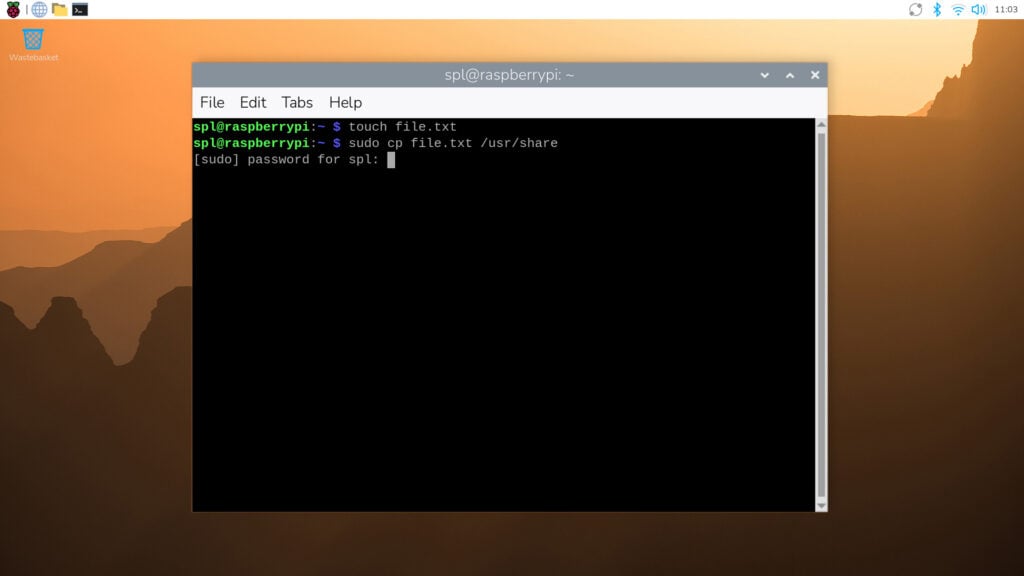
However, regular users sometimes need to perform administrator-level actions. To enable this without having to log out and then log back in as an administrator, users can employ Linux’s sudo utility. Short for ‘superuser do’, sudo is a command prefix that tells the system to perform an action as if it were requested by an administrator rather than a regular user. It is most commonly used when interacting with the terminal — so while cp file.txt /usr/share/ would not be permitted (as a regular user cannot write to the /usr/share directory), sudo cp file.txt /usr/share/ would.
Raspberry Pi OS has always been set up so that regular user accounts can use sudo in this way. Specifically, it has been configured with passwordless sudo enabled by default — all a regular user needs to do to execute a command as an administrator is prefix it with sudo. However, this creates a potential security hole, as anyone who can access the computer can perform administrator actions from a regular user account, some of which could be malicious.
Password, please
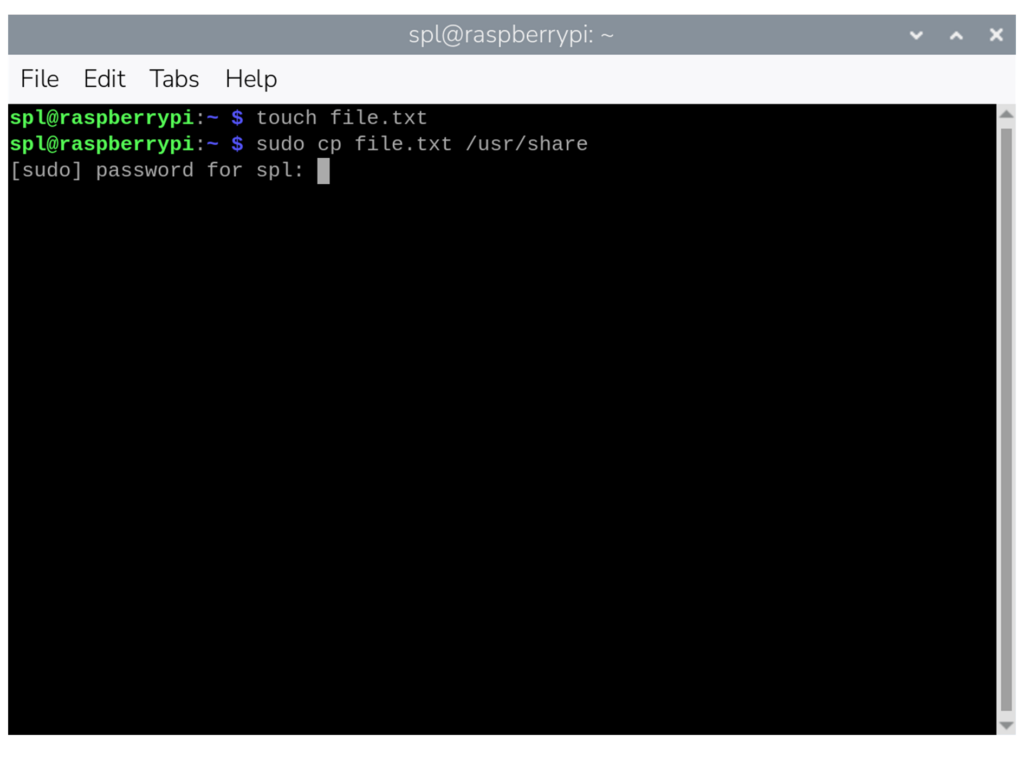
From this release onwards, passwordless sudo is disabled by default. If you use sudo for administrator-level access, you will be prompted to enter the current user’s password. In the terminal, the password prompt will appear as soon as you issue a sudo command. If you enter the correct password, the command will proceed as normal; if you enter an incorrect password, the command will be refused.
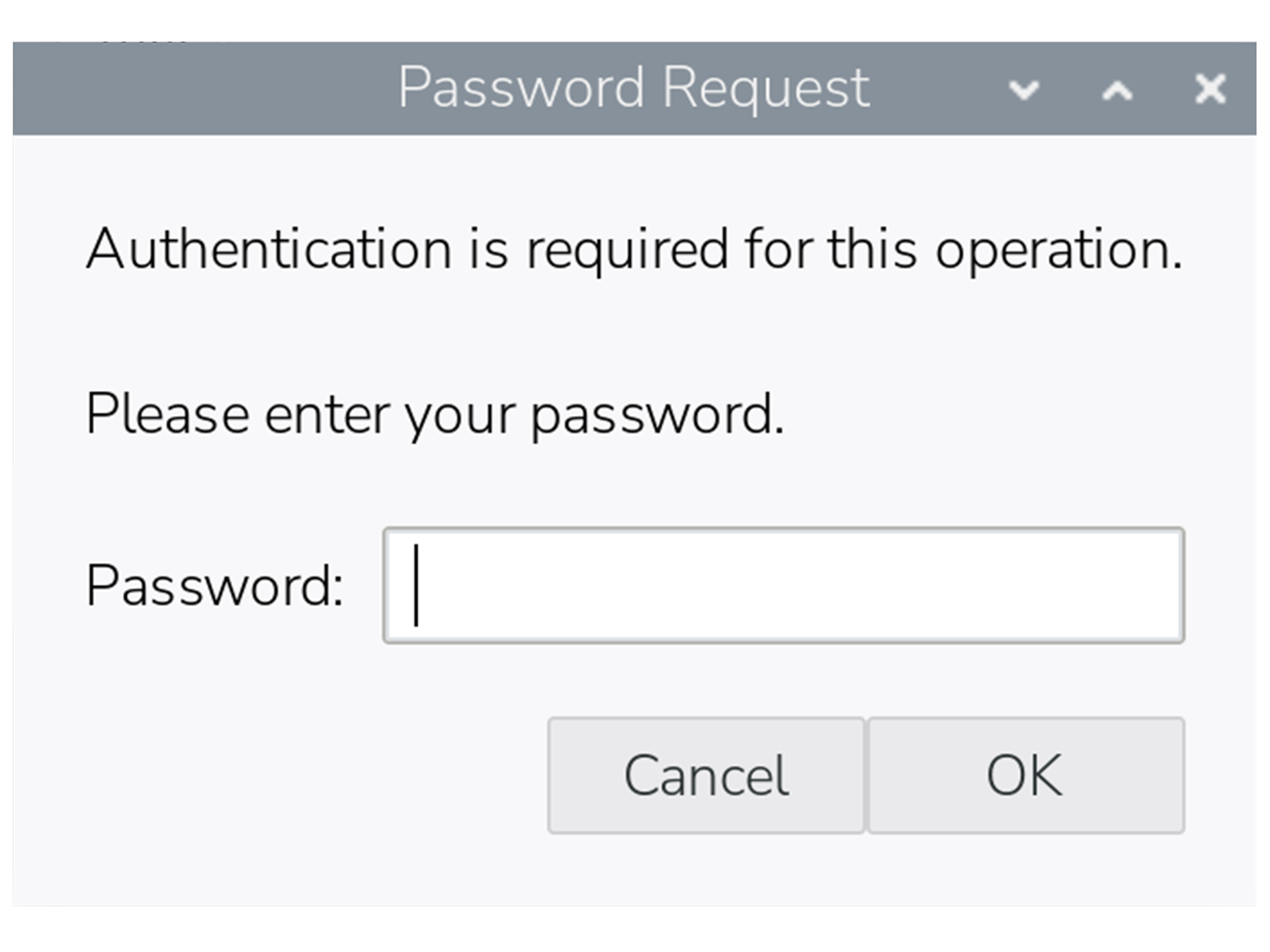
Certain actions in the desktop interface also require sudo access, including some operations in Control Centre. In these cases, a dialog box will pop up asking for the password.
Once a password has been entered, you won’t be prompted again for the next five minutes, even if you perform further sudo actions in that period.
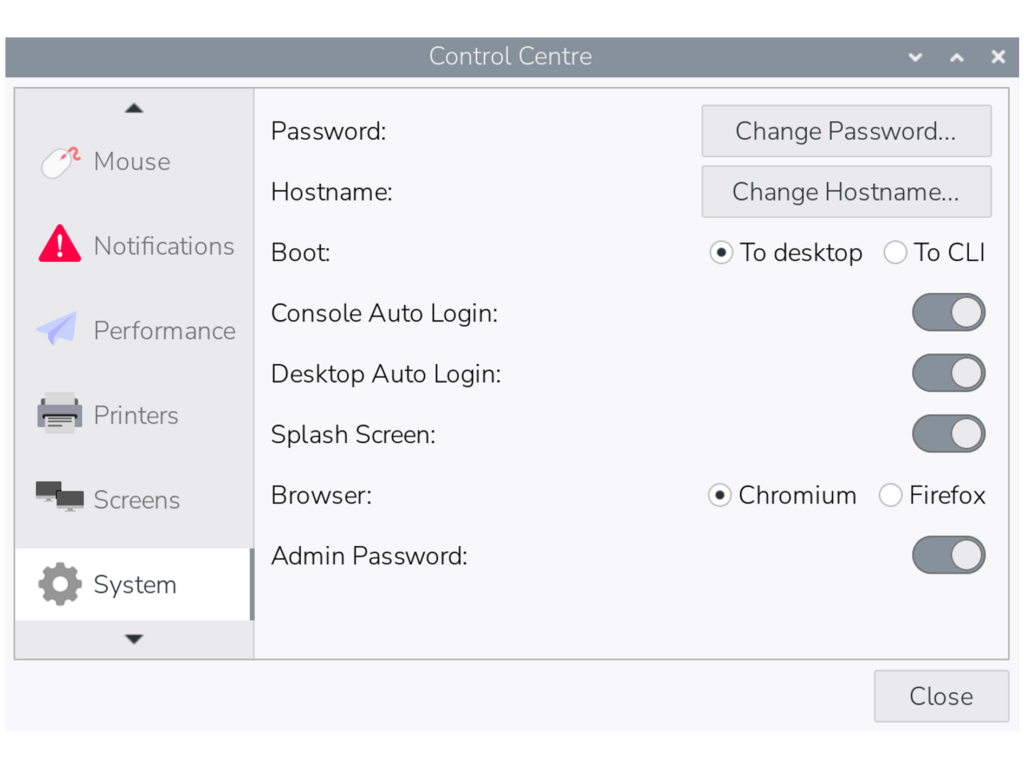
If you prefer not to be prompted for sudo passwords, there is an option to revert to the original passwordless behaviour in the ‘System’ tab in Control Centre. By toggling the ‘Admin Password’ switch off, the system will no longer ask for a password before running sudo commands in either the terminal or the desktop interface.
As with all such changes, we are aware that this update may inconvenience some users who have become accustomed to the way things have worked up until now, but we hope you can understand the reasoning behind it.
Please note that this change will not affect updates to existing installations of Raspberry Pi OS — the Admin Password switch will appear in Control Centre as shown above, but passwordless sudo will remain enabled unless you choose to disable it.




58 comments
solar3000
understandable
Paul Webster
Perhaps should also explain how to disable it from command line for those not using “lite” OS.
Maybe also explain what will happen to people who automate things with scripts that use sudo – perhaps copied from elsewhere.
The symptom might well be hidden in their cases.
Raspberry Pi Staff Simon Long — post author
There is also an option to disable it in raspi-config, under the System menu.
Paul Webster
My “not “lite”” should, of course have been “”lite”” … it started off as “”not “desktop”” but I changed it … poorly.
Anyway, I still think the post should be updated for people who do not read the comments here or the change logs – especially as the same answer has now also been given on the forum and twice here.
MarkH
If you wanted to annoy users you have gone about this the best way possible. A better approach would surely have been to present the option to set or unset the switch while the update is in progress; this way not only would the user be made aware of the security hole posed by sudo, but could make their decision without you pi***ng them off later.
Raspberry Pi Staff Simon Long — post author
Next time, before ranting about things, try reading all the way to the bottom of the blog post.
Where it quite clearly says that this change will *not* be applied to existing installs when updating.
MarkH
Next time, read the beginning of the article before criticizing other people. . .
“. . . but there is one significant change that we’d like to flag up: passwordless sudo is now disabled by default.”
Raspberry Pi Staff Simon Long — post author
Err – I *wrote* the article. I’m therefore pretty sure of what it says.
“By default” means for new images. It doesn’t mean we are going to overwrite all the settings in everyone’s existing installations…
ED
A rather important point, one I think you should have led with. Probably not too late for a small edit to put that up front to put people at ease. Would have helped me!
oscar
mate stop and think how rude you are being i don’t think the r pi foundation accused your entire bloodline of something there just warning people about a SECURITY update so you can leave the chat now.
MW
The Foundation are not involved in the Hardware / Software: https://www.raspberrypi.org
rclark
Sounds logical to me. I always thought that was how it should work. FWIW, I use ‘su -‘ for most of my root access needs. Same with initial access. One should always login to use the system.
Nat
This is a pretty lame change. It ruined my day…
Can this at least be changed back on PiOS Lite which is headless and has no need of passwords?
I use SSH keys via yubikey to login to everything. It’s essentially unhackable. Now I have to add a password to my user account whereas it had none before, and I need to go through the manual steps of setting up passwordless sudo again and then deleting the password on the user account, or I leave an unnecessary auth inherently less secure auth method on my system.
It’d be nice if this was at least a checkbox, in the raspberry pi imager so users could choose.
wheeto
Why not just set up your key-based login to use the root account? If you don’t want a security boundary between your login and the root a/c then …….. just don’t have one?
This change won’t affect your current RPi installations and will already affect your connections to [more-or-less] any other Linux distro so I can’t see why it’s a big problem.
Nat
That would be a fine solution but the default build from the imager doesn’t let you put ssh keys on root, only the user account. So I’m not able to log in and actual change anything without setting up the password.
Dougie Lawson
What happens on systems with the lite version of RaspberryPIOS that don’t have a control panel? Is there an option in sudo raspi-config to set sudo back to passwordless (for selected users)?
Raspberry Pi Staff Simon Long — post author
Yes, the option is in both Control Centre and raspi-config. It’s under the System menu in raspi-config.
DistroEx
It seems that changing the setting in raspi-config doesn’t change the switch position on the button in Control Center.
bls
A quick test of password-less sudo on Lite indicates that this still works correctly. Create a file in /etc/sudoers.d with the contents:
ALL=(ALL) NOPASSWD: ALL
For my username (bls), I created /etc/sudoers.d/010_bls-nopasswd with the contents:
bls ALL=(ALL) NOPASSWD: ALL
Raspberry Pi Staff Simon Long — post author
Or just use the option in raspi-config to turn it back on…
AndyM
Where is this in raspi-config? I’ve done a full update and reboot of my headless pi5 and the option is not there.
wheeto
Unless I’ve misunderstood, the RPi foundation didn’t say they were disabling passwordless sudo. They said they were disabling passwordless sudo BY DEFAULT (and on new installations) so of course your method will work.
Anders
I don’t think the Raspberry Pi Foundation have any involvement in this.
Juraj
What about using what’s Windows using – a modal popup window that asks user to execute the action as administrator – but without asking for a password.
Forcing users to enter their password too often only teaches them to use weak passwords that they can enter easily.
wheeto
Your suggestion doesn’t solve the problem – alert fatigue is a far bigger problem
thagrol
The trouble with those is people tend to click through them without reading them first. I’ve seen very experienced sysadmins trash their Windows systems that way.
A Stevens
I just looked at the changelog, and it’s interesting that the kernel hasn’t been updated for 6 months now. Debian’s own kernel (in 13.4) is now up to 6.12.75, so I’m curious as to why the RPi OS has seemingly needed to stick with a much older sub-version?
rclark
So I am curious…. What would a newer kernel give you in a raspberry pi? Seems to me, a nice stable kernel would be better than the ‘latest’ when no gain in functionality that a user would notice or doesn’t apply to an RPI platform anyway…. Just curious why you think it is important! BTW, most all of my desktop/laptop/server systems are running on 6.8 as that is the LTS kernel in Ubuntu LTS. And doing quite well thank you.
A Stevens
Just patch releases, I mean. It would still be 6.12.x, like the underlying Debian, but if you look at the release history, they regularly issue patch release updates within the series, and in previous series. It’s unusual for the kernel not to change at all in 6 months, given the constant stream of security-related fixes.
Michael B
Is this the only change? Where do the patch notes live?
MW
Raspberry Pi GitHub Repositories:
https://github.com/raspberrypi
Change logs are in the release notes:
https://downloads.raspberrypi.com/raspios_arm64/release_notes.txt
elliott
kind of effects me a little bit but for that ok
solar3000
can we adjust the grace from 5 min to some arbitary minutes?
thanx.
Matthew
You can set this in /etc/sudoers . Add “Defaults timestamp_timeout=X” where X is the timeout in minutes , usually at the beginning of the file. Edit with visudo preferably, “sudo visudo” !
Alexander
While this makes perfect sense for some of my Rasperry Pi boards, I will probably not want to enable it for some of the headless IoT setups.
Besides enabling/disabling it in raspi-config, is there a way to set this up while creating the image? If not, would it be possible to makes this a configureable option in Raspberry Pi Imager?
Oscar
how do i update to the latest version (sry i’m still new to apt)
Matthew
Seems reasonable. This is the default on almost everything else I use these days. And hopefully an Imager update will allow control over this soon for those that need it.
Berte
I do appreciate you sharing this update; I’ll certainly be sure to expect this sudo password prompt, the next time I need to install RPiOS onto a new device, or the next time I update to a new version.
cavoknosig
Another vote for adding this setting to the imager!
I use a lot of headless Pis, each dedicated to a single use case, over the years in an otherwise adequately secure environment, having to go back and rework each and every script/service/daemon to fix the sudo change is going to be a pain and will take time…
Then again, for major raspbian updates, i always have to rebuild on the latest Lite image, so will not be considered an upgrade but rather default….
Some raspis running since 2013, essentially unchanged other than apt-get updated.
Also think about all the listings that are floating out there and will be broken for newbies/just getting started, copy paste crowd.
A warning message somehow would have been much better in a first stage.
Also, especially in regards to hardware I/O & video stuff, i suspect you’re going to create a lot of new headaches for users getting their scripts working. More often than not did i have to capitulate getting things to run in userspace.
Reminds me of that stupid forced change to venv with python… That should be another option in raspi-config for backwards compatibility! I still simply delete that externally-managed file, as everything else is a pain to get the old style python working quickly.
Please don’t break what made you successful!
James Taylor
Security update is always great but as a STEM Ambassador I’ve found it next to impossible to convince network admins to accept Raspberry Pi family computers onto their school networks. This includes guest networks intended for BYOD. Does the latest release address their concerns?
xeny
Do they explain their reasons? A Pi is ultimately a relatively low end Debian Linux host. Do they not allow Linux at all?
Hebert Engelmann
How do I set the password for root in a headless system for the first time?
Until now I used to “sudo passwd root” and was not prompted for the old password (it did not exist). Would that be possible in the future?
thagrol
Same way you would without this change. Sudo asks for your own password not root’s.
But why do you want a password for the root account? Having one makes it less secure.
rclark
For me, I prefer a root password. I don’t see how that is any more insecure than using sudo, but regardless, every Linux system I setup, the first thing I do is ‘sudo passwd root’, then off and running. There are times I prefer to ‘su -‘ and be in root while I do a bunch of commands then pop back out when done.
thagrol
For anyone struggling with this I wrote up some brief notes here: https://forums.raspberrypi.com/viewtopic.php?t=397601
GAMBIER
Hi, the img files in the page https://www.raspberrypi.com/software/operating-systems/
don’t work after pressing the [launch] button. I tried with Pi5 ans Pi5 v1.1 I spoke of the 13 april 2026 version.
The RPi imager gives good result, but not the img.
The TSG compagny used img.
Best regards,
P.Gambier
GAMBIER
Found the issue and the solution. If you initialized the .img with the user ‘pi’. The board will show a black screen et blinking login. So don’t initialize with the ‘pi’ user but you can try and confirm.
Supra
@Simon Long, I downloaded Trixie for RPI 5 with 4GB. I rebooted second time, then I got dummy characters. Then I attempted again and asking for reboot for first time, then I got bloody dummy characters. I attempted five times and still persisted. I actually wanted to do TRIXIE over Bookworm.
Robert Rathbone
You can also run sudo raspi-config to disable it.
$ sudo raspi-config
[sudo] password for pi: *******
Then select:
1 System Options Configure system settings
S10 Admin Password Enable or disable sudo password
Would you like the admin (sudo) password to be enabled? No
The admin password is disabled
Charles
As this post refers to the need for improved security, and to someone having physical access, are there plans to incorporate a physical tpm capability directly on the pi?
Annoyed
I just want to know how to remove the annoying message at login. I’ve already deleted the pi user entirely. I’ve been running Linux for decades, I know how to make it secure. I don’t need the system preaching to me. I even recreated the pi user just so I could change its password and that didn’t help either. I just want to remove the message. What do I need to do to just remove the message? I just need to see where it’s getting set.
Supra
I still had same problem, but cannot get to desktop.
ThisTimeVote
I’d been dealing with this new requirement on a fresh install of RPi OS when I noticed that I could sometimes eliminate the password prompt simply by “x-ing” out of it, and the app would open. In other cases the prompt would disappear on its own after a few seconds before I had finished typing my password, and again the app would open. Has anyone else encountered this?
stl1988
Completely annoying. Every time I either open or close settings or even desktop preferences, starting and stopping cups-browsed.service asks for a password. And I already turned “Admin Password” off.
Raspberry Pi Staff Simon Long — post author
You need to update your system – that problem was fixed in an update several weeks ago.
Or, if you have created a new user, you need to add that user to the “lpadmin” group.
stl1988
I did a full-upgrade but that changed nothing.
stl1988
But the lpadmin thing worked after logging out and in again.
LABYAD El Hassan
Unrelated to this article, but Simon you guys need to do something about raspberry pi imaged for VNC users, before piwiz, all you had to do is check your router for your raspberry pi IP or use something like nmap or fing app, SSH to the raspberry then enable VNC.
With piwiz now you are forced to use a mouse/keyboard to pass piwiz because for some stupid reason it halts the raspberry from connecting to the wifi network the user sets up earlier.
While the with trial and error one learns to just take a lite image, ssh to it and then install a gui backend, this is not convenient, and many will be confused and waste a day for something like this.
I would suggest (if possible, I know complaining is easier that getting things done) to add a `bypass piwiz’ checkbox or give a warning for any image that has piwiz baked in especially for newbies lacking a monitor or a capture card.
Comments are closed