A security update for Raspberry Pi OS
Today we are releasing version 6.2 of Raspberry Pi OS, the second update to the Trixie version we released last year. This update is mostly a round-up of all the small changes and bug fixes we have made over the past few months, but there is one significant change that we’d like to flag up: passwordless sudo is now disabled by default.
Given the ever-increasing threat of cybercrime, we continually review the security of Raspberry Pi OS to ensure it is sufficiently robust to withstand potential attacks. This is always a tricky balance, as anything that makes the operating system more secure will invariably inconvenience legitimate users to some extent, so we try to keep such changes to a minimum. This particular security update is one that many users may not even notice, but it will affect some.
What would superuser do?
All Linux systems have two types of user account: a regular user and an administrator. Administrators are able to access the system in ways that regular users cannot — the most obvious being that they can write files to parts of the file system that are restricted to others.
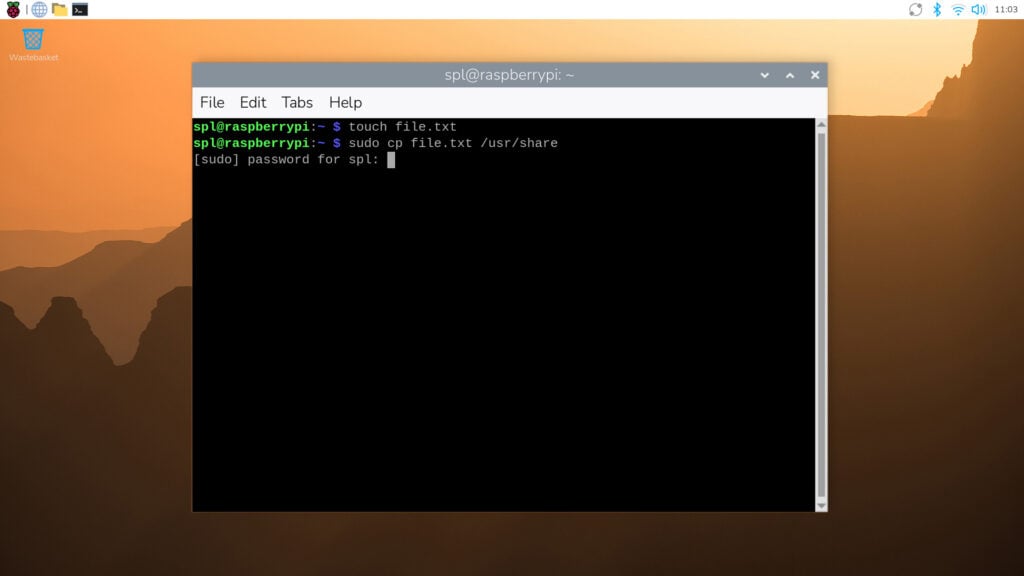
However, regular users sometimes need to perform administrator-level actions. To enable this without having to log out and then log back in as an administrator, users can employ Linux’s sudo utility. Short for ‘superuser do’, sudo is a command prefix that tells the system to perform an action as if it were requested by an administrator rather than a regular user. It is most commonly used when interacting with the terminal — so while cp file.txt /usr/share/ would not be permitted (as a regular user cannot write to the /usr/share directory), sudo cp file.txt /usr/share/ would.
Raspberry Pi OS has always been set up so that regular user accounts can use sudo in this way. Specifically, it has been configured with passwordless sudo enabled by default — all a regular user needs to do to execute a command as an administrator is prefix it with sudo. However, this creates a potential security hole, as anyone who can access the computer can perform administrator actions from a regular user account, some of which could be malicious.
Password, please
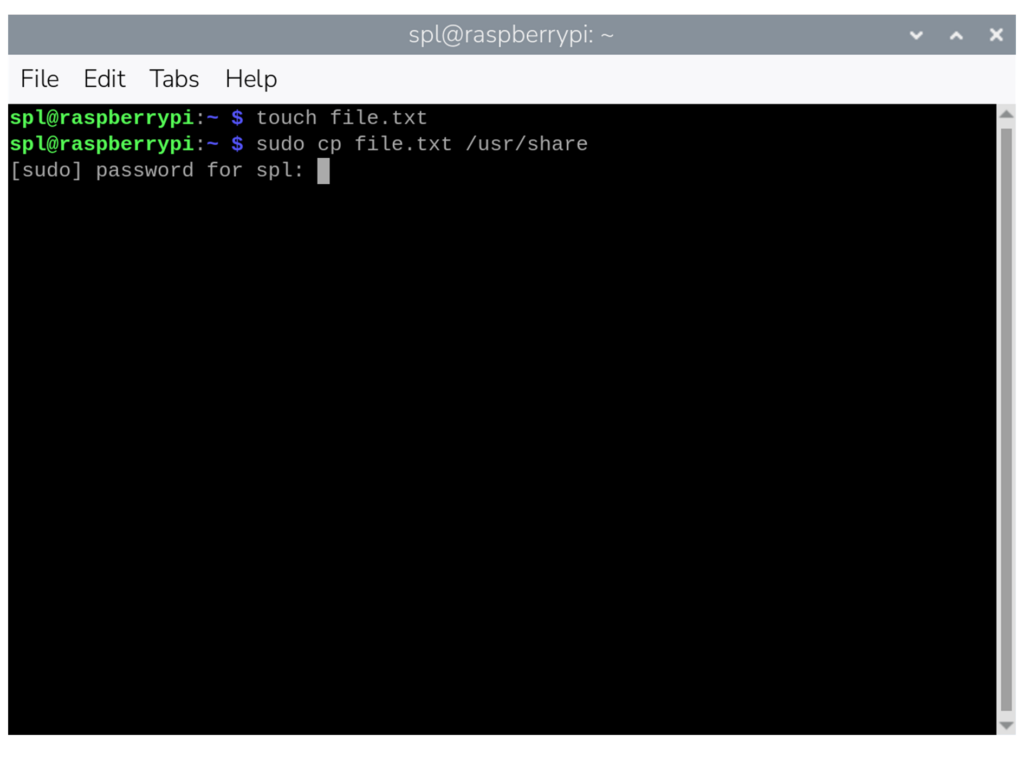
From this release onwards, passwordless sudo is disabled by default. If you use sudo for administrator-level access, you will be prompted to enter the current user’s password. In the terminal, the password prompt will appear as soon as you issue a sudo command. If you enter the correct password, the command will proceed as normal; if you enter an incorrect password, the command will be refused.
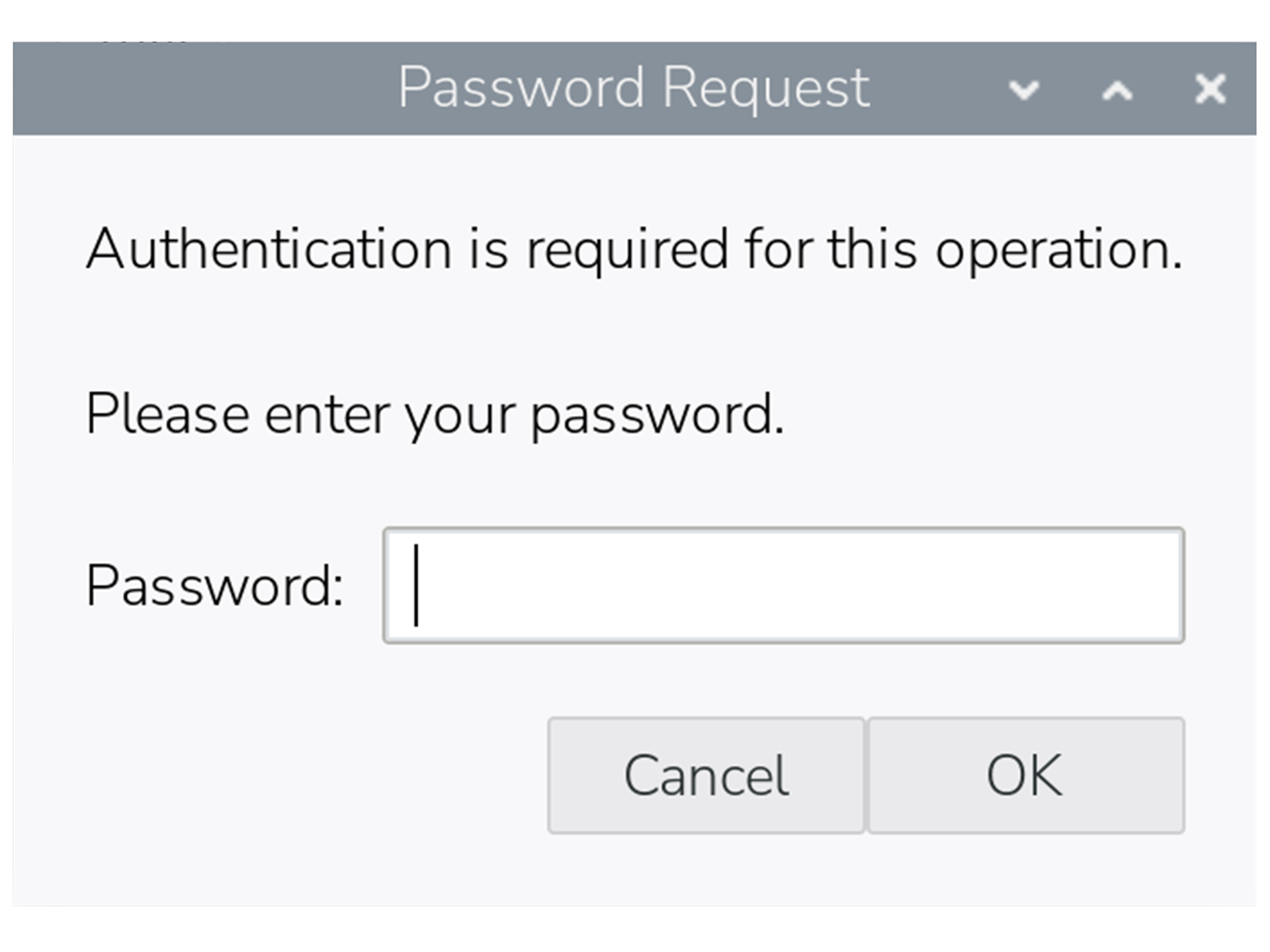
Certain actions in the desktop interface also require sudo access, including some operations in Control Centre. In these cases, a dialog box will pop up asking for the password.
Once a password has been entered, you won’t be prompted again for the next five minutes, even if you perform further sudo actions in that period.
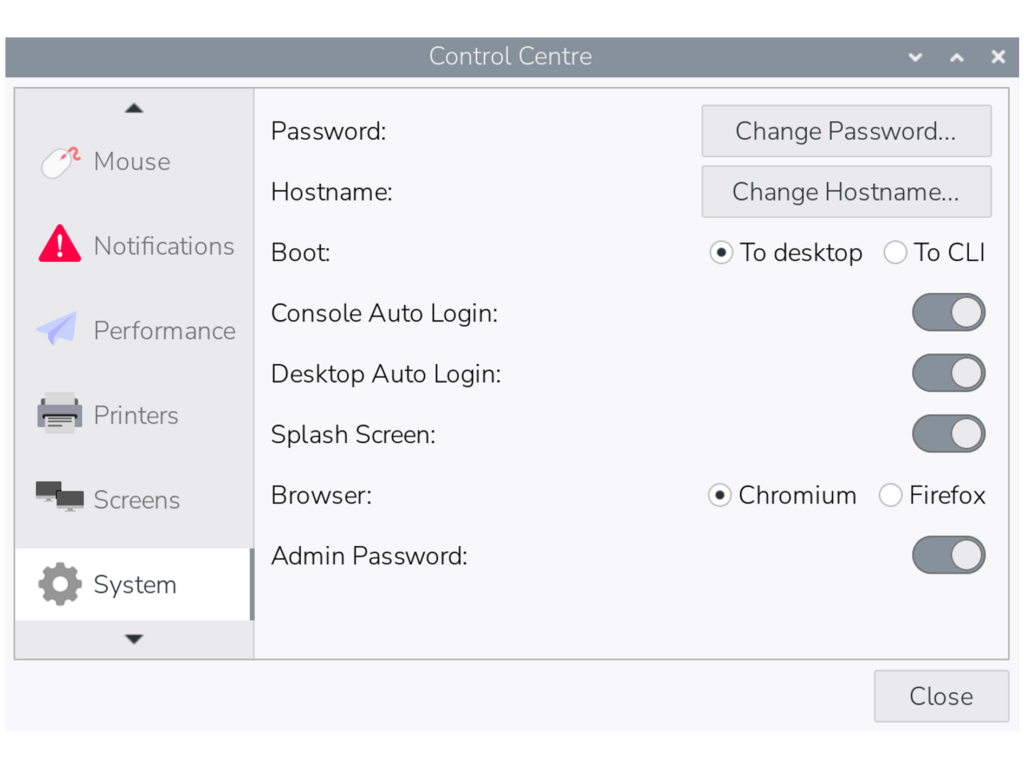
If you prefer not to be prompted for sudo passwords, there is an option to revert to the original passwordless behaviour in the ‘System’ tab in Control Centre. By toggling the ‘Admin Password’ switch off, the system will no longer ask for a password before running sudo commands in either the terminal or the desktop interface.
As with all such changes, we are aware that this update may inconvenience some users who have become accustomed to the way things have worked up until now, but we hope you can understand the reasoning behind it.
Please note that this change will not affect updates to existing installations of Raspberry Pi OS — the Admin Password switch will appear in Control Centre as shown above, but passwordless sudo will remain enabled unless you choose to disable it.



13 comments
Jump to the comment form
solar3000
understandable
Paul Webster
Perhaps should also explain how to disable it from command line for those not using “lite” OS.
Maybe also explain what will happen to people who automate things with scripts that use sudo – perhaps copied from elsewhere.
The symptom might well be hidden in their cases.
Raspberry Pi Staff Simon Long — post author
There is also an option to disable it in raspi-config, under the System menu.
MarkH
If you wanted to annoy users you have gone about this the best way possible. A better approach would surely have been to present the option to set or unset the switch while the update is in progress; this way not only would the user be made aware of the security hole posed by sudo, but could make their decision without you pi***ng them off later.
Raspberry Pi Staff Simon Long — post author
Next time, before ranting about things, try reading all the way to the bottom of the blog post.
Where it quite clearly says that this change will *not* be applied to existing installs when updating.
rclark
Sounds logical to me. I always thought that was how it should work. FWIW, I use ‘su -‘ for most of my root access needs. Same with initial access. One should always login to use the system.
Nat
This is a pretty lame change. It ruined my day…
Can this at least be changed back on PiOS Lite which is headless and has no need of passwords?
I use SSH keys via yubikey to login to everything. It’s essentially unhackable. Now I have to add a password to my user account whereas it had none before, and I need to go through the manual steps of setting up passwordless sudo again and then deleting the password on the user account, or I leave an unnecessary auth inherently less secure auth method on my system.
It’d be nice if this was at least a checkbox, in the raspberry pi imager so users could choose.
Dougie Lawson
What happens on systems with the lite version of RaspberryPIOS that don’t have a control panel? Is there an option in sudo raspi-config to set sudo back to passwordless (for selected users)?
Raspberry Pi Staff Simon Long — post author
Yes, the option is in both Control Centre and raspi-config. It’s under the System menu in raspi-config.
bls
A quick test of password-less sudo on Lite indicates that this still works correctly. Create a file in /etc/sudoers.d with the contents:
ALL=(ALL) NOPASSWD: ALL
For my username (bls), I created /etc/sudoers.d/010_bls-nopasswd with the contents:
bls ALL=(ALL) NOPASSWD: ALL
Raspberry Pi Staff Simon Long — post author
Or just use the option in raspi-config to turn it back on…
Juraj
What about using what’s Windows using – a modal popup window that asks user to execute the action as administrator – but without asking for a password.
Forcing users to enter their password too often only teaches them to use weak passwords that they can enter easily.
A Stevens
I just looked at the changelog, and it’s interesting that the kernel hasn’t been updated for 6 months now. Debian’s own kernel (in 13.4) is now up to 6.12.75, so I’m curious as to why the RPi OS has seemingly needed to stick with a much older sub-version?