Remote play GTA VI with Raspberry Pi and Greenlight
Raspberry Pi Official Magazine editor Lucy Hattersley shows you how to play your new favourite game on a Raspberry Pi.
It’s a familiar problem. The house only has one television, and it has been used to play video games for long enough; now it’s going to be used for its intended purpose, while gaming is relegated to the spare room. But did you know that you can stream games from an Xbox console to a Raspberry Pi using Greenlight? Where there’s a will to play Grand Theft Auto VI, there’s a way.
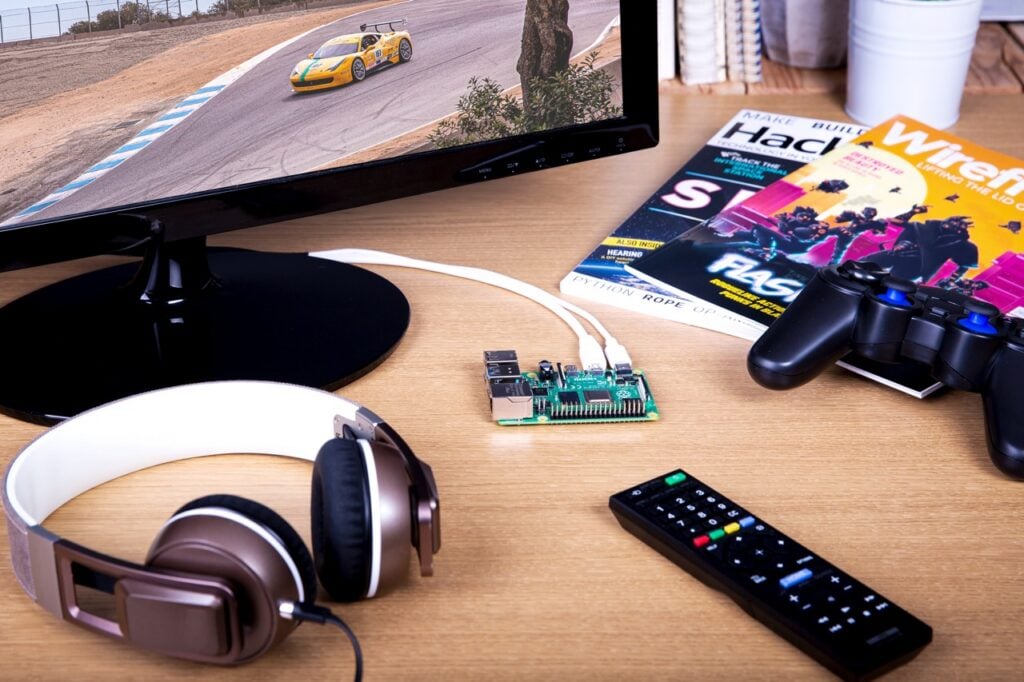
You will need:
- Raspberry Pi 5
- Bluetooth controller
- Greenlight
- Local network (Wi-Fi or, ideally, Ethernet)
- Xbox Series X or Series S
Get the Greenlight
While this might seem like a glorious waste of time, as does most gaming, there’s a lot to be learnt here — particularly from using Greenlight. Greenlight is a client application wrapped around the xbox-xcloud-player library. It’s cross-platform and runs on Linux, macOS, Windows, and Steam Deck.
Greenlight can be used to stream video and audio from the Xbox One and Xbox Series X/S consoles. It has support for gamepad controls (we are using an 8BitDo Pro 2 controller, but you can use an actual Xbox gamepad).
We will learn to use Flatpak in this tutorial to install cross-platform Linux programs. We will run Greenlight in full-screen mode and create a .desktop file entry to launch it at boot.
For this tutorial, we used a Raspberry Pi 5 with 2GB of RAM. The CPU demands are relatively light, as the Xbox itself is doing the heavy number crunching to play the game while the Raspberry Pi is streaming video and sending feedback from your controller. You will get good results on any Raspberry Pi with a good local network connection.
Performance note
Raspberry Pi 5 offers significantly better performance for this kind of application than Raspberry Pi 4 or Raspberry Pi Zero 2 computers. The VideoCore VII GPU is roughly three times faster on Raspberry Pi 5 than on Raspberry Pi 4.
Turn on Remote Play
Before we start, you’ll need to ensure Remote Play is activated on your Xbox. Start up your Xbox and open Settings. Choose Devices & connections and Remote features. Now place a tick next to Enable remote features.
You should also set the power mode to Sleep rather than the default Shutdown. This enables your Raspberry Pi to wake up the Xbox when it wants to connect remotely. You can find this under Settings, General, and Power options.
Installing Greenlight
Start with a fresh installation of Raspberry Pi OS and ensure it is connected to the internet (to download the software), on the same network your Xbox is connected to.
Open a terminal window and enter:
$ sudo apt update

$ sudo apt install flatpak
Next, add the Flathub repo:
$ sudo flatpak remote-add --if-not-exists flathub https://dl.flathub.org/repo/flathub.flatpakrepoNow use Flatpak to install Greenlight:
$ flatpak install flathub io.github.unknownskl.greenlightConnect a controller
Make sure your Bluetooth game controller has some charge and put it into pairing mode. Typically, there will be a button on the device and a light that will flash when in pairing mode.
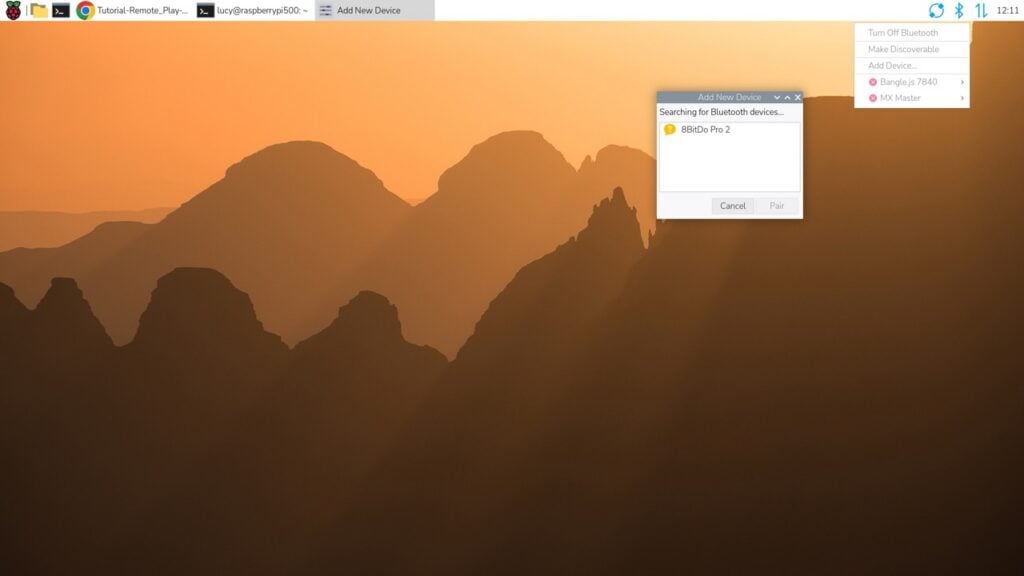
Click on the Bluetooth icon in the top right-hand side of the interface (or the Dock if you are using that). Choose Add Device and highlight your games controller in the Add New Device window. Click Pair.
A window will display Pairing Successful – Connecting. When it displays Connection Successful, click OK.
Run Greenlight
Start Greenlight from the command line to test it out:
$ flatpak run io.github.unknownskl.greenlight You will see a message that says ‘to sign in, use a web browser to open the page https://www.microsoft.com/link and enter the code’, along with an eight-digit code.
Do as instructed. Open a web browser, visit https://www.microsoft.com/link, and enter the code provided. Now sign in to your Microsoft account using the same account that you use for your Xbox. Click OK in the pop-up window to close it and return to the Greenlight app.
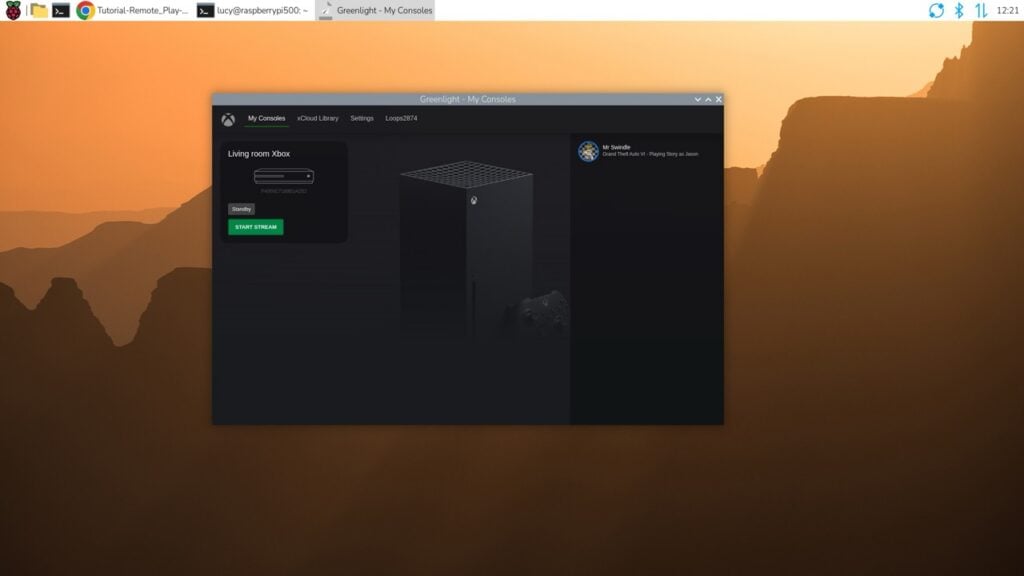
Your console will appear in the left-hand side of the Greenlight application. Click Start Stream to connect your Raspberry Pi to your Xbox.
Play your Xbox
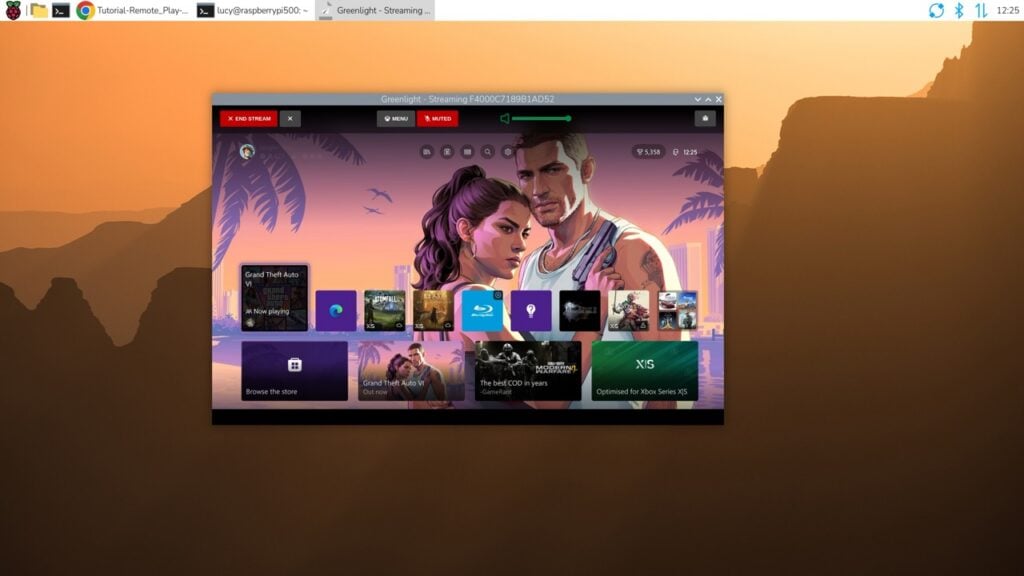
You will now see the familiar Xbox interface on your Raspberry Pi desktop. Use the games controller to control your Xbox and start the game you wish to play.
To launch the app in full-screen mode, add the --fullscreen option to the Greenlight run command, like this:
$ flatpak run io.github.unknownskl.greenlight --fullscreenWe are going to go a step further and create an autostart script so that the program launches full-screen when we boot up Raspberry Pi OS, turning the device into a single-app console. First, we need to add our console identification number to the run command. You can find this number by looking under the Xbox graphic in the top right-hand window of Greenlight. It should look something like ‘F4000C7189B1AD52’.
$ flatpak run io.github.unknownskl.greenlight --fullscreen --connect=F4000C7189B1AD52This time, Greenlight will launch and connect directly to your console.
Create a .desktop file in Raspberry Pi OS:
$ mkdir -p ~/.config/autostart

$ nano ~/.config/autostart/greenlight.desktop
And add the code to the greenlight.desktop file:
[Desktop Entry]
Type=Application
Name=Greenlight
Exec=flatpak run io.github.unknownskl.greenlight --fullscreen --connect=<Console ID>
Press CTRL+O and CTRL+X to save and exit.
You’ll need to enable auto login in Raspberry Pi OS to automatically bypass the login screen when you start up the computer. Do this in raspi-config:
$ sudo raspi-configNavigate to System Options and choose Boot / Auto Login and then Desktop Autologin, then reboot.
When your Raspberry Pi reboots, it will automatically boot into Greenlight, displaying a mirrored version of your Xbox console. Enjoy your second Xbox gaming machine.
Where there’s a will to play GTA VI, there’s a way
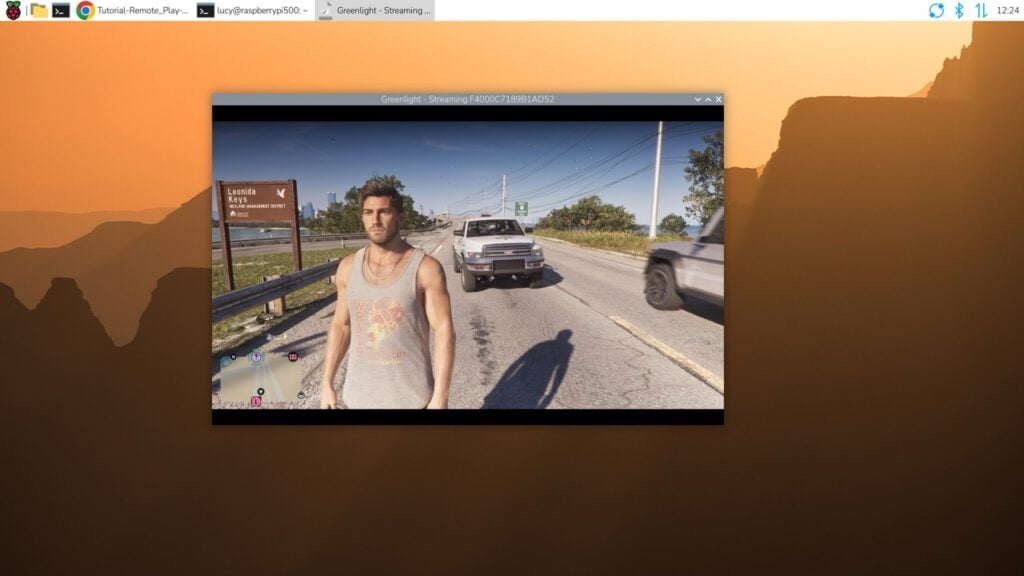
Use your Bluetooth controller to play the game. If you need keyboard controls, keys in Greenlight are mapped as follows:
- D-pad: keypad direction controls
- Buttons: A, B, X, Y, Backspace (mapped as B), Enter (mapped as A)
- Nexus (Xbox button): N
- Left bumper: [
- Right bumper: ]
- Left trigger: –
- Right trigger: =
- View: V
- Menu: M

No comments
Jump to the comment form