Raspberry Pi Camera Module: Still image capture
This #MagPiMonday we bring you this in-depth guide to the Raspberry Pi Camera Module’s still image capture modes and settings.

In The MagPi #129 we introduced libcamera-still which allows us to capture still images. But it also has many more options controlling how it captures images, and the file formats and available image encoders. We’ll discover some of those in this tutorial. For now, we shall continue to assume that you have your keyboard and a monitor plugged directly into your Raspberry Pi.
Capturing images at different resolutions
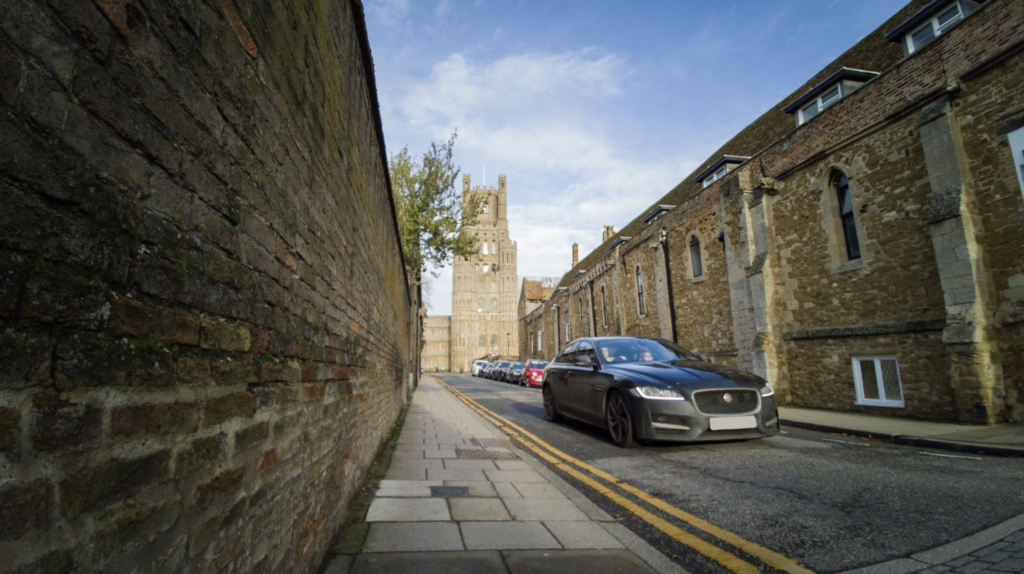
By default, libcamera-still will capture images at the maximum available resolution supported by the camera. For the HQ Camera, for example, this means images that are 4056×3040 pixels in size. But it’s easy to change this with the --width and --height parameters. For example, if you want to capture an image that is 1536×1024 pixels instead, you should use:
libcamera-still --width 1536 --height 1024 -o smaller.jpg
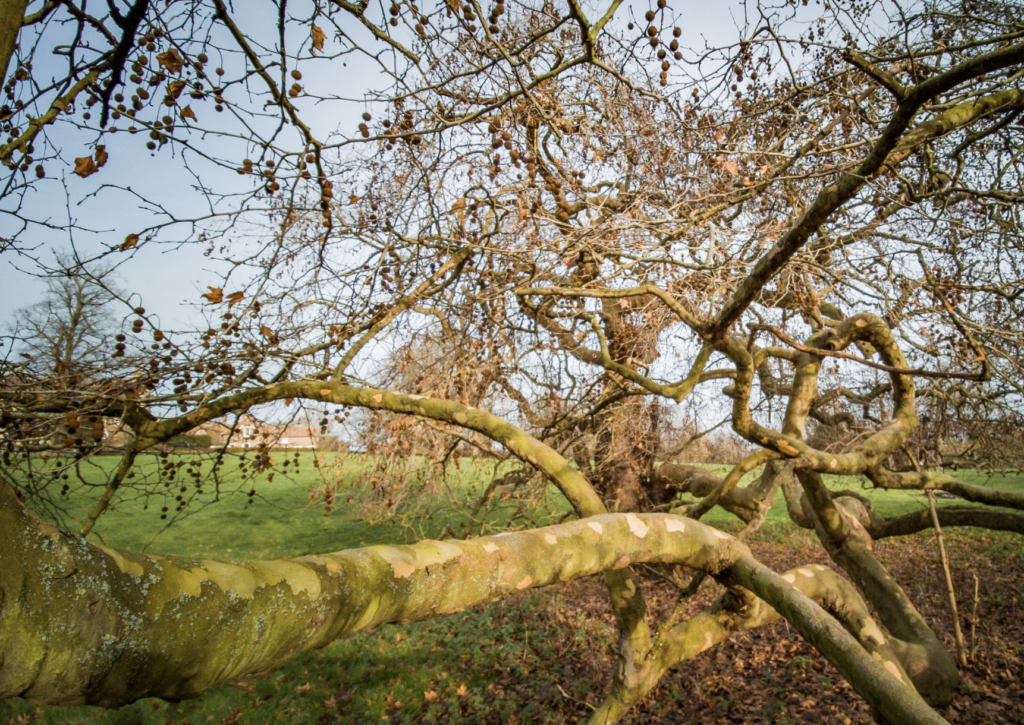
Image encoders and file formats
Images are normally encoded in some way (often they are compressed so that they aren’t so large) and then saved to a standard file format on the disk.
JPEG files
The default file format used by libcamera-still is JPEG because of the very wide support that it has, combined with a useful level of compression. Usually, JPEG files are given the extension .jpg, or sometimes .jpeg, as we have already seen.
JPEG is a lossy compression format, meaning that the result of loading your JPEG file is no longer identical to the image that you started from, though the differences are arranged to be ones that you will least notice. In return, you get to specify a quality factor indicating how much compression you want. At very low values your image will indeed deteriorate, but at very high values the JPEG process will be visually lossless; that is, it really will look as good as the original camera image.
The quality factor ranges from 1 to 99, and if you don’t give one it will choose the value 93, which equates informally to ‘quite high quality’. To save a JPEG at a different quality level, use the -q (or equivalently --quality) parameter like this:
libcamera-still -q 80 -o test.jpg
Experiment with quality values like 10 and 50 to see what you get!
PNG files
PNG (or ‘Portable Network Graphic’) is another file and compression format which enjoys wide support. PNG is a lossless compression format, meaning that you are guaranteed to be able to recover exactly the same image that you started from (unlike JPEG). On the downside, PNG files are normally larger than JPEG files, and they are harder work to create, which takes longer.
To save a PNG file, you’ll need to tell libcamera-still that you want to use a different encoder using the -e or --encoder parameter, like this:
libcamera-still -e png -o test.png
Note that it’s necessary to specify the -e option to get a PNG file – changing the file name on its own is not enough. PNG does not support a quality parameter.
DNG files
DNG, or ‘Digital NeGative’, files are quite different from PNG files. As the full name suggests, they’re somewhat analogous to the ‘negatives’ we had from film cameras before developing them into photos. In our case, the DNG file stores the raw numbers received from the image sensor before the hardware on Raspberry Pi ‘develops’ it into a viewable (JPEG or PNG) image. DNG files are saved alongside the ‘developed’ JPEG or PNG version of the same image. To save a DNG file, use the -r (or --raw) parameter:
libcamera-still -r test.jpg
libcamera-still will automatically replace .jpg by .dng in the DNG file name, giving both test.dng and test.jpg in this case.
Many third-party software programs exist to ‘develop’ these DNG files interactively – a rather complex procedure beyond the scope of this guide.
Time-lapse captures
A time-lapse capture is where we capture an image at regular intervals, perhaps every minute, hour or day, and then reassemble them into a video where we play them back at a much faster rate. libcamera-still is all set up to capture the images we need out of the box.

We need to introduce the --timelapse option and we’ll review a couple that we’ve seen before.
-t or –timeout. The length of time in milliseconds for which to perform a capture. In the case of timelapse, libcamera-still will run capturing images in total for this duration. You can pass the value 0 which means ‘run indefinitely’ (you will have to stop libcamera-still manually, for example by pressing CTRL+C on the keyboard).
–timelapse. The length of time, again in milliseconds, between each of the time-lapse captures.
-o or –output. The name of the output file or files. For time-lapse captures, we can’t give all the images the same name so we use a special syntax that includes an image counter. For example, -o capture_%04d.jpg means that all the files are named ‘capture_’, followed by a counter, and then .jpg. %04d specifies how the counter is formatted, in this case the 0 means to add leading zeroes to the number and the 4 means ‘so that every number has at least 4 digits’. This is useful so that listing your image files will return them to you in chronological order.
Let’s try an example.
libcamera-still -o capture_%04d.jpg --timelapse 5000 -t 30000 --width 1024 --height 768
This will run for 30 seconds, capturing an image every 5 seconds, and they’ll be called capture_0000.jpg through to capture_0004.jpg.
Note how we’ve reduced the resolution of the images to something that is more appropriate to the final video that we want to create.
Assembling your Images into a Video
There’s a handy tool called FFmpeg which is capable of turning your sequence of still images into a video. We can use it like this:
ffmpeg -r 2 -i capture_%04d.jpg video.mp4
Note how we format the name of the input files with the special % syntax in the same way as we did for libcamera-still. The -r parameter gives the frame rate of the output video, 2 frames per second in this case. We’ve chosen the output file to have the MP4 format and called it video.mp4.
FFmpeg is a highly versatile tool that we recommend learning about.

Capturing when a key is pressed
Rather than doing regular captures, we can also do them in response to an event, or a key press. There are a couple of new option parameters to learn.
–datetime. Use this instead of -o to name the output file after the current date and time. The format will be MMDDhhmmss.jpg, where MM and DD are the month and date number, and hh, mm and ss are hours, minutes and seconds.
-k or –keypress. Capture an image when ENTER is pressed on the keyboard. Type X and press ENTER to quit.
So the command to use is this:
libcamera-still -t 0 --keypress --datetime
Here we’re running the capture indefinitely, so we’ll have to type X followed by ENTER to quit (or press CTRL+C). Files would have names like 0405102742.jpg, meaning ‘10:27am, and 42 seconds, on 5 April’.
Capturing in response to a signal
For those familiar with Linux signals, an alternative to pressing a key is to send a signal instead. To do this, simply use -s or --signal instead of -k (or --keypress).
To send a capture signal to libcamera-still, first start it and then type the following into another terminal window:
kill -SIGUSR1 `pidof libcamera-still`
And you can force libcamera-still to quit with:
kill -SIGUSR2 `pidof libcamera-still`
Autofocus and High Dynamic Range
Autofocus and High Dynamic Range imaging are supported at the time of writing only on Raspberry Pi Camera Module 3.
Autofocus
When using the Camera Module 3, autofocus is enabled automatically in continuous mode. This means that the camera lens will move whenever necessary to maintain optimal focus on the centre part of the image, and this is probably what most users will want most of the time.
It’s also possible to turn off autofocus and set the focus position of the lens manually. To do this, use the --lens-position parameter, and pass it a value measured in dioptres, meaning the reciprocal of the focus distance. Thus, to focus at a very close distance of about 0.1 m, pass in the value 10 (which is 1 / 0.1). To focus at infinity, pass in 0 (informally, the value of 1 / infinity). You can pass in non-integer values too. For example:
libcamera-still --lens-position 0 -o infinity.jpg
…will set the focus position to infinity and not move the lens again.
High Dynamic Range imaging
The Camera Module 3 supports High Dynamic Range (HDR) imaging. To use it, specify the --hdr option on the command line, for example:
libcamera-still --hdr -o hdr.jpg
Note that non-HDR captures can be performed at a maximum resolution of 4608×2592 pixels, but HDR captures, because of the special nature of the sensor required to support HDR, are limited to 2304×1296 pixels (exactly half the width and height of the non-HDR mode).
The MagPi #130 out NOW!
You can grab the brand-new issue right now from Tesco, Sainsbury’s, Asda, WHSmith, and other newsagents, including the Raspberry Pi Store in Cambridge. It’s also available at our online store which ships around the world. You can also get it via our app on Android or iOS.

You can also subscribe to the print version of The MagPi. Not only do we deliver it globally, but people who sign up to the six- or twelve-month print subscription get a FREE Raspberry Pi Pico W!
2 comments
Joce Boissin
Are there plans for you to expand to a standard video format with this – e.g. 24 frames per second? Is that achievable?
S O
A jpg image is 8bit per channel (24bit RGB) and definitionally *not* “HDR”, the extra data captured is thrown out in to process of approximating whatever canned contrast profile is being used. Ideally you would use the DNG format to actually capture this data, or alternatively 16-32 bit per channel integer or floating point PNG (does libcamera even support this?).
Comments are closed