Emulate Apple II on Raspberry Pi
It’s the last Maker Monday before Halloween and we still don’t have a costume sorted, so instead, we’re going to follow this treat of a tutorial from The Raspberry Pi Guide to Retro Gaming to disguise our Raspberry Pi as the classic 8-bit Apple II computer.
The Apple II was not the first personal or home computer, but it was part of the iconic ‘trinity’ of computers that came out in 1977: Apple II, Commodore PET, and TRS-80. The Apple II wasn’t as capable a gaming computer as some of the other 8-bit systems of the era, but it was designed with games in mind. In designing the Apple II, Steve Wozniak took inspiration from his work on the Breakout arcade game during his time at Atari. It’s why the Apple II has colour graphics, support for paddle controllers, and even audio.
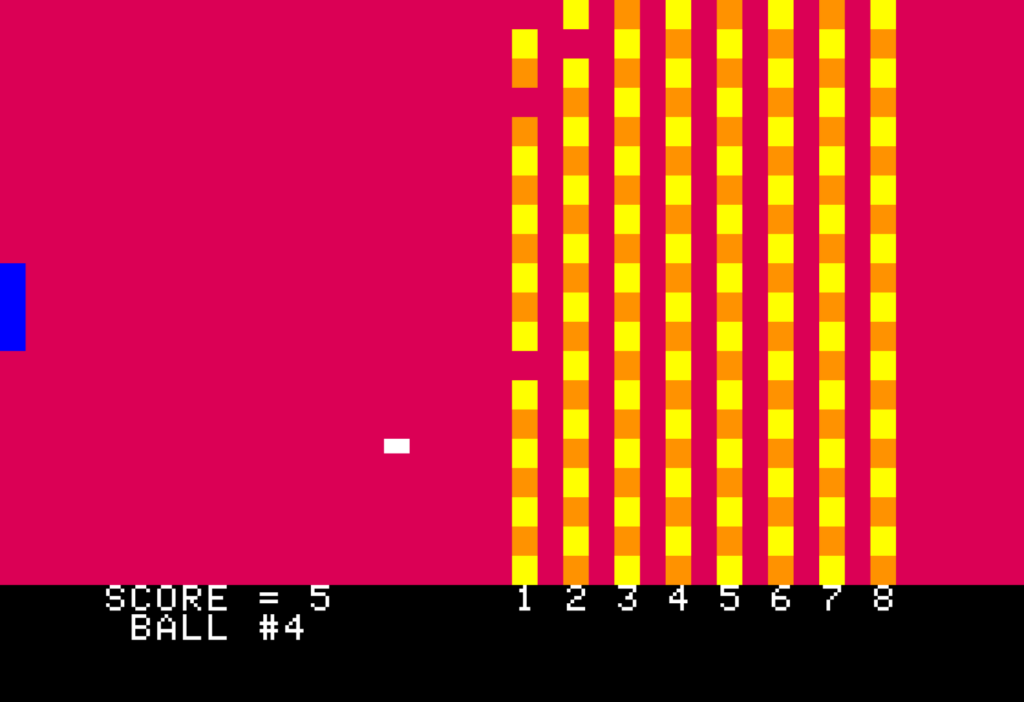
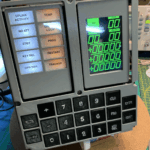
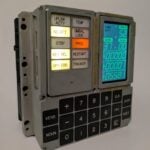
(10 points to anyone who can tell us what this is in the comments)
Apple II audio was quite limited: anything more complex than a beep was quite CPU-intensive. Add-on audio boards, such as the Mockingboard, became popular and enjoyed support from a number of game developers.
The Apple II included a version of the BASIC language that only supported integer numeric data types: by eschewing floating-point numbers, Wozniak’s Integer BASIC, as it was called, processed numbers extremely fast. This made it less than ideal for certain programming tasks, but it was fantastic for video games. Integer BASIC was supplied in the system ROM image of the Apple II, while a more full-featured BASIC, Applesoft BASIC, was originally supplied on cassette tape (it would be baked into the system ROM beginning with the Apple II Plus, though).
Install an Apple II emulator
For Apple II emulation on Raspberry Pi, we are using the LinApple emulator. It’s a fork of the AppleWin emulator which was originally created by Mike O’Brien. David Baucum (maxolasersquad) and several other contributors got it running on Linux. You may also want to have a look at audetto’s fork of the AppleWin emulator. Because audetto’s fork is regularly synchronised with the original AppleWin GitHub repository, it tracks AppleWin features more closely.
LinApple can emulate Apple II sound cards such as the Mockingboard (enabled by default in the configuration file). LinApple is not available through the Raspberry Pi OS apt repository, so you’ll need to compile it yourself. Fortunately, it’s quite easy to do this. First, open a Terminal window. This is where you’ll install dependencies, download the source code, and compile, then install it.
In the Terminal window, run these commands to update your operating system packages and to install the dependencies needed to compile LinApple. You may be prompted for your password when you run the commands that use sudo.
$ sudo apt update

$ sudo apt -y full-upgrade

$ sudo apt -y install git g++ cmake
libzip-dev libsdl3-dev libsdl3-image-dev libcurl4-openssl-dev zlib1g-dev imagemagick
Now you’re ready to clone the emulator repository. If you’d prefer not to check the source code out into the root of your home directory, create a directory and change into it before you clone it. For example, mkdir ~/src would create a src directory under your home directory, and cd ~/src would change into it. You can clone the repository with this command:
$ git clone
https://github.com/linappleii/linapple.git
After you’ve cloned it, cd into the linapple folder and build the project:
$ cd linapple

$ cmake -B build -DBUILD_TESTING=OFF

$ cmake --build build -j4
The first cmake command prepares the source code, and the second compiles it. The -j4 argument tells cmake to use as many as four CPU cores. Once it’s compiled successfully, install it under the /usr/local folder with:
$ sudo cmake --install buildNow you can run the emulator from any Terminal window with the command linapple. But before you do that, let’s customise some options. First, copy the default configuration file and sample disk image to your home directory. You’ll need to create a couple of directories before you copy files into them:
$ mkdir -p ~/.config/linapple/

$ cp /usr/local/etc/linapple/linapple.conf ~/.config/linapple/

$ mkdir -p ~/.linapple/disks/

$ cp /usr/local/share/linapple/Master.dsk ~/.linapple/disks/
Next, edit your configuration file with your favourite editor, for example using nano ~/.config/linapple/linapple.conf, and make these changes:
- Find the entry that reads
Joystick 0 = 2and change2to4. This lets you use your mouse as a joystick, which you’ll either love or hate (give it a try in Brickout later in the article!). The configuration file describes the other options you can choose. - Locate the
Screen factor = 1.0entry and change1.0to2.5. This will make the emulator window a bit bigger.
Save the config file and exit your editor. If you’re using the nano editor, press CTRL+X, answer Y for yes, then press ENTER to confirm the file name. Let’s test LinApple and make sure everything is working. In the Terminal window, run the following command:
$ linapple --autoboot --d1
~/.linapple/disks/Master.dsk
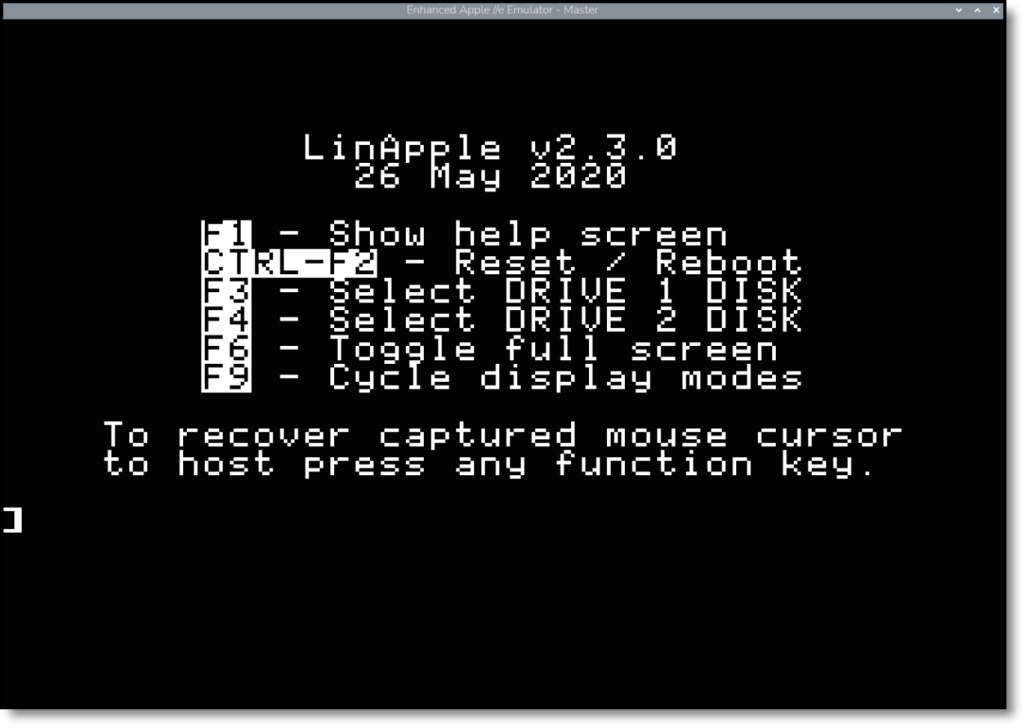
LinApple should open and display the screen shown in Figure 1. If you find that the emulator has taken over control of your mouse, press F1 to release it (this will display the help screen, but you can press F1 again to turn it off). You can toggle full-screen mode with the F6 key.
Here’s a little BASIC program you can try running. You can either type it into the emulator, or you can find the program in the ch03/AppleIIBasicPrograms.dsk file in the GitHub repository. To use the disk image, launch the emulator with linapple --autoboot --d1 AppleIIBasicPrograms.dsk, type LOAD BLOCKMOVE at the ] prompt and press ENTER, then type RUN (and press ENTER).
10 HGR

20 X = 140: Y = 80: D = 3: REM INITIALISE

30 HCOLOR = 3: GOSUB 1000: REM DRAW CUBE

40 REM WAIT FOR AND READ KEYPRESS

50 K = PEEK (- 16384): IF K < 128 THEN 40

60 REM CLEAR STROBE

70 POKE - 16368, 0: K$ = CHR$ (K - 128)

80 HCOLOR = 0: GOSUB 1000: REM ERASE CUBE

90 IF K$ = "W" THEN Y = Y - D

100 IF K$ = "S" THEN Y = Y + D

110 IF K$ = "A" THEN X = X - D

120 IF K$ = "D" THEN X = X + D

130 IF X < 0 THEN X = 0

140 IF X > 272 THEN X = 272

150 IF Y < 0 THEN Y = 0

160 IF Y > 184 THEN Y = 184

170 GOTO 30 : REM BACK TO TOP OF LOOP

1000 REM DRAW CUBE IN CURRENT HCOLOR

1010 HPLOT X, Y TO X + 8, Y TO X + 8, Y + 8 TO X, Y + 8 TO X, Y

1020 RETURN
This will draw a small square on screen. Use the W, A, S, and D keys to move it around the screen. The program is quite simple. It first defines the starting X and Y position, as well as the number of pixels the square should move each time (the variable D). After that, it sets the drawing colour to 3 and calls the subroutine to draw the cube. The program then waits for a key press, and when it has a key press, it clears the keyboard strobe, which is a bit of hardware that indicates when a key press has been read.
After that, the program converts the integer key press value (K) into a string (K$) that contains the character typed. From there, it updates the X and Y position, makes sure the square hasn’t run off-screen, and returns to the top of the loop (line 30).
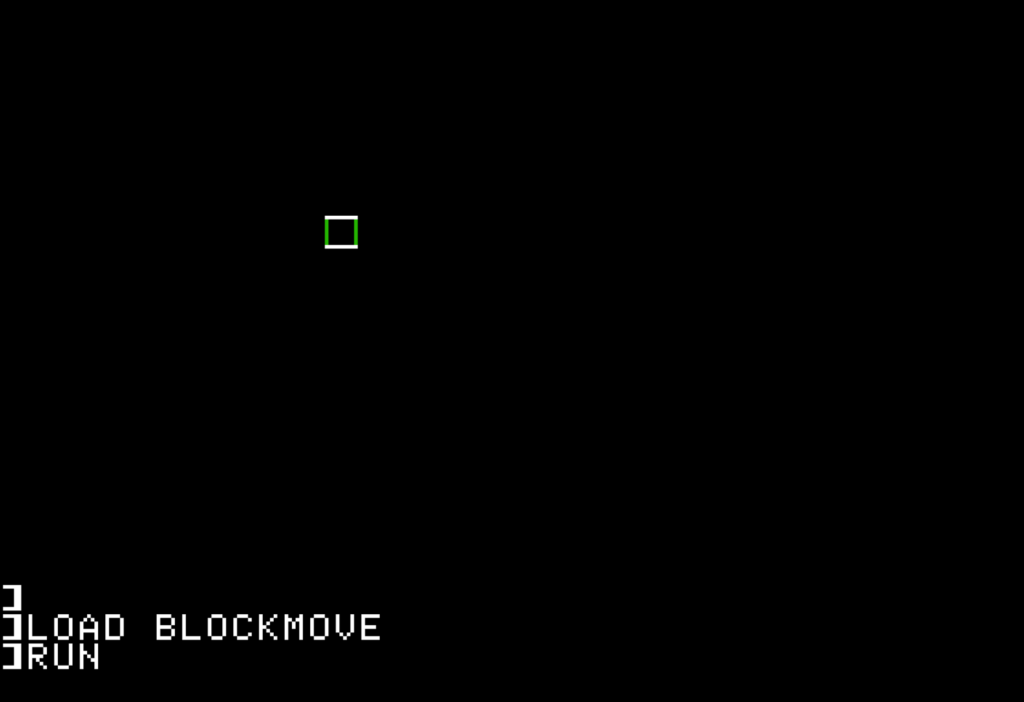
After you type in the program, type RUN followed by ENTER. Try moving the square with the WASD keys, and press CTRL+C when you’re done to exit the program. Figure 2 shows the program in action. Notice that the vertical and horizontal lines are different colours, and that the vertical lines change colour as you move. This is due to the way Apple II graphics work: the Apple II only generates a monochrome display signal, but it uses some signalling tricks to generate colour artefacts. Game programmers could manipulate these artefacts to create colour combinations they wanted.
After you run a graphical program, you’ll only have a small text area below the graphics mode portion of the emulator screen. You can type the TEXT command and press ENTER to return to text-only mode. You’ll also find these commands helpful:
LIST— lists all the lines of the current BASIC program.RUN— runs the current program.NEW— erases the current program and lets you start afresh.CATALOG— lists all files on the disk image.SAVE NAME— saves the current BASIC program under whatever file name you specify.LOAD NAME— loads the program with the specified file name.CTRL+C— use this key combination to stop a running BASIC program.
Apart from CATALOG, these commands only apply to BASIC programs. Many games are binary executable files that don’t include BASIC source.
You can find some fun type-in programs in Lee Fastenau’s collection of short programs. Lee’s programs are intentionally dense, as most are designed to be entered on one or two lines of code. So, take your time typing them in!
Read more like this in The Raspberry Pi Guide to Retro Gaming
This tutorial is part of a series of emulation guides in The Raspberry Pi Guide to Retro Gaming — a definitive guide on how to play your favourite games of yesteryear on a Raspberry Pi. You can also find it in the latest issue of Raspberry Pi Official Magazine.
You can buy a print edition of The Raspberry Pi Guide to Retro Gaming for an introductory price of £9.99 from Raspberry Pi Press, or wherever else books are sold. Contributors can access a free e-book version.

No comments
Jump to the comment form