Raspberry Pi Connect: remote shell access and support for older devices
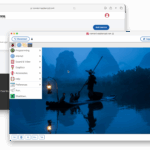
A month and a half ago, we launched Raspberry Pi Connect, giving you simple, remote access to your Raspberry Pi straight out of the box, from anywhere in the world. Since then we’ve been listening to your thoughts on what you’d most like to see from the service: today we’re excited to announce the latest beta release, bringing Raspberry Pi Connect to even more devices.
Today’s release includes remote shell access and support for all Raspberry Pi computers, whether they’re running Raspberry Pi OS 32-bit or 64-bit, going all the way back to the 2012 Raspberry Pi 1. This includes Raspberry Pi OS Lite, as well as versions of Raspberry Pi OS with the desktop.

Remote shell access
The new remote shell feature in Raspberry Pi Connect enables you to launch a shell on your Raspberry Pi device from a web browser, over a secure connection.

This provides access to your Raspberry Pi without a desktop environment, extending support to older devices as well as devices running Raspberry Pi OS Lite. Remote shell access also works much better over low-bandwidth connections than screen sharing, making it a handy option to have.
To get started with remote shell on Raspberry Pi OS Lite, run the following commands:
sudo apt update
sudo apt install rpi-connect-lite
Then, sign in using the rpi-connect command line interface:
rpi-connect signinVisit the verification URL on any device and sign in to link your Raspberry Pi with your Raspberry Pi ID.
Expanded support for Raspberry Pi devices
Starting with today’s release, version 1.2, Raspberry Pi Connect now supports all 32-bit Raspberry Pi computers, as well as 64-bit computers. All devices get remote shell out-of-the-box, and if you use a Wayland compositor, such as Wayfire, you can also share your screen. In practice, this means you can use screen sharing with Raspberry Pi 4 and later models, and remote shell with all models of Raspberry Pi, even the oldest.

We hope this will make it a little bit easier for people to keep older Raspberry Pis in service doing useful stuff. Plenty of remote headless applications, for example, don’t need the performance of Raspberry Pi 4 and 5, but still benefit from straightforward remote access.
We’re looking forward to seeing how people use these new features. If you haven’t dipped your toe into the water yet, our Raspberry Pi Connect documentation has everything you need to get started.

53 comments
André Costa
Can I plant a seed? It would be cool to have remote file transfer through the browser with rpi-connect. Like, downloading time lapse photos from a remote Pi
Raspberry Pi Staff Gordon Hollingworth
We’ve got a huge list of capabilities that we think would be useful. File transfer / file sharing etc. are on the list…
André Costa
Really cool. Can’t wait!
Jeff
Great utility!… Please move file transfer to the top of the dev list. ty
Tom
In the mean time, you can uuencode encode your file, copy and paste it, then uudecode it back to binary again :)
ukscone
shar archives FTW :)
ukscone
The remote shell is the best thing ever. Better even than sliced bread :)
Me
I run a program in my Raspberry Pi5. It takes about 1,5 hours each run. Is it possible to login through Raspberry Pi Connect and execute in the terminal and then log out. Leaving the program to run the full course? As it would if I would start it from within Pi5?
Shift
Take a look at ‘tmux’ or ‘scree’. They allow you to start a session, detach from it, and re-attach. You can also switch between multiple windows within a session, so it pairs very nicely with Connect.
Anders
What happened to nohup &
Am I old fashioned using nohup?
Alastair Stevens
Use ‘screen’, a classic terminal multiplexer. It’s perfect for stuff like this, and part of the standard suite of GNU utilities that you can install on RPi (or any other Linux computer).
Me
Thanks all it works like a charm. Can log in and start the programs and then log out and it all runs as if I would be at the Pi5 physically!
Only one question if I run “sudo shutdown” will I be able to restart it from RPIConnect?
AndrewS
No, once you’ve done “sudo shutdown” the Pi has no kind of remote-wakeup capability.
Raspberry Pi Connect *does* automatically restart after a “sudo reboot” though.
Stuart
Do you have any plans to also offer this for pre-Bookworm installations?
Raspberry Pi Staff Gordon Hollingworth
We’re not going to be moving it to anything earlier. Why aren’t you using bookworm?
Christian
I wanted to show my admiration for Raspberry Pi that does useful things and manages to make them work on all its products and not just the new ones. At this point, in gratitude, I will also buy the only one I do not have yet, the Raspberry Pi 5. Thank you very much!
Chris
Do you know when this will support dual screen’s?
We have a couple of Pi4’s connected to 2 tv’s each around our office and would love to use this to controll them, however we can only see 1 of the displays.
Raspberry Pi Staff Gordon Hollingworth
WayVNC is the underlying server which is taking the screen contents from Wayland and sharing it. But it only works with a single output at a time. The real question is, how would this actually work? Do you want to have two separate windows open? Or a clunky way of switching between the two outputs. The other thing you could do is:
wlr-randr –output HDMI-A-1 –off
Then all your applications will appear in a single window… The other thing you might be able to do is turn off both outputs and open the browser window to be double width so you can recreate your wide view.
Miles Raymond
I would expect in a similar way to other OS where the whole desktop is shared, and scaled accordingly on the client screen.
Knot Eweagain
I’ve been doing some light reading of https://webrtc.org/getting-started/turn-server.
Can you tell me where the config file on the RaspPi is? I haven’t found it yet. I’d prefer my own on prem TURN server.
Thanks.
Raspberry Pi Staff Gordon Hollingworth
We don’t support other TURN servers at the moment.
ShannonU
Does Raspberry Pi Connect only work on Bookworm or newer? I have Bullseye 32bit and the install does not work.
Raspberry Pi Staff Gordon Hollingworth
No, why not install bookworm? Only takes a few minutes with Imager
Shannon Uhlir
Because the program running on my pi 4 only works on Bullseye 32bit. If the updated it then I would.
Anders
It takes more than a few minutes if you are very deep into the setup of your applications and configurations. Would require starting again and rebuilding the whole setup.
DG
Indeed. It’s mad how Raspberry Pi folk think we haven’t installed and configured lots of software on our systems.
Aditya Mitra
So I don’t have to use Dataplicity anymore?? Nice.
In the next versions of RPi Imager, it would be great if there is an option to include provisioning commands that will be automatically run on the RPi when the OS is booted the first time.
Raspberry Pi Staff Gordon Hollingworth
Of course, that’s Tom’s next job!
Alex Robinson
sudo apt install rpi-connect-lite
Reading package lists… Done
Building dependency tree… Done
Reading state information… Done
E: Unable to locate package rpi-connect-lite
Raspberry Pi Staff Paul
Are you running the required Raspberry Pi OS Bookworm?
You can double check by looking for “bookworm” in /etc/os-release:
$ grep bookworm /etc/os-releasePRETTY_NAME="Debian GNU/Linux 12 (bookworm)"
VERSION="12 (bookworm)"
VERSION_CODENAME=bookworm
Will Bonville
Excellent news. Looking forward to being able to install this on my older Pi3b (sudo apt install can’t find the package yet).
Raspberry Pi Staff Paul
Please see my other comment re ensuring you’re running Raspberry Pi OS Bookworm as the package is only available for that version of the operating system.
Will
With rpi-connect installed on my Pi 4, when I ran “sudo apt update
sudo apt install rpi-connect-lite” as recommended, it removed rpi-connect, meaning my Pi 4 could only supply the shell connection. Reinstalling rpi-connect with “sudo apt update && sudo apt install rpi-connect” said it would remove rpi-connect-lite, but after a reboot, the Connect dashboard’s Connect button changed to Connect via, with options for Screen sharing or Remote shell. This is what I wanted, but it’d be good to have a clearer way to get both the screen sharing and remote shell installed and available.
Raspberry Pi Staff Paul
The package “rpi-connect” contains both screen sharing and remote shell access so you only need to install that one package if that’s what you want.
“rpi-connect-lite” is an alternate package if you only want remote shell access and not screen sharing (e.g. if you’re on an older device).
Peter Strong
Only seeing the ‘Remote Shell’ option to connect on remote Pi4 running 64bit Bookworm Desktop. How do I include the ‘Screen Sharing’ option?
Static hostname: MonitorPi
Icon name: computer
Machine ID: f5848dd98ff54e39809ac8e123f6df6a
Boot ID: 1f0617c77e1a4d389802612e91f3468c
Operating System: Debian GNU/Linux 12 (bookworm)
Kernel: Linux 6.6.31+rpt-rpi-v8
Architecture: arm64
Raspberry Pi Staff Gordon Hollingworth
Just install rpi-connect, as Paul noted above, it has both screen sharing and remote shell support.
rpi-connect-lite only supports remote shell
Peter
Checked Connect version and confirmed Wayland is running with
pi@MonitorPi:~ $ rpi-connect version
rpi-connect 1.2.1 (revision c3e97edfe2de418bfeb4032d3d8f2da9b670e549) [arm64]
pi@MonitorPi:~ $ loginctl show-session $(loginctl | grep $(whoami) | awk ‘{print $1}’) -p Type | grep wayland
Type=wayland
Raspberry Pi Staff Gordon Hollingworth
Have you tried:
rpi-connect vnc on
Peter
pi@MonitorPi:~ $ rpi-connect vnc on
✗ Screen sharing support is unavailable
Peter
I have two other RPi’s on the same Connect account that show on my local web browser ‘Devices’ window with ‘Screen Sharing’ alongside them. This third device however just shows with ‘Remote Shell’. All three are running Bookworm 64 bit with Wayland and with the Connect icon in local Desktop taskbar. The dropdown on the Connect icon with only Remote Shell access shows ‘tick – Allow remote shell access’ whereas the Connect icon dropdown on the devices with Desktop show ‘tick – Allow screen sharing’.
When I click on the ‘Connect’ button alongside the devices that have Screen Sharing I am sent to the URL https://connect.raspberrypi.com/devices/01be37f7-cd01-4e15-9c60-e4715a693c0f/screen-sharing-session
When I click on the ‘Connect’ button for the device that only shows ‘Remote Shell’ I am sent to https://connect.raspberrypi.com/devices/626d8fd4-cda4-42fb-a7aa-e446f9eba75d/remote-shell-session.
I have purged rpi-connect and then re-installed rpi-connect on this device with no change to this behaviour. Eeprom firmware is up to date. Mon 15th April.
Raspberry Pi Staff Paul
Hi Peter,
It’d be best to move this to the Raspberry Pi Connect forum where we can run through common troubleshooting and take a look at your logs.
Jonathan Jackson
When I run:
sudo apt install rpi-connect-lite
Reading package lists… Done
Building dependency tree… Done
Reading state information… Done
E: Unable to locate package rpi-connect-lite
If I run: grep bookworm /etc/os-release
PRETTY_NAME=”Raspbian GNU/Linux 12 (bookworm)”
VERSION=”12 (bookworm)”
VERSION_CODENAME=bookworm
As you can see I am on bookworm, could someone help me figure out why this isn’t working.
AndrewS
Did you forget to do “sudo apt update” ?
Jonathan Jackson
Yeah I did that prior to what I posted I just didn’t include it in the post. Any other suggestions?
Raspberry Pi Staff Paul
Hi Jonathan,
Looking at the output from your /etc/os-release, I see it says “Raspbian GNU/Linux 12 (bookworm)” rather than “Debian GNU/Linux 12 (bookworm)” as it does for Raspberry Pi OS (64-bit), are you running a version installed by Imager or from our official images?
The key is that your apt is set to pull Bookworm packages from archive.raspberrypi.com/debian/ (this is typically done with
/etc/apt/sources.list.d/raspi.listby default).Jonathan Jackson
Paul, thank you so much. So my version was from the raspberry pi imager but I did something that wasn’t recommended and I upgraded from buster to bookworm without making a new image. I went into /etc/apt/sources.list.d/raspi.list and it was still set to Buster, I changed it to Bookworm and ran the updates and then I was able to install rpi-connect-lite.
Thank you again,
Scott Valenti
Hello, I upgraded to the latest version and also installed remote shell. I was under the impression I could hit either remote shell and connect but I can only see the remote shell now. Can you not run both?
Scott Valenti
Disregard my last comment the upgrade had to be reinstalled. Thanks
Kieron Rye
Apologies if this question has already been answered.
I understand there is limitations for the zero models.
My question is what pi features of pi connect can we expect to see in a zero if any?
Michael Klontzas
Excuse my ignorance, but apart from the web browser interface, how is that different from using SSH and VNC?
Mathew
After years of trying with various VPN tutorials, i can finally reach my PIs in my network from anywhere! This makes them so so much useful now, it made me dust off my not-used-in-long-time Pi4 & 5 and install on both of them, works like a charm with only few commands! Amazing, thank you so much!
fulburncams
I have just tried to download teh lite cersion of connect and despite updating/upgrading i get eessage
“E: Unable to locate package rpi-connect-lite”
ODBWilson
It won’t work when connecting to Internet using 4G router with prepaid SIM. Any other settings required?
Comments are closed