Learn Python: Make a To-Do List | #MagPiMonday
Keep track of your tasks with a simple to-do list. This #MagPiMonday, Lucy Hattersley explains the basics of Python programming.
Python is an incredibly versatile programming language. It’s great for beginners because it is easy to read and understand, yet Python is also powerful enough for data scientists and AI experts.
While there are many other programming languages out there, and each has its own merits depending on what you’re trying to do, we think Python is the one to start with.

In this tutorial, we’re going to show you how to make a to-do list application in Python. It won’t be the world’s best to-do list. That’s not the point. You’ve made it yourself and will start to understand the fundamental building blocks of programming languages.
Here are some of the concepts we’ll be looking at:
Variables: these are used to store items (in this case our to-dos)
Functions: these are used to quickly repeat code
Conditions: Used to direct code in directions to choose different functions
Loops: Used to repeat code
We will bring this all together in our todo.py code. Let’s get started.
Start by opening Thonny IDE (Raspberry Pi menu > Programming > Thonny). We can write programs in any text editor, but Thonny is very friendly for beginners and lets us take a look at elements of it in closer detail.
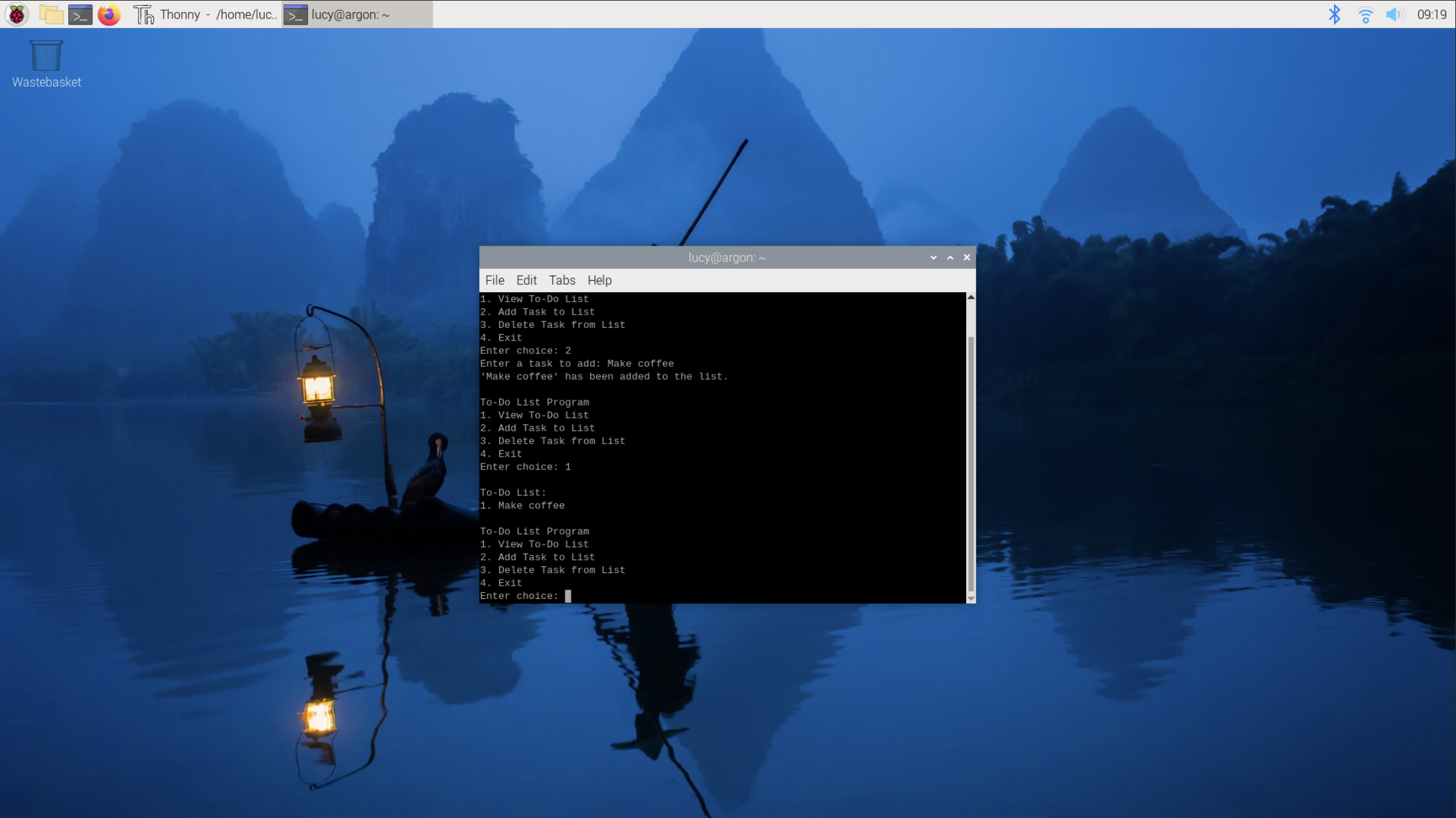
It’s tradition to start any new programming language by displaying the text line “Hello, World!”. Enter the following code into the Code View in the top half of Thonny
print("Hello, World!")We should save this. Click Save and give it the name hello_world.py. The ‘.py’ extension indicates this is a Python program and by convention, all Python file names are lowercase with words separated with underscores.
Click Run and the words “Hello, World!” will appear in the shell below. Congratulations on running your first program!
It’s all variable
A key concept to learn in programming is variables (sometimes called ‘vars’ for short). These are storage containers in your program used to save (and reuse) items. These can be different types: typically numbers, words and Boolean statements. Numbers are known as ‘integers’ or ‘ints’ if they are round numbers, or ‘floats’ if they have a decimal place. And words are called ‘strings’ in computer parlance. Boolean operators are ‘True/False’ statements used in decision-making.
Create a new program called vars.py and enter the following code:
name = "John" # String
age = 30 # Integer
height = 5.9 # Float
student = True # Boolean
print(f"Name: {name}, Age: {age}, Height: {height}m, Student: {student}")
This program has four different types of variables (indicated in the comments). Notice
that our print statement here is more complex than Hello World. It starts with print(f which indicates this is a ‘formatted string literal’ also known as an ‘f-string’. The f itself isn’t printed, but Python now knows that the words inside curly brackets (such as {name} refers to a variable and inserts its value into the output (so {name} becomes ‘john’).
Syntax and indents
When writing out a program it’s important to understand the syntax. This is the structure of the code. Be sure to enter code exactly as you see it, and we find it helps to read our programs from the last line to the first line to check for any errors. If you get any errors read through carefully and fix any problems.
The next thing we’re going to look at is called an indentation. Python programs are often indented with spaces at the start of some lines. These aren’t just to look pretty, they indicate a relationship between a line of code and the following lines.
In Python, it is always blocks of four spaces. Always press the SPACE key four times, never use TAB. If you have more than one layer of indentation you press the SPACE key 8 times, 12 times and so on (it’s generally considered pretty bad to have too much indentation though, as it becomes hard to understand).
Indentation is used to indicate conditional statements, loops, and to define functions. Let’s start with a conditional statement.

It’s a condition
A conditional statement is often called an if/else statement (there is also a third: else-if component). The basic idea is this. If the first line is True, then run the code below that is indented by four lines:
if condition:
   # code to execute if condition is true
Typically if/else statements will has have alternative options. So if condition1 is True then execute the line indented, else run the code indented below instead.
if condition1:
   # code to execute if condition1 is true
else:
   # code to execute if condition1 is false
Let’s put this into practice:
name = "John" # String
student = True # Boolean

if (student == True):
   print(f"Name: {name} is a student!")
else:
   print(f"Name: {name} is not a student!")
Run this code and you will see “Name: John is a student!” The important part here is that the code below the ‘else’ statement is not run. Indentation is how decisions in Python programs are made. Try changing True to False on line 2 and running the program again.
Note the == symbol in (student == True). This is the ‘equality operator’ which checks if the expression evaluates to true.
It’s different to the = symbol in name = "John" and student = True. This single = sign is the ‘assignment operator’ which assigns the value ‘If john’ and True to the variables.
It’s easy to get the two mixed up, so use them carefully.
Let’s create a more complicated decision tree using if, elif and else statements and a comparison operator called ‘less-than’ indicated by a < symbol.
name = "John" # String
age = 23 # Integer

if (age < 16):
    print(f"Name: {name} is under 16!")
elif (age < 25):
    print(f"Name: {name} is under 25!")
else:
    print(f"Name: {name} is over 25!")
Here each line is checking if the age is less than a value. And evaluating to True if the integer in the age variable is less than the integer in the conditional statement.
Play around with the age variable to run the different options.
Loop the loop
Loops are similar in structure to if/else statements and are also indented by four lines. In a loop, however, the indented code is designed to run multiple times based on a condition. There are different types of loops: our To-Do program features a ‘while’ loop which loops indefinitely until a condition is met:
while condition:
  # Block of code to execute
Let’s create a simple countdown program that counts down from 10 to 1 then says “Blast off!”.
counter = 10 # initialize the counter
while counter > 0: # loop as long as the
counter is greater than 0
   print(counter)
   counter -= 1 # decrement the counter
print("Blast off!")
Our To-Do program uses a while True condition with a break statement. This runs the program until we choose to exit. When using while True be careful to allow your program a means to exit, otherwise, you are creating an infinite loop, which sounds cool but is generally considered bad form.

Executive function
The third type of indented code in Python is called a Function. This is a block of reusable code that can be run again and again simply by writing the function name. Think of it like copy and paste for code.
A function is defined using def:
def function_name(parameters):
  # Block of code
You call the function using the function_name command and add any optional items into the brackets. You’ve already seen a function built into Python: print().
When you first entered print(“Hello, World!”) you used print() as a function command and passed “Hello, World” as an argument into the parameters. The print function then outputs “Hello, World” as a string.
The def command lets you create your bespoke functions. Let’s create one that greets the person passed into the parameter:
def greet(name): # name is a parameter
   print(f"Hello, {name}!")
message = greet("Alice") # Alice is an argument
message = greet("John") # John is an argument
Run this code and you will see “Hello, Alice!” and “Hello, John!”. It’s running the same print() command each time but with a different argument.
Wrapping up
There’s a whole lot more to Python and other coding languages but fundamentally it all breaks down into Functions, Loops and Conditions. Re-running the code again and again, slightly differently, and making different decisions based on what is happening.
We hope you enjoy the journey. We love programming and it helps us to think, and problem-solve. These are the foundational building blocks of programming and now you can identify them Python programming will start to open up.
Enter each line of todo.py code carefully and think about what each line does for the program. Run it and if you get an error read your code carefully and adjust the incorrect line. When you have it up and running play around with it.
Download the full code at: magpi.cc/github.
The MagPi #140 out NOW!
You can grab the brand-new issue right now from Tesco, Sainsbury’s, Asda, WHSmith, and other newsagents, including the Raspberry Pi Stores in Cambridge and Leeds. It’s also available at our online store which ships around the world. You can also get it via our app on Android or iOS.
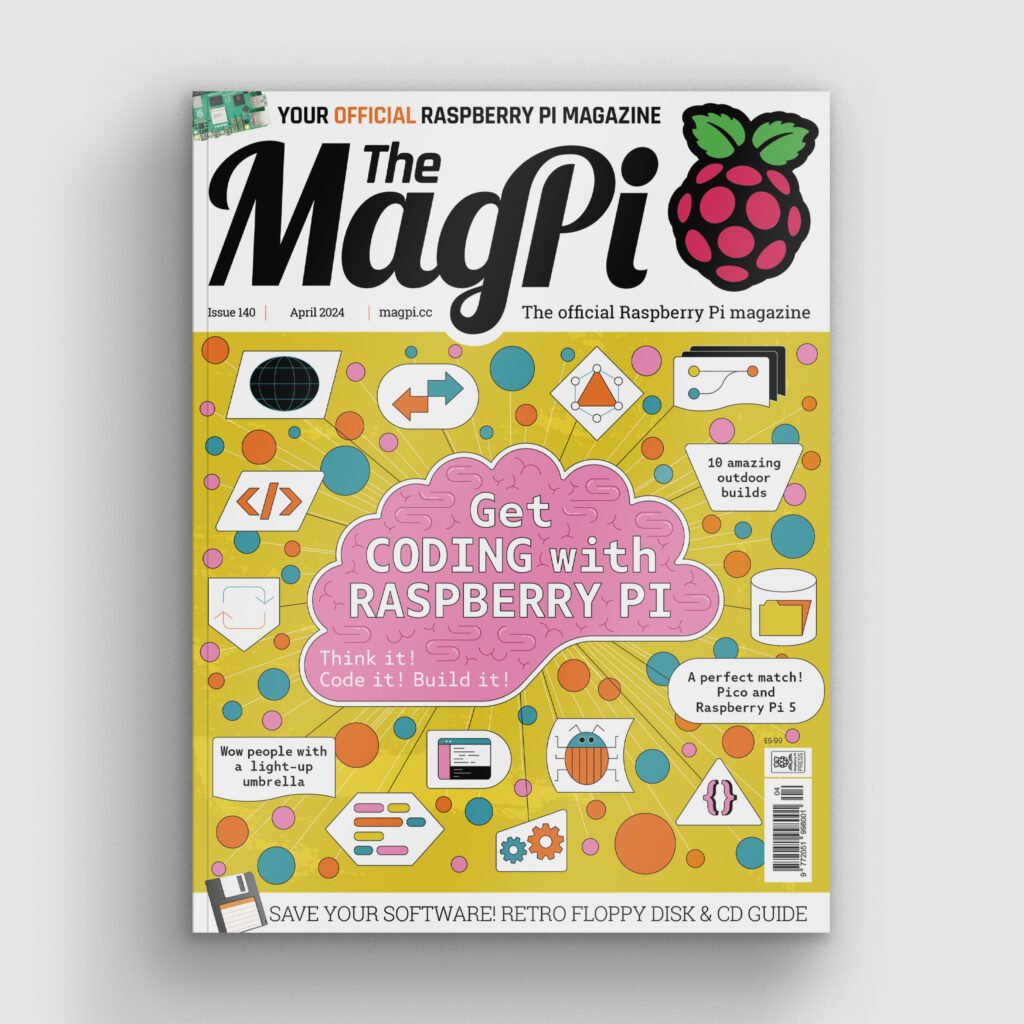
You can also subscribe to the print version of The MagPi. Not only do we deliver it globally, but people who sign up to the six- or twelve-month print subscription get a FREE Raspberry Pi Pico W!

4 comments
Michael Clark
What is he is exactly 25? Shouldn’t the else statement be something like:
print(f”Name: {name} is over 24!”)
or
print(f”Name: {name} is 25 or older!”)
Anders
24 years + x -> 0 seconds is over 24 years.
Christoff Smith
The ‘ToDo list’ python program was a great little example script. We’ve repurposed it as a ‘hero’s inventory’ in a (simple) text adventure. Taught us about the enumerate function for lists too. I’d like to see regular example code and coding features like this in the Magpi. When we lost Wireframe magazine we also lost the fantastic “Source Code” Pygame features. Why can’t that be reinstated in the MagPi?
james walker
I get error messages about syntax on raspberry pi debian and thonny
Comments are closed