A new release of Raspberry Pi OS
labwc – a new Wayland compositor
Today we are releasing a new version of Raspberry Pi OS. This version includes a significant change, albeit one that we hope most people won’t even notice. So we thought we’d better tell you about it to make sure you do…

First, a brief history lesson. Linux desktops, like their Unix predecessors, have for many years used the X Window system. This is the underlying technology which displays the desktop, handles windows, moves the mouse, and all that other stuff that you don’t really think about because it (usually) just works. X is prehistoric in computing terms, serving us well since the early 80s. But after 40 years, cracks are beginning to show in the design of X.
As a result, many Linux distributions are moving to a new windowing technology called Wayland. Wayland has many advantages over X, particularly performance. Under X, two separate applications help draw a window:
- the display server creates windows on the screen and gives applications a place to draw their content
- the window manager positions windows relative to each other and decorates windows with title bars and frames.
Wayland combines these two functions into a single application called the compositor. Applications running on a Wayland system only need to talk to one thing, instead of two, to display a window. As you might imagine, this is a much more efficient way to draw application windows.
Wayland also provides a security advantage. Under X, all applications communicated back and forth with the display server; consequently, any application could observe any other application. Wayland isolates applications at the compositor level, so applications cannot observe each other.
We first started thinking about Wayland at Raspberry Pi around ten years ago; at that time, it was nowhere near ready to use. Over the last few years, we have taken cautious steps towards Wayland. When we released Bullseye back in 2021, we switched to a new X window manager, mutter, which could also be used as a Wayland compositor. We included the option to switch it to Wayland mode to see how it worked.
With the release of Bookworm in 2023, we replaced mutter with a new dedicated Wayland compositor called wayfire and made Wayland the default mode of operation for Raspberry Pi 4 and 5, while continuing to run X on lower-powered models. We spent a lot of time optimising wayfire for Raspberry Pi hardware, but it still didn’t run well enough on older Pis, so we couldn’t switch to it everywhere.
All of this was a learning experience – we learned more about Wayland, how it interacted with our hardware, and what we needed to do to get the best out of it. As we continued to work with wayfire, we realised it was developing in a direction that would make it less compatible with our hardware. At this point, we knew it wasn’t the best choice to provide a good Wayland experience for Raspberry Pis. So we started looking at alternatives.
This search eventually led us to a compositor called labwc. Our initial experiments were encouraging: we were able to use it in Raspberry Pi OS after only a few hours of work. Closer investigation revealed labwc to be a much better fit for the Raspberry Pi graphics hardware than wayfire. We contacted the developers and found that their future direction very much aligned with our own.
labwc is built on top of a system called wlroots, a set of libraries which provide the basic functionality of a Wayland system. wlroots has been developed closely alongside the Wayland protocol. Using wlroots, anyone who wants to write a Wayland compositor doesn’t need to reinvent the wheel; we can take advantage of the experience of those who designed Wayland, since they know it best.
So we made the decision to switch. For most of this year, we have been working on porting labwc to the Raspberry Pi Desktop. This has very much been a collaborative process with the developers of both labwc and wlroots: both have helped us immensely with their support as we contribute features and optimisations needed for our desktop.
After much optimisation for our hardware, we have reached the point where labwc desktops run just as fast as X on older Raspberry Pi models. Today, we make the switch with our latest desktop image: Raspberry Pi Desktop now runs Wayland by default across all models.
When you update an existing installation of Bookworm, you will see a prompt asking to switch to labwc the next time you reboot:

We recommend that most people switch to labwc.
Existing Pi 4 or 5 Bookworm installations running wayfire shouldn’t change in any noticeable way, besides the loss of a couple of animations which we haven’t yet implemented in labwc. Because we will no longer support wayfire with updates on Raspberry Pi OS, it’s best to adopt labwc as soon as possible.
Older Pis that currently use X should also switch to labwc. To ensure backwards compatibility with older applications, labwc includes a library called Xwayland, which provides a virtual X implementation running on top of Wayland. labwc provides this virtual implementation automatically for any application that isn’t compatible with Wayland. With Xwayland, you can continue to use older applications that you rely on while benefiting from the latest security and performance updates.
As with any software update, we cannot possibly test all possible configurations and applications. If you switch to labwc and experience an issue, you can always switch back to X. To do this, open a terminal window and type:
sudo raspi-config This launches the command-line Raspberry Pi Configuration application. Use the arrow keys to select “6 Advanced Options” and hit ‘enter’ to open the menu. Select “A6 Wayland” and choose “W1 X11 Openbox window manager with X11 backend”. Hit ‘escape’ to exit the application; when you restart your device, your desktop should restart with X.
We don’t expect this to be necessary for many people, but the option is there, just in case! Of course, if you prefer to stick with wayfire or X for any reason, the upgrade prompt offers you the option to do so – this is not a compulsory upgrade, just one that we recommend.
Improved touch screen support
While labwc is the biggest change to the OS in this release, it’s not the only one. We have also significantly improved support for using the Desktop with a touch screen. Specifically, Raspberry Pi Desktop now automatically shows and hides the virtual keyboard, and supports right-click and double-click equivalents for touch displays.

This change comes as a result of integrating the Squeekboard virtual keyboard. When the system detects a touch display, the virtual keyboard automatically displays at the bottom of the screen whenever it is possible to enter text. The keyboard also automatically hides when no text entry is possible.
This auto show and hide should work with most applications, but it isn’t supported by everything. For applications which do not support it, you can instead use the keyboard icon at the right end of the taskbar to manually toggle the keyboard on and off.

If you don’t want to use the virtual keyboard with a touch screen, or you want to use it without a touch screen and click on it with the mouse, you can turn it on or off in the Display tab of Raspberry Pi Configuration. The new virtual keyboard only works with labwc; it’s not compatible with wayfire or X.
In addition to the virtual keyboard, we added long press detection on touch screens to generate the equivalent of a right-click with a mouse. You can use this to launch context-sensitive menus anywhere in the taskbar and the file manager.
We also added double-tap detection on touch screens to generate a double-click. While this previously worked on X, it didn’t work in wayfire. Double-tap to double-click is now supported in labwc.
Better Raspberry Pi Connect integration
We’ve had a lot of very positive feedback about Raspberry Pi Connect, our remote access software that allows you to control your Raspberry Pi from any computer anywhere in the world. This release integrates Connect into the Desktop.
By default, you will now see the Connect icon in the taskbar at all times. Previously, this indicated that Connect was running. Now, the icon indicates that Connect is installed and ready to use, but is not necessarily running. Hovering the mouse over the icon brings up a tooltip displaying the current status.

You can now enable or disable Connect directly from the menu which pops up when the icon is clicked. Previously, this was an option in Raspberry Pi Configuration, but that option has been removed. Now, all the options to control Connect live in the icon menu.

If you don’t plan to use Connect, you can uninstall it from Recommended Software, or you can remove the icon from the taskbar by right-clicking the taskbar and choosing “Add / Remove Plugins…”.
Other things
This release includes some other small changes worth mentioning:
- We rewrote the panel application for the taskbar at the top of the screen. In the previous version, even if you removed a plugin from the panel, it remained in memory. Now, when you remove a plugin, the panel never loads it into memory at all. Rather than all the individual plugins being part of a single application, each plugin is now a separate library. The panel only loads the libraries for the plugins that you choose to display on your screen. This won’t make much difference to many people, but can save you a bit of RAM if you remove several plugins. This also makes it easier to develop new plugins, both for us and third parties.
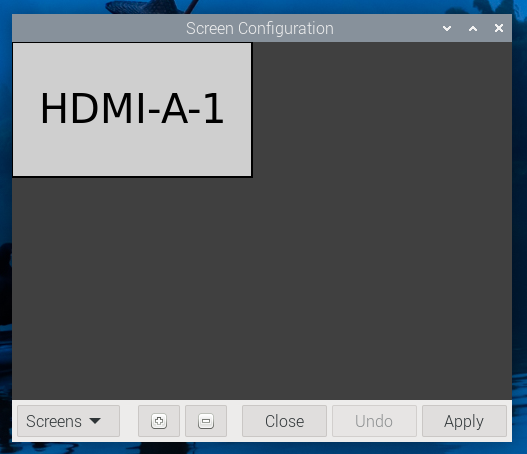
- We introduced a new Screen Configuration tool,
raindrop. This works exactly the same as the old version,arandr, and even looks similar. Under the hood, we rewrote the old application in C to improve support for labwc and touch screens. Because the new tool is native, performance should be snappier! Going forward, we’ll only maintain the new native version.
How to get it
The new release is available today in apt, Raspberry Pi Imager, or as a download from the software page on raspberrypi.com.
Black screen on boot issue (resolved)
We did have some issues on the initial release yesterday, whereby some people found that the switch to labwc caused the desktop to fail to start. Fortunately, the issue has now been fixed. It is safe to update according to the process below, so we have reinstated the update prompt described above.
If you experience problems updating and see a black screen instead of a desktop, there’s a simple fix. At the black screen, press Ctrl + Alt + F2. Authenticate at the prompt and run the following command:
sudo apt install labwcFinally, reboot with sudo reboot. This should restore a working desktop. We apologise to anyone who was affected by this.
To update an existing Raspberry Pi OS Bookworm install to this release, run the following commands:
sudo apt updatesudo apt full-upgradeWhen you next reboot, you will see the prompt described above which offers the switch to labwc.
To switch to the new Screen Configuration tool, run the following commands:
sudo apt purge arandrsudo apt install raindropThe new on-screen keyboard can either be installed from Recommended Software – it’s called Squeekboard – or from the command line with:
sudo apt install squeekboard wfplug-squeekWe hope you like the new desktop experience. Or perhaps more accurately, we hope you won’t notice much difference! As always, your comments are very welcome below.



266 comments
Brian Ward
Unfortunately after upgrading 4 Raspberry Pi 5’s this morning and clicking on the Switch to LabWC button, all 4 Pi’s rebooted and came up with black screens. No was to interact with any on the computers.
Willem
I changed from HDMI-A-1 to HDMI-A-2 and got back the screen. Changed then back once to HDMI-A-1 and there was also the screen. Now I could set the screen preferences as I used to have. Try it this way.
Ben
Can anyone recommend a VNC server that works well on a Raspberry Pi under Wayland? I know that I could use Raspberry Pi Connect, but sometimes I want “raw” VNC :-)
Raspberry Pi Staff Simon Long — post author
wayvnc is already included in the image for use under Wayland – if you enable VNC in Raspberry Pi Configuration, that will be used.
Alec Devlin
Updated the system yesterday Pi P400, no problems with the update seemed to be ok, however I have noticed that the screen blanking doesn’t seem to be working as before. If the system wasn’t used the screen would blank, didn’t make any configuration changes. Any idea what need to be changed or have you seen this issue?
Many Thanks,
Alec.
Raspberry Pi Staff Simon Long — post author
As the saying goes, you will probably need to turn it off and on again! Go into Raspberry Pi Configuration, turn off blanking, reboot, go back into Configuration, turn it back on.
Blanking is controlled by different mechanisms under wayfire and labwc, so you may currently be using the old mechanism.
Alec Devlin
Simon,
Have tried this on both Raspberry Pi P400 and Pi 5 both had the problem with the screen not blanking, carried out the procedure with raspi-config and both system are working fine now. Many Thanks.
Barry Martin
I have been using TigerVNC to remotely run my Wayland Pi’s from my Ubuntu machine. (Remmina for X Pi’s.) I also cheated a bit and used dummy monitors for the headless Pi’s (not sure if still needed).
Might also wish to check NoMachine – I have not run this with any Pi’s yet.
Looking forward to playing with the new compositor!
Oli
Just switched over and now won’t boot, just flashing cursor :-(
Suggest backup first!
mar cro
after this update my raspberry pi 4 is not working anymore , congratulations for this update
mar cro
@Simon Long , do you have solutions for this ?
Raspberry Pi Staff Simon Long — post author
I’m currently trying to repeat the problem.
We tested upgrading from existing systems to labwc internally before the release, and did not see any issues – and I have just double-checked by updating the July release image here, again with no problems – so I am trying to work out what might be different for other users.
Ed
Just updated, switched to labwc, pi now stuck with a flashing cursor in top left of screen.
:-(
Conor O’Neill
Same blinking cursor here on a Pi 4 with a stock install.
I had thought it was the attached Hyperpixel display but I disabled that to no avail.
Console works fine, it’s just the desktop that’s bunched.
Raspberry Pi Staff Simon Long — post author
If you have a working console, can you please try typing “labwc-pi” and see what error messages you get back?
Also – are you running a 32-bit or 64-bit version of RPiOS? Many thanks in advance!
Helen McCall
Dear Simon Long,
Fortunate age and experience made me wait for comments here before upgrading. If you want someone experienced to run some home tests, I am willing and able. I have a Pi5 8GB connected to a Hansspree touch screen. Currently it is running a 64bit image flashed to a Sandisk 64GB card this Summer. I also have a couple of the new Raspberry Pi Class A2 cards which I assume have the 32GB image on (bought from Pi Hut). Let me know if you want me to do any particular tests of this issue.
Helen McCall
Dear Simon, A couple of typos in that message. I meant the new Class A2 cards I assume to have a 32bit image on as supplied by Pi Hut.
Conor O’Neill
labwc-pi gives:
/usr/bin/labwc-pi: 25: exec: /usr/bin/labwc: not found
64-bit version
So ity just looks like the labwc binary is missing. I did a system-wide find but it doesn’t seem to exist.
Raspberry Pi Staff Simon Long — post author
Many thanks – yes, it looks as if the problem is that unless you had the July 24 image, labwc isn’t being installed. We’re getting a fix out now.
Conor O’Neill
Thanks
`sudo apt install labwc`
worked for me
Anders
Wish I’d read these comments before updating. I have now only a tiny blinking underscore cursor top left.
Ray Allen
Looks like it breaks the mouse control with VNC app on iOS, I switched back to Wayfire and its OK again.
Tim
Just wanted to chime in here as well. Upgraded a fairly up-to-date (full-upgrade 2-3 days ago) RPi 5 this morning, rebooted, switched to labwc, and VNC/SSH stopped responding. However after waiting for perhaps 5-10 minutes (way longer than usual boot time), both started working again.
Tim
Subsequent reboots take less than a minute.
Bill Cairns
I run a Pi 3 headless using RealVNC. I got a “Can’t show desktop” error after this upgrade. I got to command line via SSH and ran “sudo raspi-config”. Changed back to X by selecting Advanced Options -> Wayland -> X11. This restored headless access.
William Stevenson
Same here- flashing cursor top left on Hyperpixel screen, same using HDMI. Switched back to X-Windows with Ctrl-Alt-F2 repeatedly, followed by sudo raspi-config, Advanced, Switch to X. labwc-pi gives: /usr/bin/labwc-pi: 25: exec: /usr/bin/labwc: not found
64-bit
dom
If you have issues, read here for a fix:
https://forums.raspberrypi.com/viewtopic.php?t=378527
steven
sudo apt install labwc solved this for me
Archisman Panigrahi
Rotating the screen does not seem to rotate the touch input. I will be happy to report a bug. Where can I do so?
Anton
I’m not sure, perhaps try here:
https://forums.raspberrypi.com/viewforum.php?f=66
Mark
Have been running labwc on my PI5 for a while as conky works better with it.
Just upgraded and rebooted and it was a bit unstable at first, took a few forced power kills and reboots but is fine now.
Gene M
Man this is what I get for accepting something without first reading up on it.
One of the main reasons why I hate updating my Pi’s.
Gene M
Also finding out when i Switch back to X11 and run VNC:
1: The resolution was tiny and everything was set back up to default settings.
2. Any time you right click, or open up a menu, it always opens the menus or dialog boxed in the upper left corner and only shows 4 items at a time meaning you have to scroll to see every option.
I hope there will be fixes coming soon. I am just glad I did this on my test pi rather than any I have out running important tasks.
Helen McCall
Having learnt to program in the ’60s, I have also long held a dislike of upgrading things which work. For this reason my Pi4 is still running Bullseye, and will continue to do so for as long as possible. Bookworm I am only using on Pi5.
Anders
I don’t think zero day exploit was something to worry about in the 60s.
Alastair Stevens
Thanks for the update and the explanation, always very nicely written for people who aren’t experts in display server stacks. I’ve been reading about Wayland for years (and using it) but feel I still have minimal understanding of what it does and why it’s better! Anyway, I’ll upgrade my test Pi 5 later, noting that several people seem to be having teething issues…
Dj Merrill
There are apps that I run that are not compatible with Wayland, and I’ve had to change all of my Rpi 5s to use X11. Please do not remove the option to use X11 in the near to middle future. Thank you.
BaldScientist
The only issue I experienced switching to labwc on my Rasp pi 5 and after rebooting was that the keyboard layout changed from US to UK. So, I could not login becuase some symbols on the number keys changed. But thankfully, it was an easy fix.
Karsten Johansson
I had this problem, too. Go to raspi-config and in the locale settings, add *both* US font sets. It didn’t matter before. Seems now it does.
I have a feeling if the UTF8 font isn’t there, it defaults to the UK font file.
BaldScientist
Thank you, Karsten Johansson!
Archisman Panigrahi
How to enable natural scrolling?
Raspberry Pi Staff Simon Long — post author
You’ll need to edit the libinput section in the rc.xml file in ~/.config/labwc – see https://github.com/labwc/labwc/blob/master/docs/labwc-config.5.scd#libinput
Josh Graff
Is there a way to build `~/.config/labwc` if the install didn’t do it by default?
Raspberry Pi Staff Simon Long — post author
It shouldn’t happen by default – the system defaults will be used. That directory is only created if you change a setting for labwc.
If you really want to, you can just create the directory and copy the contents of /etc/xdg/labwc into it.
Josh Graff
Just for those who get here looking for an answer, seems like labwc will look for an autostart in this folder regardless of if it made it, or if you just put a file in there.
`aka nano ~/.config/labwc/autostart` works just fine.
Raspberry Pi Staff Simon Long — post author
The correct way to add an autostart is to add a .desktop file in /etc/xdg/autostart – this is a FreeDesktop standard and is common across all of X, wayfire and labwc. It’s unwise to use compositor-specific mechanisms for this, as they cause problems in situations like this… ;)
Jeff
In wayfire.ini I had entries in the config
binding_fileman= KEY_E
command_fileman=pcmanfm
to make super open the file manager. The power button config was already in there before I edited so I assume similar is in the xml config files for labwc somewhere. I have a look when I get some time.
Also it was possible to remap caps lock to left ctrl with
[input]
xkb_options=lv3:ralt_switch,ctrl:nocaps
Is a similar thing possible with labwc.
Thanks
William Stevenson
I can’t pretend to understand what happened, but as encouragement to other non-experts I declare that it all seems to be working OK now and as far as I can tell under labwc. The crucial bit is as on my comment above, when you get the BSOD use ctrl-alt-f2, either straight away or while rebooting, switch back to X-Winows in raspi-config, go round a couple of times with apt update and then into raspi-config again, advanced, and there are now 3 options with the bottom one being Wayland with labwc. Worked for me!
Alastair P
Thanks for the article. Will update as soon as the teething problems have been sorted.
A couple of questions:
1. Your post above tells you how to change the display settings with raspi-config but not how to query the current settings. This is also true for many/most of the options, eg I can enable ssh but I can’t check to see if it is already enabled (I personally know how to check that one from the CLI but I don’t know how to check most of the options)
2. RPI Connect is brilliant but I want to connect to my Dad’s Pi and help support a friend. Is there anyway I can connect one Pi to more than one RPI Connect accounts so that 2 people can connect without sharing passwords and hence giving other people access to my Pis?
Thanks
pik33
A few minutes ago I managed to brick my RPi system with this update. Maybe the system was too customized, with Argon One NVMe case and KDE Plasma desktop installed as a default desktop (using Wayland).
Now I have a mouse cursor on a black screen and the Pi dosen’t react to keyboard and mouse.
I will try to clone the system from another Pi with the same configuration, then switch to the standard RPi desktop and try again to upgrade.
Raspberry Pi Staff Simon Long — post author
I suspect your problem is KDE Plasma – I have no idea if the components it uses to draw the desktop are compatible with Wayland, but what you describe – a black screen with a mouse cursor – is exactly what I would expect to happen if they were not.
Edit – just looked it up. KDE appears to depend on the KWin compositor; I suspect it simply won’t work with the labwc compositor. If you want KDE with Wayland, you’ll need to use their compositor, not ours!
pik33
I did a fresh install of the new system, then I installed kde. Works with x11, doesn’t work with Wayland. The same symptom: black screen, mouse cursor, hangup. There is kwin installed, maybe I have to somewhat select it as default
However, on the new system, Plasma seems to works on X without problems I had before (blinking mouse cursor and several other glitches) so maybe I can stay this way. The login screen allows me to use either new labwc desktop or KDE on X
Raspberry Pi Staff Simon Long — post author
It turns out that KDE uses a different version of wayland from that used by labwc, and is not compatible with the version installed by labwc. There is no easy fix for this – using KDE under X is probably your best bet for now.
Brian P. Ward
There are no longer any options to configure networking from the network icon when the system is set Wayfire or LabWC. I can set networking options when the system is set X11. Is there a fix for this?
AndrewS
Thanks for the report Brian, we’re looking into it…
Mark
I having this problem too. Always have problems connecting to my phone hotspot, nmcli and nmtui look like they work so hoping I can use them later when I need to change wifi settings.
Raspberry Pi Staff Simon Long — post author
Yes, that turns out to have been a timing problem in the way the network menu is drawn; now fixed – we’ll have a fix out later today.
Stavros
Best update ever!
Ben
~ $ sudo apt install raindrop
Reading package lists… Done
Building dependency tree… Done
Reading state information… Done
E: Unable to locate package raindrop
🥲
Raspberry Pi Staff Simon Long — post author
Did you do “sudo apt update” first?
Nathan Friedly
I have the same issue:
pi@piprinter:~ $ sudo apt update
Hit:1 http://archive.raspberrypi.org/debian buster InRelease
Hit:2 http://raspbian.raspberrypi.org/raspbian buster InRelease
Reading package lists… Done
Building dependency tree
Reading state information… Done
All packages are up to date.
pi@piprinter:~ $ sudo apt install raindrop
Reading package lists… Done
Building dependency tree
Reading state information… Done
E: Unable to locate package raindrop
DougL
If Wayland was so much more efficient than X Window. System then way didn’t it work with sufficient performance on the lower end rPis?
Ben
Here are some keyboard shortcuts that work with labwc:
alt-tab Activate next window
super-return Launch Alacritty
alt-F3 Open Bemenu
alt-F4 Close window
super-a Toggle maximize
alt-mouse-left Move window
alt-mouse-right Resize window
alt-arrow Move window to edge
super-arrow Resize window to half
alt-space Show window menu
XF86_AudioLowerVolume amixer sset Master 5%-
XF86_AudioRaiseVolume amixer sset Master 5%+
XF86_AudioMute amixer sset Master toggle
XF86_MonBrightnessUp brightnessctl set +10%
XF86_MonBrightnessDown brightnessctl set 10%-
Arav Jain
Loss of animations?!?
I live for animations! Looks like I’m waiting to make the update on my Pi 5 until all are implemented in the new version.
But, otherwise, kudos on the upgrade!
Karsten Johansson
I upgraded a Pi4 and a Pi5. I don’t have a desktop running on the Pi4. Both upgrades were painless. On the Pi5 desktop, things are painted quicker, so overall it feels nice and snappy.
Mike
I’m encountering a few problems. One being that the panel (taskbar) is always on top of fullscreen applications. There doesn’t seem to be a way to change that in the panel configuration. Where’s the proper place to report such issues?
Raspberry Pi Staff Simon Long — post author
If an application fullscreens correctly, the panel hides – see what Geany, VLC or Firefox do. If the panel is not hiding with a full-screened application, that is a problem with the individual application not sending the appropriate fullscreen signals to the compositor, and should be reported to the application authors in question.
Karsten Johansson
I found a completely different issue. Everything seems to work well, but it thinks I have a UK keyboard, even though I don’t, and raspi-config shows that I have it set to US. That’s pretty annoying because I haven’t been able to get the US layout to work.
R
Same here… Solved it by changing layout to anything else and confirm changes, then back to my choice and confirm, finally reboot and tadaa.
Richard Glidden
I just ran into the same issue here. Reset the keyboard to US English in “Keyboard and Mouse” in the desktop. Still stuck acting like UK. Opened a terminal, used raspi-config to change my “Locale” back to en_CA.UTF-8, then edited the keyboard settings to Generic 104-key, English (US), and after exiting raspi-config it seems to be back to normal.
Sure made logging in to some things difficult though when your password has special characters that are no longer on the usual keys!
Karsten Johansson
I figured this one out. Before, it didn’t matter, but now it does. When choosing your character set, you need both the regular one and the utf8 one. I don’t know why this matters now, but simply adding in the UTF8 US font made it work.
Raspberry Pi Staff Simon Long — post author
Can you please check the following files? What does /etc/default/keyboard contain, and what does /etc/xdg/labwc/environment contain?
J.A. Watson
As you have suspected, the problem is in the file
/etc/xdg/labwc/environment, installed during the latest updates specifies layout “gb”, so any other keyboard layout will not be handled correctly, regardless of the contents of /etc/default/keyboard. The simplest way to fix this is to go into Raspberry Pi Configuration and change the keyboard layout to anything other than its current value, and then change it back to whatever it should be.
Editing /etc/xdg/labwc/environment and changing to the correct value also works, but requires a reboot to take effect.
Raspberry Pi Staff Simon Long — post author
We’ve now also modified the update process so any existing keyboard layout should automatically be transferred into labwc, so hopefully anyone updating from now on will find the keyboard setting is already correct.
KeithB
After performing the latest update including labwc and rebooting my Pi4, I now can’t change between wifi and hotspot using the Network icon at top right of screen. I click it and no dropdown of available networks list appears. The other add-in’s appear to work.
R
Same…
Raspberry Pi Staff Simon Long — post author
We’ve found the cause of that – there will be a fix out later on today.
Anders
Seems to be OK now. Left mouse click brings up the menu.
R
Thanks for the quick fix and for all the efforts with Pi OS!
Roman
Similar to KeithB. I can not change wigi. When click on icon on taksbar the dropdown doesnt appear at all.
Milliways
I am confused!
I use Bookworm 64 bit on my 2GB Pi4 and had enabled VNC (which is my normal method of accessing Desktop)
I did an upgrade; enabled labwc the enabled VNC.
Option A6 now shows X11.
Can I use labwc with VNC?
How can I tell (preferably from command line) which Desktop is running?
John
I am running Bookworm on an old surface RT and just upgraded it seems to be working fine at this stage, the only problem I have been having is the wifi disconnects after a while and the only thing I can track it down to is the surface gets hot, they did have that problem with windows 8.1 as well. But the upgrade seems to be working fine.
beta-tester
will TeamViewer work in the new system?
DanyD
I am facing the exact same problem. The dropdown disappared totally but only at the network icon. Thanks for helping
Jeffro
Sounds like this update of lots of giggles!
I think I’ll wait until the “teething issues” are settled, and I hope there aren’t various versions of the “new update” everywhere for download. Just in case, I’ll stick to the official raspberry pi.org site!
I’m sure glad I saw and read this article!
Thanks!
San
Great update! On my touchscreen the keyboard is very small. Is there a way of increasing this size? Thanks a lot four your time :D
Wirrunna
Agree with San – the keyboard keys are too small. My screen is a Waveshare 1920×1200 with screen resolution back to 1280 x 800. Looks like keyboard retains the high resolution so the keys are tiny.
David Jones
I followed the steps under Edit: and it is all working on my Pi 5. A quick look in Task Manager suggests that the software is using fewer CPU and GPU resources when playing Youtube videos. So all good so far.
Gui Bracco
What a missed opportunity to include a “startw” command. 😂
PS: Yeah, yeah, I’ve an alias for that…
karl
I am already using Wayland since months (in a beta Version ? – I assume). How to get to the latest official version in bookworm? Do I need to reinstall or can I upgrade?
Raspberry Pi Staff Simon Long — post author
Just do the upgrade procedure as described – sudo apt update followed by sudo apt full-upgrade, and then switch to labwc when prompted at reboot.
If you are already using labwc, then you won’t see the prompt to switch; no need to do anything else.
Alejandro C.C.
Hi,
Just another guy that changed his Raspberry Pi 4 to labwc and now it doesn’t boot.
Do you recommend to wait for a solution or reinstall another version of OS?
Thank you
Raspberry Pi Staff Simon Long — post author
When you are at the black screen with the flashing cursor, hit Ctrl-Alt-F2, and login at the prompt.
Then do “sudo apt install labwc”, and reboot once it has installed. You should then get back to the desktop.
Alejandro C.C.
Perfect! it worked. Thank you
Marc T.
The raspi-firmware package is installed automatically and depends on sudo
Was that really necessary?
I hope that at least
Defaults rootpw
and removing
010_pi-nopasswd
works without the need to check it after every update…
Josh Graff
The update worked mostly pretty well for me, and I think my use case is a bit unique, so I definitely don’t hold it against the new release; I still want to report in.
I use gstreamer to pipe the raspi camera to a v4l2 loopback device. I’m not an expert at this, but I wanted to use the cam as a webcam for hangouts zoom etc. I got it to work before updating. After I updated, it seems like pipewire is now presenting the cam directly to chrome as an imx708 (I think this might be more related to an update to chrome, but I’m not sure what caused it because io isn’t my strong suit). This would be an awesome update except I can’t control anything about the camera, including orientation, resolution, or focus. RPI5 is strong enough to webcall, adding support for controlling camera settings and plumbing it for use would be a huge boon.
Thanks for your work on this update, too, btw.
David Turner
This is because we recently updated chromium to support libcamera webcams, which it does in preference to v4l2. You should get back the original behaviour (chromium only seeing v4l2 webcams) if you navigate to chrome://flags and disable ‘PipeWire Camera Support’.
Josh Graff
That’s a fantastic update and I’d probably prefer it (as a basically native integration), but it would be really great to have better controls.
Thanks for replying.
David Timmdale
Raspberry Pi OS new release with labwc breaks KDE Plasma
I have a 8Gb Pi 5, running Pi OS with a KDE Plasma desktop.
Its been smooth, quick, and reliable for months.
But after updates last night, it locks during the boot.
Then I find this:
[https://www.raspberrypi.com/news/a-new-release-of-raspberry-pi-os/](https://www.raspberrypi.com/news/a-new-release-of-raspberry-pi-os/)
At the moment I’m selecting Plasma (X) at boot and I’m getting my old, working desktop back.
Selecting the Pi desktop with labwc gives a gnome desktop that only partially works.
Anyone else having the same issue, or a resolution?
OS: Debian GNU/Linux 12 (bookworm) aarch64
,$$P’ \`$$$. Host: Raspberry Pi 5 Model B Rev 1.0
‘,$$P ,ggs. \`$$b: Kernel: 6.6.51+rpt-rpi-v8
\`d$$’ ,$P”‘ . $$$ Uptime: 11 mins
$$P d$’ , $$P Packages: 2461 (dpkg), 4 (snap)
$$: $$. – ,d$$’ Shell: bash 5.2.15
$$; Y$b.\_ \_,d$P’ Resolution: 1360×768
Y$$. \`.\`”Y$$$$P”‘ DE: Plasma 5.27.5
\`$$b “-.\_\_ WM: KWin
\`Y$$ Theme: \[Plasma\], Breeze \[GTK2/3\]
\`Y$$. Icons: \[Plasma\], breeze \[GTK2/3\]
\`$$b. Terminal: lxterminal
\`Y$$b. Terminal Font: Monospace 10
CPU: (4) @ 2.400GHz
Memory: 2541MiB / 7941MiB
Raspberry Pi Staff Simon Long — post author
The version of Wayland used by labwc is not compatible with KDE, which requires an earlier version. This is non-trivial to fix, as it isn’t practical to have two different versions of Wayland installed at once – the best advice for now is that if you use KDE on Wayland, it’s probably best not to upgrade.
Helen McCall
Will this mean that I won’t be able to use any kde applications such as Okular with the new labwc?
Raspberry Pi Staff Simon Long — post author
That depends on whether said KDE applications require any components of KDE itself to run. Some of them will, some of them won’t – the only way is to try the ones you care about.
pik33
KDE can work on top of X instead of wayland (select a session in the login screen) and this is a workaround for the new system. I think we (KDE users) have now wait for a next Debian release that will contain a new version of Plasma desktop
Raspberry Pi Staff Simon Long — post author
Yes, KDE on X is probably the best bet for now.
Helen McCall
Dear Simon Long,
I have now upgraded to labwc and succeeded in a nice fresh install of okular. Okular depends on numerous kde libraries, but is so far working flawlessly with labwc. The touch-screen gestures work nicely, and when I put it into full-screen mode, the taskbar vanishes as it should.
I tried two other e-readers with labwc; Bookworm e-reader, and Calibre. Bookworm e-reader is completely non-functional and had to be purged. Calibre is a bit messy, and non of the touch-screen gestures were working. Hopefully I will be able to use Calibre for downloading bought e-books, and removing the DRM so I can load them into Okular. I am seriously sight impaired, and have long-somce found that Okular is the only reader that works well on all the formats of e-books and docuents I use, and makes it easy for me to make the text easily readable. Your good work on labwc has made my Okular reading experience even better, by providing superb touch-screen control. Thank you to all the team. Helen
S
Another observation about the upgrade. I have 2 pi5s that that I have upgraded today.1has an official display where the upgrade worked ok without intervention and labwc has also fixed a number of window size problems (including Preferences).
The second uses an av:link HDMI Audio extractor powered from usb to give toslink audio. Ever since I used it first, the Acer HDMI monitor has briefly said “invalid input” for a few seconds then displays the correct 1920×1080 60hz picture. Post upgrade the invalid input never goes away. Short term I have replace the av:link device with an HDMi skt to skt adapter and even without rebooting everything is fine, in case someone else hits this.
Longer term I would like my audio back!
I also have a 3b+ 1Gb display (connected but not configured with this SD card) plugged into HDMI and am updating that at present, Its taking a while(!) I will reply if its a problem. All are running freshly imaged 05/2024 Bookworm updated within the last couple of weeks.
S
Further to the above. The display on the 3b is a PIM369 Hyperpixel 4″ Touch, I will try that another time but with HDMI connected, no intervention required. Hope these comments are of use to someone.
S
Further, for the audio afflicted Pi5 I added video=HDMI-A-1:1920×1080@60 to cmdline.txt but that didnt fix it. However on doing the purge arandr and install raindrop (as in the article) as well then setting 1920 1080 60 and reboot – all fine.
Mark Tomlin
It’s worth noting that if you do a remote upgrade over Raspberry Pi Connect, the connection will drop and you will need to reconnect. Thankfully, that happened without issue.
DanyD
Well I dont know if thats the reason but I have 2 new terminals: XTerm AND UXTerm.
Can you please confirm if thats the reason?
Thank you
Raspberry Pi Staff Simon Long — post author
No, that’s nothing to do with this update – no idea where you got those from! Probably pulled in as a dependency of something else you have installed.
Venkat Rahul
The standard keyboard (not the virtual one) is having issues with #, @, ~ symbols but resetting the keyboard resolved this issue. It would be nice if this issue is fixed while rolling out next updates.
Thanks
Lauri Gustafsson
I love it! But when will we get a Mesa version from the current year? There has been plenty of work on v3d, it seems, but Raspberry Pi OS has been on 23.2.1 basically since Bullseye released.
A few issues with labwc, though. I see that raindrop relies on kanshi to apply configuration, which is fine, but the autostarted kanshi (which I see in ps) doesn’t manage to apply my dual display position settings fully until I rerun it manually. The displays are at the same y-coordinate at boot but then go to different y offsets after I run kanshi in a shell.
Sven Galke
if you have enough desktop objects, arrange them automatically – the icons vanish partly below the bottom edge off the screen, filenames no longer visible –
GS
Switched to Labwc. Openoffice didnt like. Task bar disappeared, no option to resize or move the Openoffice window (only X for close showing). Switched back to Wayfire, opened open office & minimized & maximised a few times then swiched back to Labwc and everything is fine – option to move / resize Openoffice and view taskbar as returned.
Now I wonder how quick Wayfire would be without animations.
JZ
keyboard issue prevent me from logging in because my password contain the # symbol. pressing # that have different symbol appearing. Now how do i fix this so i can log in?
Raspberry Pi Staff Simon Long — post author
Use Ctrl-Alt-F2 to open a text console when at the login prompt; login to the text console, which should use your old keyboard layout. Then run raspi-config and use the localisation options to re-select your desired keyboard. Reboot – you should then have your keyboard layout active in the login screen.
Andrew
I used to connect to my Raspberry PI via VNC using Mac Screen Sharing app. After switching to Wayland, it doesn’t work. Using raspi-config to enable VNC says `”The VNC Server is now “”`
Raspberry Pi Staff Simon Long — post author
That sounds like a problem with the installation of the wayland VNC server. Try doing sudo apt install wayvnc, then use raspi-config to disable VNC and then re-enable it.
beta-tester
me too. my RPi 3B+ was running RaspiOS 64bit + VNC headless. after the recent upgrade, i switched remotely to the new lib and then vnc wasn’t able to show the desktop anymore.
via ssh, i disabled vnc and re-enabled it in raspi-config.
then it was working again.
“`sh
$ sudo raspi-config
Removed “/etc/systemd/system/multi-user.target.wants/vncserver-x11-serviced.service”.
Created symlink /etc/systemd/system/multi-user.target.wants/wayvnc.service → /lib/systemd/system/wayvnc.service.
“`
Andrew
Interestingly, since the upgrade, neither Chrome or Firefox recognize/detect a webcam or microphone for use with the web versions of Teams or Skype.
Dante
Hi, sorry if this question has already been answered (I can’t be bothered going through all the comments) but I am wanting to run Bookworm on Raspberry Pi 4 for some time now, but when I tested it once, it was really really laggy and slow. Would this be a better fit for Raspberry Pi 4? Thank in advance, Dante.
Raspberry Pi Staff Simon Long — post author
I’ve had no problem running this release on Pi 4 – no lag that I can detect.
Myles Greber
X Forwarding is not working since the upgrade:
e.g. running
> ssh -X pi_with_labwc xterm
just hangs from the remote machine.
Raspberry Pi Staff Simon Long — post author
I suspect X forwarding only works with a desktop running X, so it isn’t going to work with a Wayland compositor like labwc.
Myles
This is with an desktop running X windows – it worked before the update. Something is wrong with the xauth process with this update.
James
After the update I have selected to keep using X but the lock screen greeter is now a blank light grey background instead of /usr/share/rpd-wallpaper/RPiSystem.png
I customised this image for the lock screen on my RPi5 running Bookworm.
Is there any way to configure the lock screen background after the upgrade?
Raspberry Pi Staff Simon Long — post author
Greeter settings are in /etc/lightdm/pi-greeter.conf – add a line “wallpaper=path-to-desktop-image-file.png”
James
Adding a line to /etc/lightdm/pi-greeter.conf has not had any effect.
The recent update seems to have broken something and causes the lock screen background/wallpaper to fail to display correctly.
Previously, usr/share/rpd-wallpaper/RPiSystem.png would always be the wallpaper on the lock screen when logging in but this is now a blank screen.
This is repeatable across all my RPi systems running Bookworm after the latest update.
Raspberry Pi Staff Simon Long — post author
We deliberately removed the wallpaper from the default configuration in that file, because it clashed with an artefact of the undecorated greeter window. But it certainly worked before I did that, and I am not aware that I changed anything in the code which would result in wallpaper not being displayed if specified in the file.
You may also need to add the line “wallpaper_mode=crop”, thinking about it – does that help?
James
Yes, that has fixed it!
Thank You
pavlo
I switched to labwc. The problem of Black Screen is appearing on XRDP session . I switched back through raspi-config temporarely because must work.
Dante
Thanks Simon!
Lorem
It’s always nice to see new updates for Raspberry Pi Os, I immediately rushed to update everything. The direction it is taking is certainly the most modern one but nevertheless with Wayland I still sometimes find myself disoriented. Many apps that I find interesting and useful cannot work properly such as Flameshot for screenshot or Diodon for the clipboard history, I have not yet tried if screen sharing on Telegram or other apps works. Some of these apps in other DE that also use Wayland can work although I do not understand why. Another thing I do not know how to do is use the fractional scale because, having a 15.6 inch monitor, everything is seen quite small. All this has led me once again to remain X11 where everything works even if I understand that the future is Wayland. I appreciate very much however that the possibility of remaining with X11 is still maintained
Helen McCall
Dear Lorem,
I am seriously sight-impaired, and my testbed Pi5 is connected to a 15.6 inch Hannspree touchscreen. All you have to do to make everything bigger on the screen is to launch raindrop, and select a suitably lower screen resolution. Alternatively you can set the font size, icon size, and cursor size in the display settings. Before a recent operation which gave some improvement to my vision, I was largely blind with only very minimal vision in one eye. At that time, i was still able to set up any monitor in Debian or Raspberry Pi OS so that I could use it.
AxTx
Hi! Thanks for the update. I’m trying to create a touchscreen dashboard for my smart home (with home assistant). Ideally I would like to have chromium in kiosk mode, with no cursor displayed at any time and the possibility to open a virtual keyboard (that stays over chromium) when I tap on a textbox in the displayed web page. So far, I wasn’t able to achieve my goals all at once. Would anyone point me in the right direction?
Steve
I’ve never seen such a tidal wave of problems and incompatibilities with a Pi OS release before. I ran a “sudo apt update” on one of my pi’s, and got a message that almost 1300 packages can be upgraded. No way. This particular computer has been running without a hiccup for over 2 years, and I’m not about to take that kind of chance with it. Honestly, this update isn’t yet ready for public release, and needs to be withdrawn for further refinement. In the future, I think some kind of public beta test would be in order to avoid the kind of widespread failures that I’m seeing on this thread and many others across the Internet.
Raspberry Pi Staff Simon Long — post author
There have been a grand total of four minor issues with this release that I am aware of, all of which have already been fixed – hardly a “tidal wave”.
And if you do indeed have a Pi which requires 1300 packages to be upgraded, then you haven’t been keeping it up to date with regular updates in the intervening two years. Because the current release doesn’t require even a tenth of that number of packages to change.
Steve
Hi Simon, thanks for taking the time to respond, I appreciate it. The machine in question is a 4GB Pi 4 running bullseye. In terms of updates, I actually check for updates every 15 minutes (I have this process automated over all the Pi’s that I have running) and upgrade more or less immediately when new updates appear. If this is unexpected behavior, I’m not sure what I’ve done to elicit that (although there’s always the possibility that I’ve screwed something up along the way).
If I’ve overstated things I apologize, but this has been my experience, and I do see an awful lot of reports of incompatibilities, including this thread. If 1300 packages (1298 to be precise) needing updates is out of line, what would an expected number be? I’ll be happy to investigate on my own if my results are far out of line with expectations.
Raspberry Pi Staff Simon Long — post author
If you are still running bullseye, you are way behind the curve – you won’t even be able to update to labwc without an interim update to bookworm, and we always recommend a clean install on major Debian version updates. If you have indeed updated that machine to now look at a bookworm repo, then I’m not surprised you are being offered 1300 updates – that is an entire Debian major version change, which will touch pretty much every package. Personally, I wouldn’t even try doing that – I would flash a clean copy of the latest bookworm image and start from there. It is technically possible to update across a Debian major version, but we really don’t recommend it.
Pretty much all the problems which have been reported on this particular update have been with people updating, not using a clean image, so if you were to use a clean image then you are unlikely to have too many issues. That said, all the update issues we know about have now been fixed anyway – but if you do try updating from bullseye, please take a backup first, because that is risky – nothing to do with labwc, it’s just something that Debian doesn’t really support that well.
Steve
Thanks again for the response. I fired up a similarly-configured Pi (Pi 4 on bullseye) that has been mothballed for the past couple weeks and tried to update — and got completely different results, with just a handful of packages to upgrade. So clearly the problem is on my end; I will have to delve into this on my own. You’re certainly right about the impracticality of upgrading across major Debian releases — this is a huge weakness of Debian in my opinion, as it discourages updating. Changing major releases effectively means rebuilding an entire installation from the ground up, which can be really time consuming (this, incidentally, is why I’m still running bullseye on several Pis).
Matthias
I would agree to this statement.
After yesterday’s update I had some hiccups, mainly that the RDP session from Windows was not working anymore. After updating again today, this has been resolved.
A big “Thank you” to Simon and everybody else, who is putting effort into this! Very much appreciated.
Helen McCall
I agree with you Matthias. I have been using Debian for my workstations for 29years now. At the turn of the Century, I had a brief sojourn with Ubuntu until an upgrade caused so many hiccups that it took months for them to fix them. This upgrade has had fewer glitches than most other systems get on upgrades, and they have all been solved in one day! Many thanks to Simon and all the team for their superb work.
Raspberry Pi Staff Simon Long — post author
Thank you, Helen and Matthias, for your kind words. This was a very big change to try to manage, and we knew there were going to be a few teething problems that our testing didn’t pick up – as was indeed the case – but we do try our best to keep such issues to a minimum and to fix them promptly when they crop up.
Timothy L Bratton
The new OS version has been a tough install in my RP5. I had to power-cycle several times to get out of black screens. The keyboard had some wrong characters (maybe GB? # was pound-sterling symbol). When I enter labwc-pi in cmd line, screen reports long list of things, then a new desktop window appears with WL-1 at the top. Machine is in error state. Had to do Ctl-C to get back to cmd prompt. What have I got here???
goodvibesonly
How to dual boot with windows11?
Helen McCall
Dear Goodvibesonly,
Dual boots or multiple boots are easily achieved with the Raspberry Pi. Just put each RPi compatible operating system on its own sd card, and switch cards over for the system you want to use. Similarly for when using USB or NVME boot, or booting from the network.
Nilay
Super excited for this new release. Could someone please help to confirm if labwc will allow to set custom resolution in % to resolve overscan issue with wayland when using older CRT televisions for display. Thank you in advance!
Raspberry Pi Staff Simon Long — post author
Unfortunately, overscan setting is an area where Wayland really does not yet have a good solution. There are ideas in the pipeline, and as soon as there is a workable solution, we will implement it – we are aware it is a regression from X, where overscan is supported. But sadly we’re not quite there yet…
Myles
I meant to add that the issue appears to be with the way it is handling the DISPLAY environment variable. The X window is appearing on the server, rather than the client. If xterm is run as “xterm –display=” the xterm window appears on the client. I’ve never seen this before – it is a problem that has been created with this update…
Raspberry Pi Staff Simon Long — post author
The only thing I can think of that we have changed that might affect this is the way we generate an xauth file for use by Xwayland.
Try deleting (or rather moving somewhere safe…) the file /etc/xdg/autostart/xwayauth.desktop, and deleting any ./Xauthority file you currently have.
Nick Camilo
I have a Pi 3B headless using RealVNC and is showing “Can’t show desktop” error after upgrade. Raspberry Pi and SSH work well. Any idea how to make Wayland work with RealVNC viewer?
Thanks.
beta-tester
for me it got fixed by just disable and re re-enable VNC in “sudo raspi-config” from ssh.
Nick Camilo
This worked, thanks.
However is not using RealVNC Server.
Raspberry Pi Staff Simon Long — post author
RealVNC Server is not compatible with Wayland. For Wayland desktops, an alternative VNC server called WayVNC is used instead.
Raspberry Pi Staff Simon Long — post author
Just tried accessing a Pi here running the new software with VNC Viewer (version 7.9.0) with no problems.
Try a clean install of a recent version of VNC Viewer.
Dante
Does the Sense hat emulator work on this version?
Raspberry Pi Staff Simon Long — post author
It hasn’t changed for this version, so if it worked before it should still do so. Last time I tried it I seem to recall there were a few issues with it – no idea if they have been fixed, because it’s not something I maintain.
Robin Becker
I am a longtime openbox user and labwc is supposed to be a wayland clone of openbox. Unfortunately the panel seems to lack an autohide option so although I can probably configure labwc to have a window menu I lack an autohiding panel.
Raspberry Pi Staff Simon Long — post author
The panel is not a part of openbox or labwc – it is a completely separate application called wf-panel-pi.
It does not at present support autohide under labwc.
Robin Becker
I’ve tried a lot of panels with labwc using artix linux and have found some that autohide (perhaps with a non-zero minimal size), but no panels seem to handle wayland and x11 clients equally.
Timothy L Bratton
The new bookworm seems to have settled down in my RP5B. However, after a sudo reboot it is necessary to let the machine sit for at least ten minutes before trying to open some apps. Also, first opening of Chromium browser and command line and file manager and … take 20-30 secs. After that, only 1-3 secs. Is this expected??
Raspberry Pi Staff Simon Long — post author
No, that’s not usual – it sounds as if you may have something else running and chewing CPU in that time. Try running the Task Manager (under Accessories) or “top” from a terminal to see if there is something rogue going on.
Timothy L Bratton
Sudo reboot. Do other things while RP5B/8GB settles. Try to open Task Manager. Takes 20-30 sec for click on raspberry to open drop down list. Task Manager up. CPU/GPU usage in 0-2% range. Click Browser icon. Nothing happens. Nothing going on with CPU/GPU usage. After a few minutes, click Browser icon. Wait. Nothing happens for 20-30 sec, then short burst of CPU/GPU activity and the Chromium window opens.
I will run the whole experiment again with a timer to get some good numbers.
Raspberry Pi Staff Simon Long — post author
What storage medium are you using for the OS? A local SD card or something else?
I’d be inclined to try a new SD card – it may be that yours is worn and slow to access.
Timothy L Bratton
Yes, I use an SD card. Would this slow behavior happen overnight? Do not recall it before labwc install. Will replace SD and see that happens.
BTW – executing pinout on command line is much slower than it was before. We have a pi-info script that uses that command.
Raspberry Pi Staff Simon Long — post author
If something corrupted the card during an install operation or similar then yes, it could happen quickly. There is nothing in labwc itself which ought to be causing this, and yours is the only report of it I have seen.
That said, I have occasionally seen something similar happening with the Pi on my desk at home – unexplained freezes for seconds at a time – but exactly the same software image on exactly the same drive works fine on the identical Pi I have at work; I believe there is an issue with the USB support on the KVM switch I use at home. Whatever this is feels to me like an issue with your hardware somewhere – if something in the software was slowing things down that much, you’d be able to see it in ps or Task Manager or the CPU load plugin. The most likely source is disk access, so I’d check the card.
Timothy L Bratton
Used RPi SD Copier to clone old Samsung EVO Plus 128GB microSD into a new SanDisk Extreme microSDXC 64GB. Made huge difference. Pi boots up in about 2 mins. First opening of Chromium and File Manager are only a few seconds.
Thank you very much for the tip. I’ll pass it along to others here who have performance problems.
Raspberry Pi Staff Simon Long — post author
Excellent – glad my hunch was right!
DanyD
Hello,
Since the upgrade there’s a file generated in my home folder with the name .xsession-errors and it keeps growing like literally every second with the same entries all over, which is:
(wf-panel-pi:1606): LIBDBUSMENU-GLIB-WARNING **: 19:00:57.186: Unable to replace properties on 0: Error getting properties for ID
Can you please help me find a workaround to fix it?
Thank you for your help
Raspberry Pi Staff Simon Long — post author
If you right-click the taskbar, you will see a pop-up menu in which the top entry is “Add / Remove Plugins”.
Try removing each plugin from the taskbar in turn, and see which one is causing the messages – if you remove the plugin which is causing the problem, then the messages should stop, and they should return when you put it back.
That’ll give me a better idea as to where the problem lies.
DanyD
I found the culprit, it was caused by an application called Bluetooth Manager, I replaced the original bluetooth plugin because of its simplicity with that one.
The problem goes away if I turned that on but despite this I would like to stick with the Bluetooth Manager one.
If you have anything on mind to fix this I’d be very grateful.
Raspberry Pi Staff Simon Long — post author
Your best bet is to ask the authors of Bluetooth Manager – see if they have a GitHub repository or similar where you can create an issue. Never having used it myself, I really can’t help!
Timothy L Bratton
Here is the last of several reboot experiments. Results consistent. Did sudo reboot. Wall paper, task bar, and Ethernet were up by four mins after reboot. At seven mins after reboot, I clicked Apps icon. Window opened immediately. Opened Task Manager. CPU/GPU mostly 0%. Clicked Browser icon. CPU/GPU usage was minimal until about 37 seconds, when CPU went to 100% and pretty much stayed there. The Chromium window came up after 57 sec and the address icons appeared 22 seconds after that. Three minutes after I opened Chromium, I clicked File Manager icon. Minimal CPU/GPU until 13 seconds when went to 100%. File Manager opened seven seconds after that. Even with CPU usage 100%, no task in Task Manager shows much CPU usage. Once they have been opened, Chromium and File Manager reopen in less than one second.
Any thoughts?
Raspberry Pi Staff Simon Long — post author
As previously – I’d suggest trying a new SD card. Those symptoms are consistent with a slow card caused by wear or a fault.
Richard
One of the problems with the Rpi’s 3 and 4 is the use of large microSDXC cards. Even when they are the highest speeds possible and meet/exceed the RPi SD card speed test. I have found that on 128 or 256GB cards, as one gets beyond about 50% full, the performance of everything slows down markedly. This has been very frustrating for me, as I usually like to have at least 150GB of files on my Raspberrry Pi 4’s (and now 5’s). In the case of the Rpi4’s, the performance drop is there regardless if I use the 32 bit or 64 bit Raspi OS, all cases 8GB RAM.
I have not seen this problem addressed anywhere.
Roger Whiteley
Sounds like a good reason to use an SSD, I have had micro SD cards go bad and lost everything. Which is a much bigger PITA than backing things up.
Paul Bussman
I had an ALFA Network AWUS036ACS which is an RTL8811AU chipset working prior to this last update and now I will see the dongle listed in the network menu but no SSIDs are showing and when I try a scan in command line it says Resource temporarily unavailable. Has anyone else seen similar?
Dante
Is this faster than Raspberry Pi OS Bullseye, and is this faster than Bullseye on Raspberry Pi 4?
Thanks
Raspberry Pi Staff Simon Long — post author
Performance-wise, I doubt you would see any difference between this and Bullseye on Pi 4 or 5. It’s probably very slightly slower than Bullseye on Pi 3 and below, but not by a significant amount.
Robert
It seems that this new version has broken setting the wireless Lan using the Raspberry Pi imager tool. No matter what I try it won’t set the WiFi correctly and I have to plug in a keyboard and mouse and set it manually
Raspberry Pi Staff Simon Long — post author
That’s very odd – nothing in this release should have changed wi-fi support at all. I’ll raise it with the Imager team.
Andrei
I can confirm I have experienced the same issue
Paul Adam
I updated to labwc 3 or 4 months back in an effort to correct an overscan problem following some forum suggestions (the logical and physical screen sizes don’t match and half the menu and panel are “absent”). It didn’t improve things. Just updated to this iteration of “labwc + raindrop”. It still doesn’t fix overscan . Can you suggest something else to try or can you reassure me a future fix for overscan is in the works (and timescale).
Aside I use a Panasonic 42″ TV as a monitor.
Raspberry Pi Staff Simon Long — post author
Unfortunately, Wayland’s support for overscan is pretty much non-existent. We’ve looked into various ways of getting it to work, but none of them are really satisfactory. There do look to be various things in the pipeline in Wayland which will enable overscan, and as soon as one of them looks like the right solution, we will be adding it, but I’m afraid I can’t give any idea when that might be.
Believe me, I am as frustrated about this as you are, as it is the one serious functional regression involved in moving from X to Wayland, and I’d really like to get it working. Be assured it is definitely on the to-do list, but for now, if you need overscan support, you’ll have to switch back to X.
Paul Adam
Thank you for the update. A follow up Q
Will there be a announcement when an overscan solution is found for wayland and here should I look at for this ?
Even with all its teething problems I’ll try to stick with wayland/labwc for now
I consider the improved performance (especially for SBC like the Pi ) and security in inherent in the design worth the inconvenience of the poor cosmetics. People forget how poor Xorg cosmetics were back in the day. Slackware 1.1.2 display setup (screen size & resolution) was a nightmare!
Raspberry Pi Staff Simon Long — post author
We probably woulnd’t make a specific announcement for overscan support. Keep an eye on the Display tab of Raspberry Pi Configuration after updates – that’s where the overscan switch is for X, so we’d almost certainly put it in the same place for Wayland.
Andrew
Dear Simon,
I followed the update instructions as given above. When I now SSH into my Pi 4 I can start tigervncserver as usual. However when I the use tigerviewer to access the Pi 4 I just get a black screen, with non-of the former Desktop task bars or icons. Could you please advise what I need to do to see the proper Desktop again. I enabled LabWC as proposed. Clear steps would be helpfull to help get me running again. Many thanks and best regards.
Raspberry Pi Staff Simon Long — post author
I’ve never used tigervncserver, but from your description, it sounds as if it doesn’t support Wayland. (Due to the security model of Wayland, X VNC clients cannot access the screen, so they don’t work.)
We already include a built-in Wayland-compatible VNC server, wayvnc – instead of trying to start tigervncserver, just do sudo raspi-config from the command line, choose option 3, Interface options, and then option I3, VNC – that will enable wayvnc.
Andrew
Dear Simon,
I tried what you proposed…and it worked perfectly!!
I will use wayvnc from now onwards.
Best regards,
Andrew
John Lowry
I have stuck with X because I can’t deal with control and caps lock in their default locations. Is there a way to switch them now, like there is in X?
Raspberry Pi Staff Simon Long — post author
Assuming you are using an XKB option to change the location of those keys, then such options will also be accepted by the Wayland compositor. If your keyboard configuration with such key swap options is in /etc/default/keyboard, then doing “sudo raspi-config nonint update_labwc_keyboard” at the command line should copy the same options into the labwc configuration file.
If you are not using XKB to do this, then – pass, no idea, I’m afraid – that would then require some specific Wayland keyboard-remapping code somewhere.
John Lowry
I’ve been using the xmodmap hack:
cat <<EOF | xmodmap –
remove Lock = Caps_Lock
add Control = Caps_Lock
keysym Caps_Lock = Control_L
keycode 135 = Control_R NoSymbol Control_R
add control = Control_R
EOF
I don't know about xkbd. I'll have to research it. But so far I've not seen any advantages to wayland. Sooner or later I'll probably have to adopt it. I looked long and hard for a caps/control switcher when I started with RPi 5. If someone has a way to do it and is reading this, that would help :-).
Tobias
Unfortunately, trying to invert the screen orientation on my RPi 7″ touchscreen display (RPi 3B with 32-bit Raspi OS) leads to an instant crash of the desktop manager, and it won’t start again until I delete the .config/kanshi/config file. But then the screen orientation isn’t rotated :(
I’m happy to help by providing log files if someone can tell me where to send them or file the bug report.
Raspberry Pi Staff Simon Long — post author
We’ve not seen that, and have tested quite extensively with that display. Could you please raise an issue at https://github.com/raspberrypi/bookworm-feedback ? Many thanks.
Deez NutZ
Like many others here who are wary of upgrading, I’m afraid that starting with Bookworm it seems that everything has been a solution looking for a problem. Absolutely loved my RPis but Bookworm is where problems started. Wayland and labwc are atrocious.
My Bullseye Pis have always worked without a single problem. Why has RaspberryPi followed others (looking at you M$) in releasing OSs that aren’t wanted or cause more problems than they fix?
What used to be a simple SBC has turned into a monstrosity that no longer serves simplicity.
Ugh.
Helen McCall
Dear Deez Nutz,
Debian and the Raspberry Pi OS are completely unlike “other OSs”. The update to labwc is left to the user’s choice, not forced on the user. Also unlike “other OSs”. the update is easily reversible by going into raspi-config and selecting either X11, wayfire, or labwc. If you are intent upon using the Raspberry Pi as just a “simple SBC” then you can keep it simple by just using the official setup which will work with superb simplicity with all three of these choices. I first built myself a linux competer thirty years ago, out of lots of bits of a diverse set of broken computers and other broken equipment being thrown out by my laboratory. The only distros I could find were Ygdrazil and Slackware. These had to be very slowly bootstrapped onto my diy monstrosity, and the kernel carefully patched with customised drivers and re-compiled to get everything working properly. The launch of the first version of Debian was a welcome relief from the horrors of Ygdrazil and Slackware. That first DIY Linux computor I built used components fro a whole range of broken devices including; a Kontron Image Analyser, a Silicon Graphics Iris, a 286 PC, a 386 PC, a Rank Xerox device I can’t remember the name of, all built into an old IBM case with thick heavy steel walls. I think this qualifies me to state that the Raspberry Pi 5 is wonderfully simple to set-up and use.
Yongdong Lee
In the end, I don’t think it’s strange for you to think that way.
However, the ‘Bullseye’ that you say is ‘definitely stable’ is also one of the points reached in the process of this development.
The efforts of developers who always try to lead the OS in a slightly better direction are applauded, and if you no longer want additional performance improvements, scalability improvements, or convenience upgrades, you can stay with the existing version. That is the user’s choice and right.
On the other hand, of course, there is no problem if the developer does nothing more. Nevertheless, the efforts to meet the more demands and needs of many users should be sufficiently applauded.
Dale Steele
I’ve updated my Pi 400 to Wayland and haven’t seen any problems. I thought I’d experiment with Connect but can’t get it to show on my menu bar. I’ve tried reboots and moving it around without success. I see a few items flash by for a bit but then everything returns to the items I had selected before.
Thanks, Dale
Richard
Please, please, please update the Rasberry Pi Desktop for PC and Mac and allocate some resources to do this! It is now a complete version behind and as you can see, is only 32 bit and worse yet, the release date of July 1, 2022 is more than TWO YEARS OUTDATED! I can not even get the repository to properly update any longer it is so old. There are many of us that use the RPi 4 and 5 as daily machines, but when we do have to go to a Windows (or Mac) machine, we want to run an identical (RPi OS) environment, as much as possible. For example, it is very useful to be able to switch back and forth between (nearly) identical file and software environments when the need arises to have to use an X86 PC, (for pulling old files off of PC hard drives for instance using the RPi x86 desktop, etc.)
By not updating the x86 and Mac Raspberry Pi desktop, for more than two full years now, you are hindering the spread of the Raspberry Pi OS to others, who would like to try it first on a PC or Mac, without having to buy an Rpi. (which are getting more and more expensive when you factor in the all the extra things you need now, higher wattage power supply, case with active cooler, microHDMI/HDMI cable adapter(s). These all add up to well over $100 US, which used to be only $35 for the RPi3 and prior. Most of us have legacy Pc’s, often several of them, and want to be able to give them a new lease on life by running the RaspiOS for PC and Mac. That way we can have lots of “Rpi’s” that can connect and talk to each other!! Also note, the X86 and Mac version of the Rpi desktop is so old, it does not even have the new Wayland window manager. Still runs on X Windows!!
Please, please, please update the Raspi Desktop for PC and Mac, and at least get it on the same Debian version as the main RPi OS. Which it used to be no more than about 6 months to a year behind at most.
—————————————————————————————–
Debian Bullseye (NOT BOOKWORM!) with Raspberry Pi Desktop
Release date: July 1st 2022
System: 32-bit (SHOULD BE 64 BIT BY NOW!!)
Kernel version: 5.10
Debian version: 11 (bullseye)
————————————————
Raspberry Pi Staff Simon Long — post author
I completely understand your frustration, and I would really like to have updated the x86 Desktop long before now, but we simply have not had the time to do so; we have a finite amount of development resource, and a very long list of things to do, and supporting Pi hardware is always the priority. It is still on the to-do list…
Richard
Simon,
Thank-you for responding and letting us know that it is at least on the “to do” list. I wanted you to know that there are many of us who DO use and depend on being able to use the Raspi X86 desktop, and would certainly like to be able to use the latest version of Debian with Raspi X86 Desktop, and 64 bit OS (currently it is only 32 bit). I have a couple of older PC’s currently running the 2 year old version of the X86 Raspi Desktop that I would like to run Raspberry Connect on in order to be able to access a Pi5 that is running Home Assistant, (in the same house on the same local network) as a way to remotely access the Home Assistant, (by accessing remote network thru the x86’s running Raspi X86 desktops, without having to go thru a commercial service to do so. This is a very useful possibility of using the raspi-connect, since I have a number of projects where I need to be able to access remote sensing data acquired by Raspi running Home Assistant at locations anywhere around the world.
Seriously, with all the financial success of the Rpi’s around the world, surely they can increase your development staff in order to keep the x86 (and mac) versions of the Raspberry Pi at least within 6 months of the latest release of the RPi OS. 64 bits, wayland windowing system, and compatibility with Raspberry Pi Connect would go a long way towards making the X86 Raspberry Pi desktop much more useful. Currently it is becoming less and less useful with each passing month that goes by without any updates to it. It is hard to sell students and others on Raspberry Pi Hardware without having X86 and Mac support to do many, many things. Having this kind of environment “compatibility” is a very big plus, because many of us are forced to deal with Windows OS machines, even though they are becoming more and more distasteful in the software subscription model for Office 365. I would like to run all our laptops and desktop machines, new and old, on Raspberry Pi Desktop for X86. I have been using Rpi4/8GB for my daily computer for the last several years. Got 2x Pi5’s a few months ago, and got home assistant up and running on the Pi5 tonight. Now I need to remote access it. Looks like I will have to dedicate another Pi4/Pi5 with Raspberry Connect to try to access it from anywhere in the world. I would rather use existing PC’s running Raspi X86 desktop for this task. Hope you can convince the PTB management of the need for extra development staff for you.
Somchai Y.
According to the comment we should start an autostart in /etc/xdg/autostart, could we start a python GUI script in KIOSK mode with this way? Or should it be done with other setup?
Raspberry Pi Staff Simon Long — post author
That would work for starting a Python GUI, yes.
Somchai Y.
Thank you for your reply. However, it seems like the GUI program starts in full desktop environment. Is there some setting equal to .config/wayfire.ini that we could add “[core] plugins = autostart hide-cursor” to start the program in KIOSK mode in labwc? Thank you.
T L
I need to hide the mouse pointer too. I installed hideaway, but it only works when restarting udevmon until the mouse is moved or screen is touched then it is back.
Neil Thomas
Just enabled labwc on my rPi4 which I normally access remotely via VNC. OK, it kicked me out of VNC but then when I tried to access the pi directly with a usb keyboard and mouse and connected monitor, the mouse and keyboard won’t connect so I effectively have no access to the device. I cannot undo the switch and will have to rebuild the rPi. Not happy at all. Need to be able to access all my rPis remotely and VNC was the ONLY system that worked flawlessly. Tried connect early on and couldn’t transfer files between my host MAC and the rPi. As far as I can see this whole Wayland ‘upgrade’ has been a fiasco. Will now have to set about rebuilding the rPi to an older version.
Neil Thimas
Doing a rebuild has enabled me to use both VNC and Connect so disregard previous comment. However, my mouse is still a bit flaky even with new batteries!!
Helen McCall
Dear Neil,
Since the Raspberry Pi mouse does not use batteries, I can only assume you are referring to a different kind of mouse attached to some unspecified VNC host machine. If so, then your mouse being a bit flaky might be caused by a lot of factors unconnected with the Pi. One obvious factor would be whether you are using wired ethernet to connect, or whether you are using WiFi. If using WiFi, your performance will be limited not just by the traffic on your own network, but also by other networks operating on the same frequency nearby. If you are doing something like streaming video over WiFi, you won’t notice the number of dropped packages caused by interference, because of the buffering of the video stream. However mouse signals need a less buffered and more realtime communication, and so you will notice dropped packages much more. This is just one of the possible causes of your flaky mouse you might want to examine.
Derk
It looks like the menu bar cannot be hidden anymore using Labwc, under Labwc all those Xorg-type menu options are gone. Also the mouse cannot be hidden? We used uncluttered for this when Xorg was used. Could it be that Labwc /wayland is not nearly completed? I feel like alot is skipped, but those settings are just as important as all others.
Helen McCall
Dear Derk,
Somewhere in all the hundreds of comments above, is a comment by Simon Long dealing with this very issue. Simon explains that services such as the Taskbar are supplied by a seperate package (can’t think of the name myself). Look up that comment to get the names of the packages concerned, and then send those package mainteiners the requests to update their packages to work fully with labwc. The same package is used for Openbox, wayfire, and labwc. We are all just waiting for those packages to update their services so that they all work on labwc. When they have done this, labwc will look and feel just like Openbox.
Raspberry Pi Staff Simon Long — post author
If you want to permanently hide the menu bar, just kill the process – pkill wf-panel-pi.
Florian Sommer
After killing the taskbar, it is gone for maybe 2 seconds, then re-appearing.
Is there a better working solution like an ever-running script killing it every second?
Matthew J Packwood
Did the repositories for “raindrop, squeekboard & wfplug-squeek” get pulled?
Raspberry Pi Staff Simon Long — post author
Sorry – had forgotten to make a couple public. Squeekboard is third-party – we didn’t write it – so we don’t have a repo for it ourselves; the only changes we have made to upstream have been in the installation process.
Matthew (Matt) Packwood
How do I install them? The instructions above lead to errors (package not found).
Raspberry Pi Staff Simon Long — post author
Make sure you did the sudo apt update first. And you’ll need to be running bookworm; they aren’t available on bullseye or earlier.
If it still doesn’t work, then your apt configuration has become corrupt – copy the contents of /etc/apt from a clean image and try again.
David F.
I’ve noticed an apparent bug when attempting to drag-copy a file from one desktop window to another. When I click on a file icon and start to drag it, a standard contextual menu appears even though I did not right-click. Also, and more troubling, the cursor changes to the file icon and will not change back even when switching to different applications. Also, the drag-copy is not successful – no copy or move occurs when trying to drop the file into a different desktop window. This behavior is consistent on three different 8GB Raspberry Pi 5s, two that were upgraded and one with a fresh 22-Oct OS installation.
Raspberry Pi Staff Simon Long — post author
Odd – can’t repeat that here. By drag-copy, you mean dragging while holding down Ctrl, yes? Is there anything unusual about your setup, or have you installed anything which might affect this?
It’s possible that something has changed in the file manager as a side effect of enabling some of the touch gesture support, and this sounds like it could be related, but it doesn’t seem to happen for me.
Raspberry Pi Staff Simon Long — post author
Ah – to misquote Steve Jobs, you’re holding it for too long!
You need to start dragging as soon as you have clicked the icon. If you click and hold without moving the icon, the gesture recogniser for long hold on a touch screen is triggered, which then simulates a right-click.
If this causes you problems, you can disable the touch recognisers for the file manager – edit the file ~/.config/libfm/libfm.config, and change the line gestures_touch_only=0 to gestures_touch_only=1, and reboot.
I’ll see if I can do anything to make this less sensitive.
David F.
Thank you for the helpful reply. By “drag-copy” I mean left-click on a file (without pressing the control key) and dragging. I am running all three rPi 5s headless via wayvnc server and RealVNC Viewer client. I’ll let you know how editing libfm.config works. I’ll also see how “grab and run” (clicking on the file and immediately dragging it – or even clicking while moving the cursor over the file icon) works.
Everything else works very well. Thanks!
Raspberry Pi Staff Simon Long — post author
I’ve added a fix for this this morning – if you update in the next day or so, it should work properly with no need to change the libfm config.
Milliways
Should be ~/.config/libfm/libfm.conf
Scott
I’m having an issue with labwc that I did not experience with wayfire. I’m using wlr-randr in cron to turn on and off the video/monitors while using Chromium in kiosk mode. Once the video/monitors complete a cycle (off, then back on later) Chromium goes from maximized/full screen to a small window on the desktop. In wayfire, it would stay maximized/full screen when the video cycles on and off. Any suggestions?
Raspberry Pi Staff Simon Long — post author
Directly calling wlr-randr isn’t the way to go in labwc – there is a tool called kanshi which is used to set display resolution, which provides a lot more control over the way things work. You need to set profiles in the file ~/.config/kanshi/config – see https://git.sr.ht/~emersion/kanshi for the documentation.
Also bear in mind that because we are running kanshi to control resolution, it will be overriding what changes you make with wlr-randr anyway, which is probably what is causing your particular problem. You may find that just killing the kanshi process makes wlr-randr behave more predictably.
Scott
If I can use Kanshi to do the same thing I do with:
/usr/bin/wlr-randr –output HDMI-A-1 –off
Then, I am fine with that. I’ll check the documentation you referenced.
Scott
I think you might be able to help me with this. I’ve been troubleshooting this further and I get the same result if I just power off my monitor and power it back on. Chromium goes from full-screen / maximized to a resized smaller window. You should be able to reproduce this by using the labwc autostart file to start chromium with the flags –start-fullscreen –start-maximized –kiosk
Raspberry Pi Staff Simon Long — post author
I’ve just tried this here – with Chromium full-screened, power-cycling my monitor makes no difference; it remains full-screened when the monitor is powered back up.
Your monitor or something else in your system may be doing something strange, because it works for me.
Scott
May I ask if you are using a Pi 5? I didn’t have the issue when I tested this by building on a 4B, only when I rebuilt the Pi 5 with the new configuration.
Raspberry Pi Staff Simon Long — post author
Yes, I’m using a 5.
Derk
I also have the same issue when autostart is used for chromium. It does seem like there is some kind of race condition where chromium starts before the screen is rotated and therefore doesn’t know the correct display size.
Derk
If you set the display to rotated (90degree) on wayland (labwc) via the display settings then the screen will be auto-rotated. Is this saved to kanshi ? And how come chromium becomes small even after it’s set to –kiosk and –start-fullscreen ? It looks like the display is not set before the desktop comes online?
Simon Radford
Is it possible to control the location of new windows.
My python application creates a group of matplotlib windows to display data as it is acquired. Every 15 minutes or so, the application restarts with new data. With X11, new windows are created at (mostly) empty parts of the screen so they (mostly) don’t overlap and the data are visible. With Labwc, new windows are all created at the center of the screen, so they all pile up on top of each other and the data are obscured. With Wayfire, there was (limited) control of new window position in wayfire.ini. Can labwc be configured to replicate the X11 behavior for new windows. Manual window positioning is not realistic.
Raspberry Pi Staff Simon Long — post author
Not at present, but this is being added to a future release of labwc.
Tahar
Got a strange problem….
When I start my Pi with touchscreen I can move the mouse but cannot click, when I start a VNC connection clicking will work again…. what could be wrong?
Eric Richards
I noticed it when I could not turn off the WiFi at my request like I do with wayfire
le gall
Bonjour, suite à la nouvelle installation de debian 12″ release octobre 2024″ sur mon Raspberry pi 4B 4Go, je n’arrive plus à activer le pavé numérique au démarrage. j’ai installé numlockx, rien à faire; ensuite j’ai créé le fichier wayfire.ini dans “~/.config/wayfire.ini” pour insérer la ligne suivante :
“kb_numlock_default_state = true”
toujours rien; avez vous une idée pour ce petit souci.
Merci d’avance
PLG49
Sven Galke
the latest update w/ lxinput and/or raspberry-pi-ui-mods breaks x11 desktop: windows are no longer movable/resizeable/ closable !!
version 1.20241104 of rasberry-pi-ui-mods and version 0.3.5-1+rpt24 of lxinput are ok. next version breaks x11 desktop.
how can i revert to the versins befoer uptate?
Raspberry Pi Staff Simon Long — post author
Neither of those changes can affect the X11 desktop. The change to ui-mods only affects a config file for labwc which isn’t even loaded by the desktop when it is running X, and the changes to lxinput make no difference to its output files.
Whatever is breaking your desktop cannot be related to those two changes, so reverting the version of either will not help.
Erik Fazzim
Using my rpi5 (headless), configured with labwc.
Success: VNC via Guacamole
Failure: RDP via Guacamole (black screen) like all the messages mentioned above. I may have to switch back to X11 or wayfire for this, since RDP worked fine before,
dams
est ce que quelqu’un sait comment eteindre et allumer la sortie HDMI avant j’utilisais la commande
WAYLAND_DISPLAY=”wayland-1″ /usr/bin/wlr-randr –output HDMI-A-1 –off
Anthony King
No problem trying Labwc out, but it’s just not good enough. Task switching is extremely important to a desktop user. I can’t make out the tiny text on a 32″ 1080p screen at 8ft, so rely on the icons when ALT-TABbing. These don’t appear with Labwc, so it’s just not usable.
Why is there not some way to set this desktop behaviour – like with a tab in Raspberry Pi Configuration or Appearance Settings? Adding in the icons and letting me enlarge the text would be stupendously helpful.
Helen McCall
Dear Anthony King,
I am seriously visually impaired, and have found it particularly easy with labwc on RPi5, to setup any of my monitors to be easily and comfortably read. I will detail the process below, but you might find doing the setup is easier if you sit a little closer than 8ft to your monitor.
1: Press the Applications Menu Button (with raspberry on it) on the task bar.
2: Select Preferences–>Screen Configuration
3: At bottom-left of the configuration window is a button marked “Screens”. Press this button and hover your cursor over the monitor you want to setup.
4: Select Resolution–>[choose a suitably lower screen resolution of the same aspect ratio].
5: Press “Apply” button on bottom-right of configuration window.
6: The preview will start at the resolution selected, with an acceptance window displayed for a few seconds. If the screen looks readable and the web browser icon on the taskbar is round and not oval; press the bottom-right button on the acceptance window to set the resolution.
6b: If the web browser icon is oval, it means that you have selected the wrong aspect ratio, and so will have to do your sums again, and select a more appropriate resolution.
7: After setting the screen resolution, you should be able to read the word “Close” on the middle-bottom button on the configuration window. If you can read it, press it. If you can’t read it, select a lower resolution till you can read the “Close” on the button.
8: Good idea now to reboot your Pi before proceeding.
9; Right-Click on the desktop, to get menu, and select Desktop Preferences.
10: In Desktop Preferences select Taskbar–>Size–>Very Large to get a really big Taskbar with really big icons.
11: Select System–>Font to select a suitably large font size which will be for the taskbar and for all the messages etc.
12: Press “OK” button when done, and reboot Pi.
Teun
After updating, kiosk mode does not work anymore. (I recently followed this tutorial: https://www.raspberrypi.com/tutorials/how-to-use-a-raspberry-pi-in-kiosk-mode/ can confirm it works, up to the moment a sudo apt upgrade is performed.
Manually running the wayfire.ini script throws out “failed to create X11 backend”. Is this related to the update mentioned here, and is an update to the kiosk tutorial necessary? :)
sergiorb
Great new feature. Switched Labwc. Works perfectly on all displays except the 10.1” Hamtysan touchscreen. The keyboard keys are barely visible. I suppose that in future versions the virtual keyboard can be resized. Thanks.
Frank
Hi, thanks for the post.
I had an pi2 switched to labwc => it works, but what no worked anymore is the autostart I did.
on that pi I setup autostart to launch chromium Browser after a few seconds.
Do you know how to adapt?
Best frank
Josh Graff
A generic USB touchscreen was working great with the update until a few days ago, I believe in connection to a upgrade of the installed packages. Now, LabWC doesn’t use any of the touch features and presents a cursor where the touch input is registered. Wayfire and X11 still work fine with the touchscreen.
Is there a way to force LabWC to recognize the touchscreen? Is it even LabWC that manages this? Where should this bug be reported if not here?
Thanks for your help in advance.
Helen McCall
Dear Josh,
My touchscreen also stopped functioning, except for putting a cursor where my finger touches. It happened after an update of labwc. Someone has broken the compositor!
Helen McCall
Actually some functions work but others such as magnifying things don’t work anymore.
Matt
Hi,
You may be interested in the following bug ticket I’ve created https://github.com/labwc/labwc/discussions/2373
Are you using an official RPI screen, or third party?
Thanks
Kevin Morgan
A few months ago I came across my old Raspberry Pi Model B Revison 2 that I hadn’t powered on for a decade and decided to see if it still worked. The SD card with
NOOBS on it had died so I decided to install and try the 2024-07-04 32bit version of Bookworm. I had the same issue as described here when labwc was activated: the
screen went blank just before it should have displayed the logon splash screen. But the reason was not the same as given here. I’ve spent the last few weeks trying
to analyse the problem, and apologise before hand for any uninformed or naive questions I ask in the following, I’m not out to waste anybodies time. Let me say that
this is a great product: I’ve spent money on things that did not work as well as this, and you don’t get the credit you deserve.
I’ve been trying to get labwc to display on a circa 1990’s CRT TV, that supports PAL and NTSC, through the composite RCA output connected via a scart adapter. I
thought the blank screen might indicate that labwc was defaulting to a display mode not supported by the TV, which was part of the problem I encountered when trying
X11 and Wayfire, in which I was successful. So I assumed the logon splash screen was there, I just couldn’t see it. So, by use of what I expected to be displayed and
the activity LED, I logged on, opened a terminal window and dumped the output of kmsprint, xrandr and wlr-randr to a text file. I then switched to tty1, logged on
and viewed the contents of the file:-
kmsprint output:-
Connector 0 (32) HDMI-A-1 (disconnected)
Encoder 0 (31) TMDS
Connector 1 (51) Composite-1 (unknown)
Encoder 1 (50) TVDAC
xrandr output:-
Screen 0: minimum 16 x 16, current 720 x 288, maximum 32767 x 32767
XWAYLAND0 connected 720×288+0+0 (normal left inverted right x axis y axis) 0mm x 0mm
720×288 48.64*+
320×240 50.00
320×200 47.17
wlr-randr output:-
NOOP-1 “Headless output 2”
Enabled: yes
Modes:
720×288 px, 50.080002 Hz (current)
Position: 0,0
Transform: normal
Scale: 1.000000
N.B. Don’t worry about the resolution in the above, I was experimenting with setting it in ‘~/.config/kanshi/config’, to see if it helped solve the problem.
I then plugged in a display that supported HDMI via the HDMI port, waited for OS to detect it and switch the output of the tty to the New Display. Did a ctr-alt-F8 and labwc windows were displayed on the New Display. Output for the above 3 under these circumstances:-
kmsprint output:-
Connector 0 (32) HDMI-A-1 (connected)
Encoder 0 (31) TMDS
Crtc 3 (106) 720×[email protected] 27.000 720/12/64/68/- 576/5/5/39/- 50 (50.00) U|D 16:9
Plane 3 (95) fb-id: 328 (crtcs: 3) 0,0 720×576 -> 0,0 720×576 (XR24 AR24 AB24 XB24 RG16 BG16 AR15 XR15 RG24 BG24 YU16 YV16 YU24 YV24 YU12 YV12 NV12 NV21 NV16 NV61 RGB8 BGR8 XR12 AR12 XB12 AB12 BX12 BA12 RX12 RA12)
FB 328 720×576 XR24
Plane 23 (316) fb-id: 333 (crtcs: 3) 0,0 64×64 -> 4,400 64×64 (XR24 AR24 AB24 XB24 RG16 BG16 AR15 XR15 RG24 BG24 YU16 YV16 YU24 YV24 YU12 YV12 NV12 NV21 NV16 NV61 RGB8 BGR8 XR12 AR12 XB12 AB12 BX12 BA12 RX12 RA12)
FB 333 64×64 AR24
Connector 1 (51) Composite-1 (unknown)
Encoder 1 (50) TVDAC
xrandr output:-
Screen 0: minimum 16 x 16, current 720 x 576, maximum 32767 x 32767
XWAYLAND1 connected 720×576+0+0 (normal left inverted right x axis y axis) 1280mm x 720mm
720×576 49.62*+
640×480 49.67
320×240 47.50
720×480 49.96
640×400 49.70
320×200 47.17
720×400 49.63
640×350 49.52
wlr-randr output (edited highlights):-
HDMI-A-1
Physical size: 1280×720 mm
Enabled: yes
Modes:
720×576 px, 50.000000 Hz (current)
1280×720 px, 50.000000 Hz (preferred)
Position: 0,0
Transform: normal
Scale: 1.000000
When I run ‘arandr’ under labwc, there is no ‘Composite-1’ listed under ‘Screen’, as there is with X11 and Wayfire.
Questions:-
1). Why is labwc on ctr-alt-F8 and the ‘flashing cursor’ on ctr-alt-F7 where as the opposite is true for X11 and Wayfire ?
2). I read some correspondance somewhere by the authors of Wayland, that seemed to give the impression that ‘Interlaced Display Modes Grandad ! Progressive is the now and future !’. So, as I don’t seem to be able to set the cli display mode, via a ‘video’ statement, for the HDMI, in ‘cmdline.txt’, to ‘480i’, ‘576i or ‘1080i’, without it changing it to ‘480p’, ‘576p’ or ‘1080p’, respectively; and, there are no Interlaced Display Modes listed by ‘wlr-randr’ under labwc; I take it that Wayland, and hence labwc, does not support them ?
3). Can anyone provide me with a link to an explanation as to what all the numbers output by ‘kmsprint’ indicate (I’ve figured out some of them, but not all) ?
4). Will a Composite output ever be supported by labwc (If question 2). is true you could still output the progressive modes 720×[email protected] and 720×[email protected], I’m sure there is someone in the world who would find a use for this, even if I cannot think of one off hand) ?
5). I have not yet installed ‘Raindrop’, but, if I did, and uninstalled ‘arandr’, would it work with X11 and Wayfire ?
6). Can ‘Raindrop’ and ‘arandr’ coexist on the same OS ?
7). With a view to questions 2). and 4). will ‘Raindrop’ support an equivalent to a ‘Composite-1’ screen, if it was implemented ?
8). Will ‘wlr-randr’ ever have an option like ‘xrandr’s ‘–newmode’ to define your own modes ?
9). I created Interlaced Display Modes using ‘xrandr’ and added them to ‘XWAYLAND0’ but this seems to be an emulated output and did not materially affect any outputs, also the last digit of ‘XWAYLAND0’ seems to change each time I unplug and plug the HDMI cable, what is this for ?
10). In X11 and Wayfire (cannot test in labwc for reasons already mentioned), if I use ‘arandr’ to flick between ‘Composite-1’@576i and ‘HDMI-A-1’@576p screens (making one first inactive before activating the other), then, after 2 or more cycles, the picture on the ‘Composite-1’ CRT TV loses its colour and most of the time goes out of sync, as if its trying to display a mode it cannot quite support. This also happens when the OS is booted up in Console mode and the HDMI cable is
continually unplugged and then plugged in. I don’t think this is a problem with my CRT TV as it also happens when I use an AV input on the New Display that supports
‘RCA Video’ and ‘Component’. This could possibly be a fault with my old hardware. Any comments welcome.
11). I can change the Display Mode of labwc by changing the appropriate entry in the ‘~/.config/kanshi/config’ file, but this does not change the Display Mode for the logon splash screen; whereas, ‘arandr’ changes both to the one set by the user. Where does the logon splash screen (created by the lightDM service ???) get its Display mode from ?
Thanks in advance, I have already learned more about linux display modes than I think is healthy for a human being to know.
Helen McCall
Hello Kevin,
Simon Long doesn’t seem to be answering our questions now. I suspect this means he is fully committed to working on the new version of labwc for the soon to be released Trixie OS. Hopefully he will be reading our comments here so he can try to get all these emerging issues fixed in the new version. So I think we will just have to be patient and wait for the release of Trixie.
Kevin Morgan
Hello Helen,
no problem at all. Talented people are always in demand !
Helen McCall
Yes Kevin. The Raspberry Pi Team are superbly talented, and get on with the job very efficiently.
Biast12
For some reason does my Samba shared folder not work after this update, i can’t connect to it at all now, anyone know what i could do to fix it without doing back?
Unknown
With that new update on RPi5 my bluetooth keyboard now randomly inputs more characters than I’m typing. That was extremely frustrating to go back and revert due to having a runaway keyboard.
Unknown
Another issue I forgot to mention is when dragging to drop files into a new folder all the open folders disappear and reverts back to the desktop.
Attila Sztraka
Sorry i wasn’t exactly clear on my topic. I try here my best.
I need to know how can I autostart with labwc a Webbrowser. Wich file to edit and how.
Anthony
I used to use the below command line options to turn the HDMI output on/off on schedule when using WAYLAND or X11 compositor:
X11:
/usr/bin/xrandr –output HDMI-1 –off
/usr/bin/xrandr –output HDMI-1 –mode “1920×1080”
WAYLAND:
/usr/bin/wlr-randr –output HDMI-A-1 –off
/usr/bin/wlr-randr –output HDMI-A-1 –on –mode “1920×1080, 60.000000”
I’ve got the new raindrop tool installed now and switched to the new Labwc compositor. Can someone please tell me what the equivalent command-line options are with the new raindrop tool for turning the hdmi output on and off?
Jordan Duggan
We have devices running remotely in Kiosk mode. During evaluation, we discovered that this update automatically takes over resolution management and changes the display settings even before someone manually press the dialog button to accept the change to Labwc. How do you prevent Labwc, raindrop, and the other updates from automatically being applied during a dist update? If this update is automatically applied, what is the procedure for fully reverting to the previous configuration?
Florian Sommer
Is there a way to deactive the right click on touchscreens?
elik745i
Unfortunatelly my multitouch screen stopped working properly, couldnt dragscroll pages or zoom when I upgraded to LABWC, Im using DELL 24″ LCD with touchscreen (touch driver LGD AIT Toych controller). I revert everything back to Wayfire through raspi-config.
Thomas Alborough
So X *was* complex and and Wayland is currently, apparently not.
I would say the testing approach needs a shift.
Tom Alborough
Chetan Kunte
Is there a way to trigger screen lock using a keyboard shortcut? (`dmtool lock` in Terminal seems to work; is this the correct way to lock screen? I use this when stepping away from my desk.)
Ali Choudhry
I installed this update in November and ran into this issue. However, I did not have the time to troubleshoot it then. Has there been any solutions since this time?
Matteo Lucarelli
I was expecting a better interaction with the RP1 which could advantage the raspberry over any other mini PC. Also a better c++ support of the camera would be appreciated
Comments are closed